

Customize app settings in Salesforce
On this page
The majority of StoreConnect functions are available in the StoreConnect Console area, but you can also customize navigation menus to access frequent functions more quickly.
Re-order applications
Customize the order in which your applications are displayed.
- Open the App Launcher.
- Click the three lines on the app and drag it into the position you want.
Customize the StoreConnect menu
Add frequently used pages to the StoreConnect menu where you can easily access them.
-
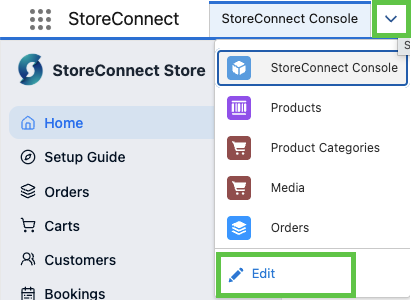
In StoreConnect, select the dropdown arrow next to the main navigation menu, then click Edit.
-
Select Add more items to add additional pages and functions to the menu.
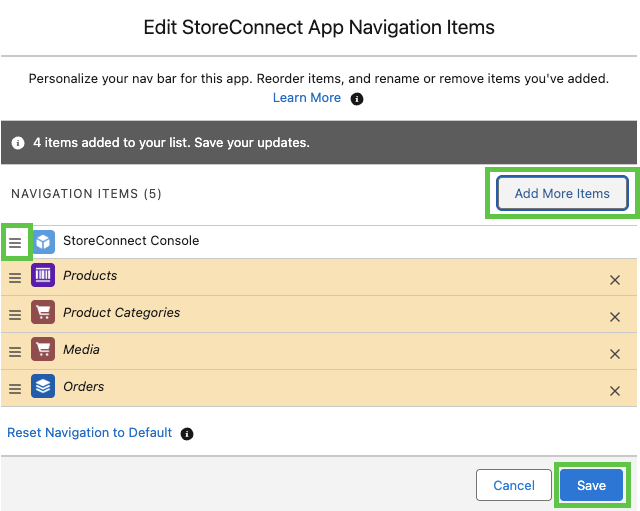
- Re-order the menu list by clicking and dragging the items up and down the list.
- Select Save.
Customize the StoreConnect CMS menu
If you use the StoreConnect CMS app, you can also edit the shortcut menu. It works very similar to the procedure above.
- Open the StoreConnect CMS.
-
Open the shortcut menu and selet Edit.
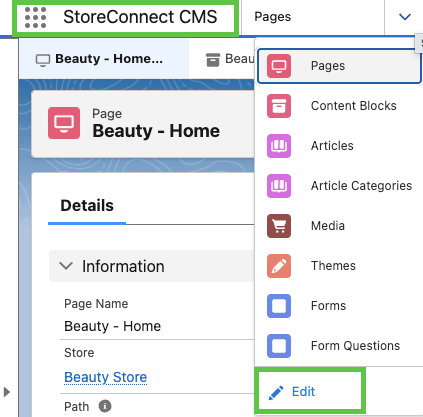
- Add and move menu items, then **Save.
Was this article helpful?
Thanks for your feedback! It helps us improve our docs.