

Set your store domain and go live
On this page
Use this process to take your store live on your own domain. A new StoreConnect site starts on a default domain that looks like 00d9n000002gtaryam-454af23e.storeconnect.app. That address stays accessible afterward and is useful for testing new features or building additional stores.
Before you begin
- If the domain is not yet in use, connect it first. You need a Web Domain record with a Status of Success. See connect a domain to StoreConnect for that setup, including the DNS records.
- If the domain currently serves a live website, do these steps before you change DNS at your provider, not after. Follow the “Switching a live site to StoreConnect” section of that article instead, because it also covers the other records you must update at the same time.
- Complete the steps in order. Setting the domain before test mode is off means customers can reach a store that cannot take live payments.
:::warning Step 2 turns off test mode, which makes the store take real payments from real customers. Only do it when you are ready to trade. :::
Step 1: Set the domain on the Store record
- Open the Store record you want to take live.
- Enter your domain in the Store Domain Name field. Use the exact domain from your Web Domain record, with no
https://and no trailing/. For example:www.my-store.commy-store.comstore.my-store.com
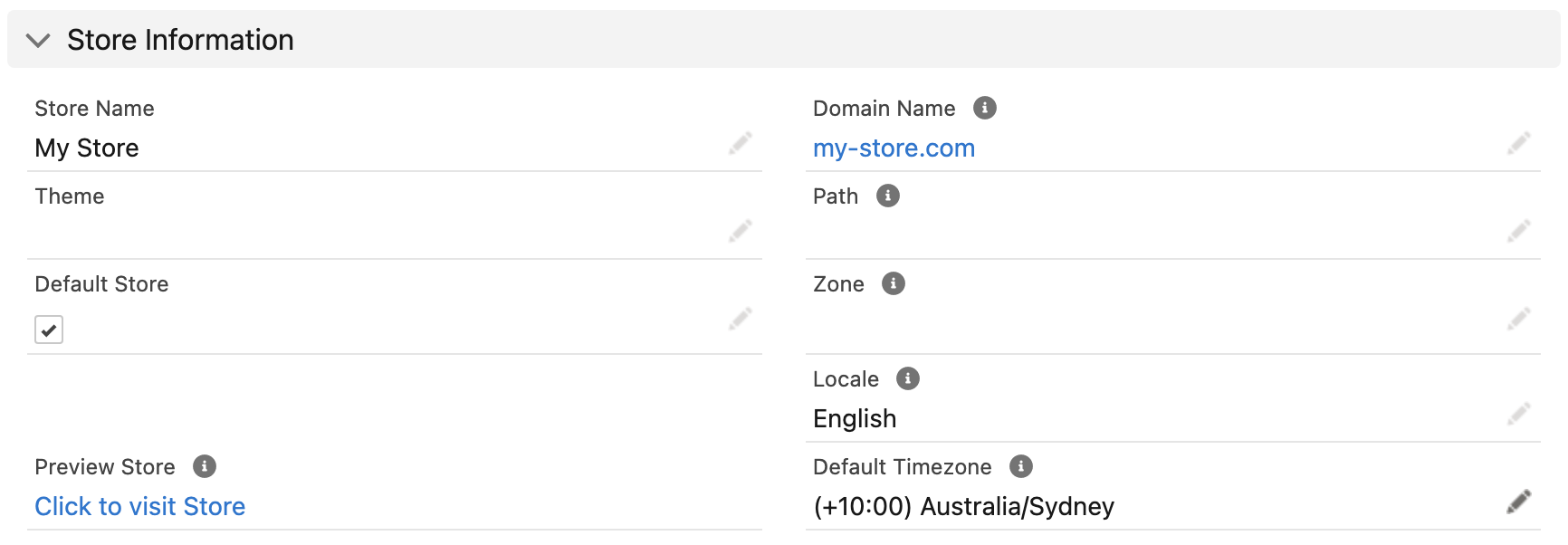
- Save the record.
This domain becomes your primary domain. It is used for your Google Merchant Feed, Facebook Catalog Feed, sitemap, robots.txt file, and all canonical and social metadata links in your store header.
:::tip
If you have connected both an apex domain (my-store.com) and a subdomain (www.my-store.com), set the one you want customers to use as the primary domain here. Traffic to the other domain redirects to the primary automatically with a 301 redirect. Contact support if you need that redirect turned off.
:::
Step 2: Turn off test mode
- On the Store record, go to the Modes section.
- Clear the Enable Test Mode checkbox.
- Save the record.
Test mode must be off before your store can process live transactions.
Step 3: Confirm the store is live
- Open your domain in a browser and check that the storefront loads over
https://with a valid certificate and no browser warning. - Confirm the address bar shows your primary domain. If you connected a second domain, open that one too and check it redirects to the primary.
- Place a small real order to confirm payments complete now that test mode is off, then refund it.
Troubleshooting
SSL_UNRECOGNIZED_NAME_ALERT
If your DNS records did not propagate quickly enough after the Web Domain record was activated, SSL certificate provisioning may have timed out. Contact support to restart the process.
Preview links still open the old or staging domain
The Preview on Site link on Product, Page, and Article records is built from the Site Base URL setting, not from the Store Domain Name on the Store record. If it still opens a sandbox, staging, or storeconnect.app address after you go live, update the setting:
- Go to Setup > Custom Metadata Types > StoreConnect Setting and click Manage Records.
- Open Site Base URL and set Setting to your live domain, including the scheme, for example
https://www.my-store.com. Do not add a trailing slash, because the preview formulas supply the leading slash themselves. - Save the record.
The preview links are formula fields, so they use the new value as soon as you reload the record. To read the current value without editing it, see Test store.
The Preview URL on a Content Change works the other way around. It uses the Store Domain Name on the change’s originating Store record, and falls back to Site Base URL only when that store has no domain set. Correct the store’s Store Domain Name to fix that link.
Two things to know before you change Site Base URL:
- New stores inherit it. A Store record created with Store Domain Name left blank is given the Site Base URL value as its domain. Once the setting points at your live domain, any test store you create afterward is reachable on that public domain. Set Store Domain Name on the test store yourself if you want it kept off the live host. Existing stores keep the domain they already have.
- The setup wizard overwrites it. Running the StoreConnect setup again replaces the value with the install address, so re-apply your live domain afterward.
Was this article helpful?
Thanks for your feedback! It helps us improve our docs.