

Quick install and basic setup
On this page
Use this process to install the StoreConnect managed package from AppExchange and run the setup guide that configures your first store.
Before you begin
- You need Salesforce administrator permission to install managed packages.
- If your Salesforce org pre-dates 2023, check that Lightning Web Security is enabled first. Installation fails without it.
- You do not need an existing Salesforce org. You are prompted to create one during installation if you have none.
Step 1: Install the package
- Go to the StoreConnect listing on the Salesforce AppExchange, and sign in to your Salesforce account if you have one.
- Select Get it Now. You are prompted to sign up for a Salesforce org if you do not have one.
- Follow the installation prompts.
- Confirm the install succeeded: the StoreConnect Console app is available in your org and opens without error.
Step 2: Run the setup guide
- Open the StoreConnect Console.
- Go to Setup Guide.
-
Work through each step to configure your store basics.
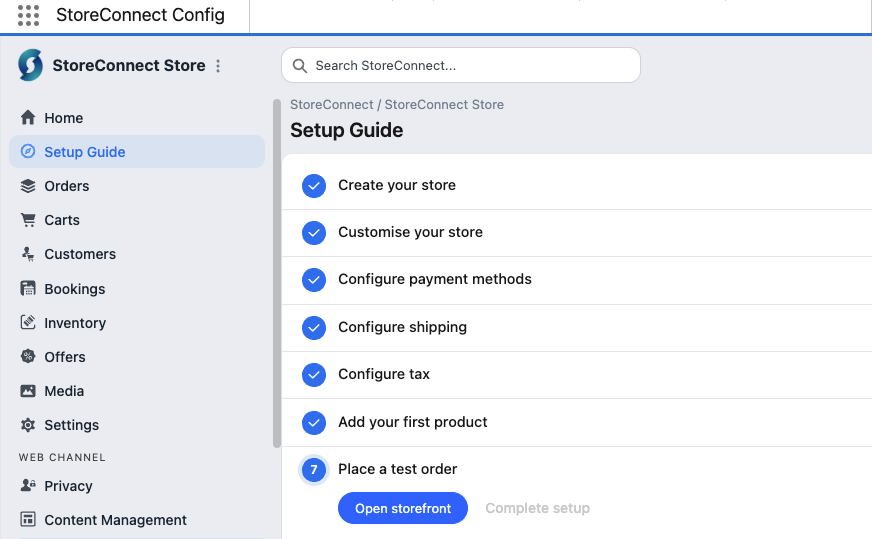
- Confirm the setup guide reports every step complete, and open your store’s default
.storeconnect.appURL to check the storefront loads.
Next steps
Follow the getting started checklist for everything that comes after installation, through to going live.
Was this article helpful?
Thanks for your feedback! It helps us improve our docs.