

Process a stock transfer at POS
On this page
Use this process to move stock from one outlet to another for a customer. A transfer works like a special order or a hold, except that it needs action at both the sending and the receiving outlet.
Video demo
Initiate a stock transfer
You can transfer stock between any two outlets, from any outlet.
- At the POS register, add the product you want to transfer to the cart.
-
Select the item in the cart. A set of new options appears.
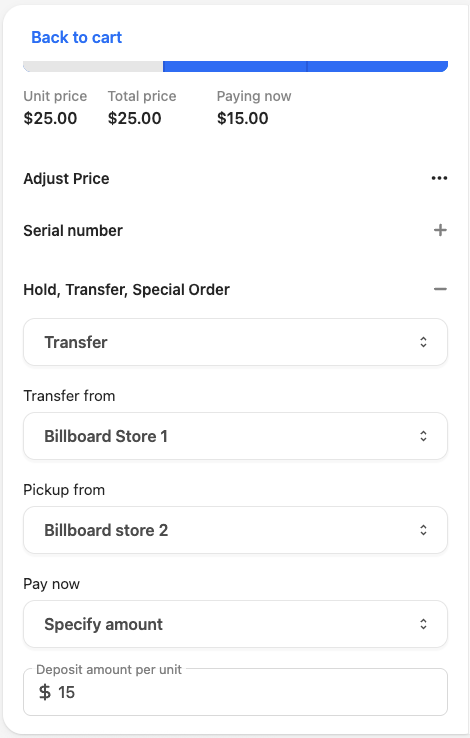
- In the Transfer, Hold, Special Order field, select Transfer.
- Select the origin location in the Transfer from field.
- Select the receiving location in the Pickup from field.
- If the customer is paying now or leaving a deposit, select the payment option and enter the details. If they are paying on collection, leave this unset.
- Go back to the cart and finalize the transaction.
The item appears in the Pickups list with a status of Requested.
Mark a transferred item as sent
Do this at the sending outlet, when the item is dispatched.
- At the POS register, open the Pickups list.
- Filter or search for the item and open it.
- Select Next. The status moves to Confirmed.
- Select Next. The status moves from Confirmed to Shipped.
The status is now Shipped, and no further action is needed at the sending outlet.
Receive a transferred item
Do this at the receiving outlet, when the item arrives.
- At the POS register, open the Pickups list.
-
Filter or search for the order and open it. Its status is Shipped or Completed.
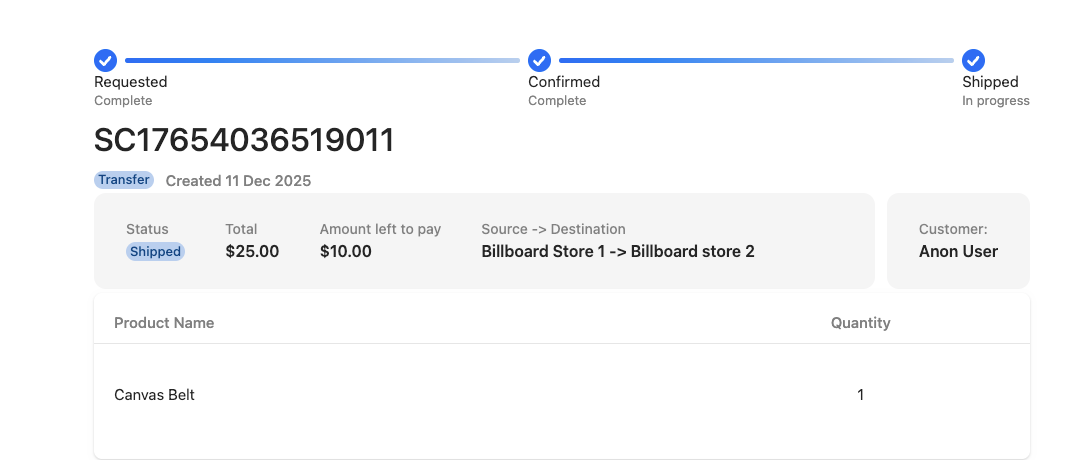
- Select Next. The status moves to Ready to Pick up.
The order is now ready to hand to the customer.
Finalize the sale of a transferred item
- At the POS register, open the Pickups list.
- Filter or search for the order and open it. Its status is Ready to Pick up.
- If the customer has an outstanding balance, take the payment through the checkout as normal.
- Select Release items.
The transfer is complete, the goods are handed over, and the order drops out of the Pickups list.
Was this article helpful?
Thanks for your feedback! It helps us improve our docs.