

Use test mode for transaction testing
On this page
Use test mode to complete transactions during store setup without incurring Shared Success fees. Test orders display a TESTING ONLY banner on the checkout and confirmation pages.
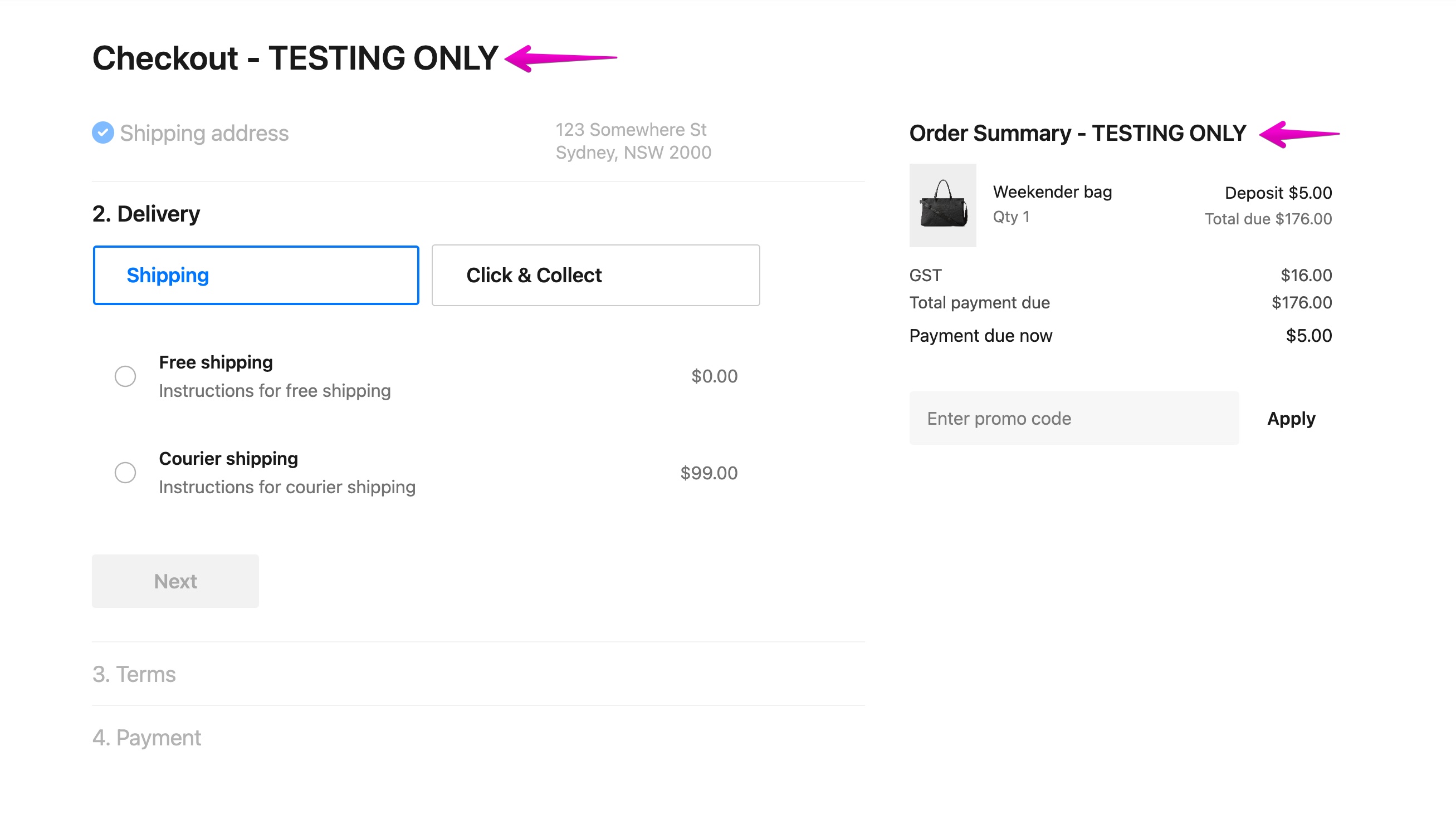
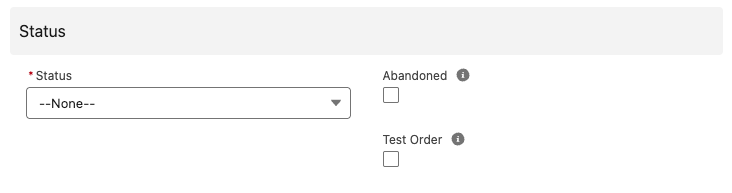
:::warning An order only counts as a test order if it was flagged during checkout. Selecting Test Order on an order after it has been created does not make it one, and it is not exempt from fees. There is no way to convert an existing order into a test order. :::
Choose a method
Three things can put an order into test mode. Pick the one that matches your situation.
| Method | Use it when | What it covers |
|---|---|---|
| Trial or sandbox license | You are on a trial or sandbox web app | Every order on every store, automatically |
| Enable Test Mode on the store | You are setting up or rebuilding a store and no real customers should be able to buy | Every order on that store |
test_checkout_emails store variable |
The store is live and taking real orders, but you need to test alongside them | Only orders placed with the listed email addresses |
Trial and sandbox licenses are always in test mode
When your StoreConnect web app runs on a trial or sandbox license, its stores are always in test mode. This is independent of the Enable Test Mode checkbox on the Store record, and you cannot turn it off. Once a production license is activated, use one of the methods below instead.
Enable test mode for a whole store
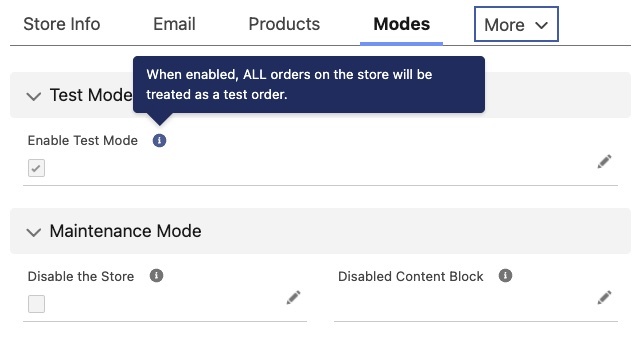
All new stores have Enable Test Mode selected. On a paid license you can turn it on and off as you need.
- Open the Store record.
- Select or clear the Enable Test Mode checkbox.
- Save the record.
- Confirm the setting applied: place an order on the storefront and check the TESTING ONLY banner appears at checkout.
Test on a live store with specific email addresses
Use this when the store is trading and you cannot put the whole store into test mode.
- Open the Store record and go to the Store Variables related list.
- Create a Store Variable named
test_checkout_emails. -
Set its value to a comma-separated list of up to four test email addresses:
text bob@example.com,jane@example.com - Save the record.
- Confirm it works: check out using one of those addresses and check the TESTING ONLY banner appears. Orders from any other address remain live and chargeable.
Orders from support@getstoreconnect.com are also treated as test orders.
Flag an individual order
- Create an order.
-
Select the Test Order option before completing checkout.
Flows, triggers, payments, and promotions all run as normal on a test order, but test orders are excluded from reports.
Was this article helpful?
Thanks for your feedback! It helps us improve our docs.