

Edit your site with the Website Builder
On this page
Use the Website Builder to change your pages while seeing exactly how the result looks. It is a WYSIWYG editor, so it needs no code experience.
Nothing you do here touches your live site. Your edits are held together as one content change, and stay out of sight until someone approves and publishes them.
Before you start
- A Store Role of type
Content Changeson your Salesforce user, covering the store you want to edit.Editorlevel lets you make and submit changes;Approverlevel also lets you publish them. See Store roles.
Set the role up with these values:
| Store Role field | Value |
|---|---|
| Store Role Name | Something that makes sense to your team, for example Website editor |
| Type | Content changes |
| Level of access | Editor to make changes, Approver to also publish them |
Once you hold the role, a Website Builder button appears in the top right of the Store record.
Open the Website Builder
- Open the Store record for the store you want to edit.
-
Select Website Builder in the top right.

The builder opens on the store’s home page, with the editing interface around it.

Move between pages by selecting menu links, the same way you would in a browser.
Edit part of a page
- Go to the page you want to change.
-
Hover over the page to highlight the areas you can edit, then select the one you want. An editing panel opens for it. You can edit pages, menus, and articles this way.
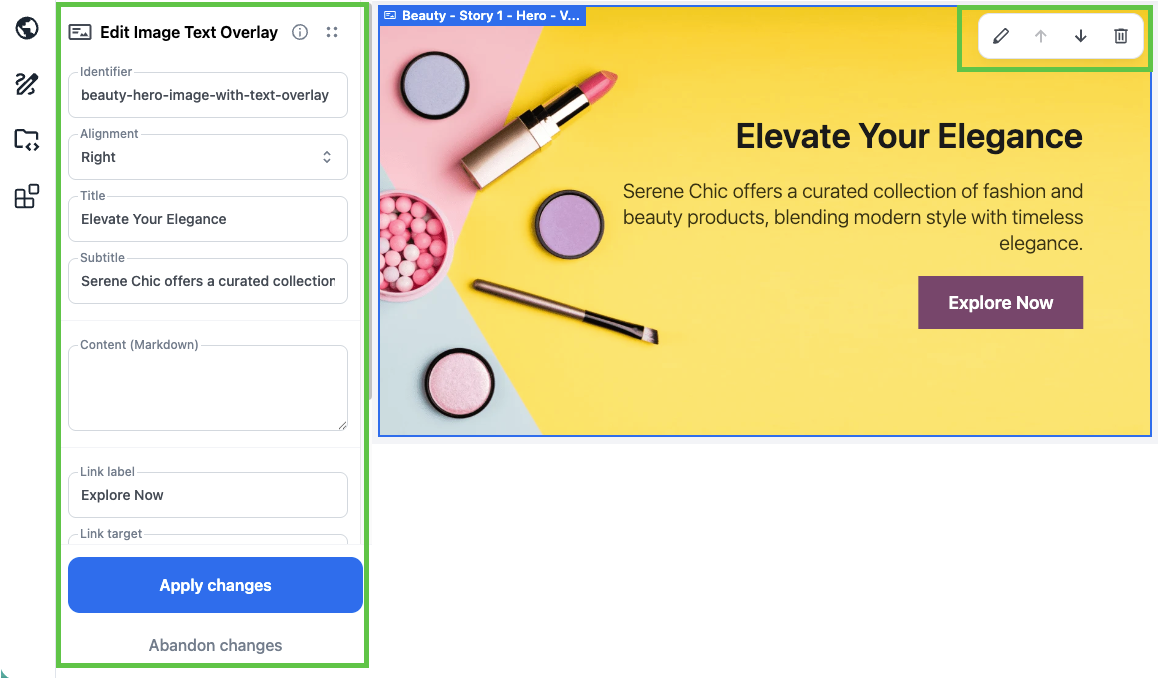
- Make your changes in the panel.
- Select Save changes at the bottom of the panel, or Abandon changes to discard them.
Your edit appears in the page view straight away. For what the underlying records can do, see content pages, menu builder, and articles and article categories.
:::note If you switch to another sidebar section with unsaved changes in the panel, the builder asks you to confirm before discarding them. :::
Add a content block to a page
- Go to the page you want to add to.
-
Select Add Content Block at the bottom of the page. To add one at the top instead, hover over the outer page element and select the plus button on the page action bar.
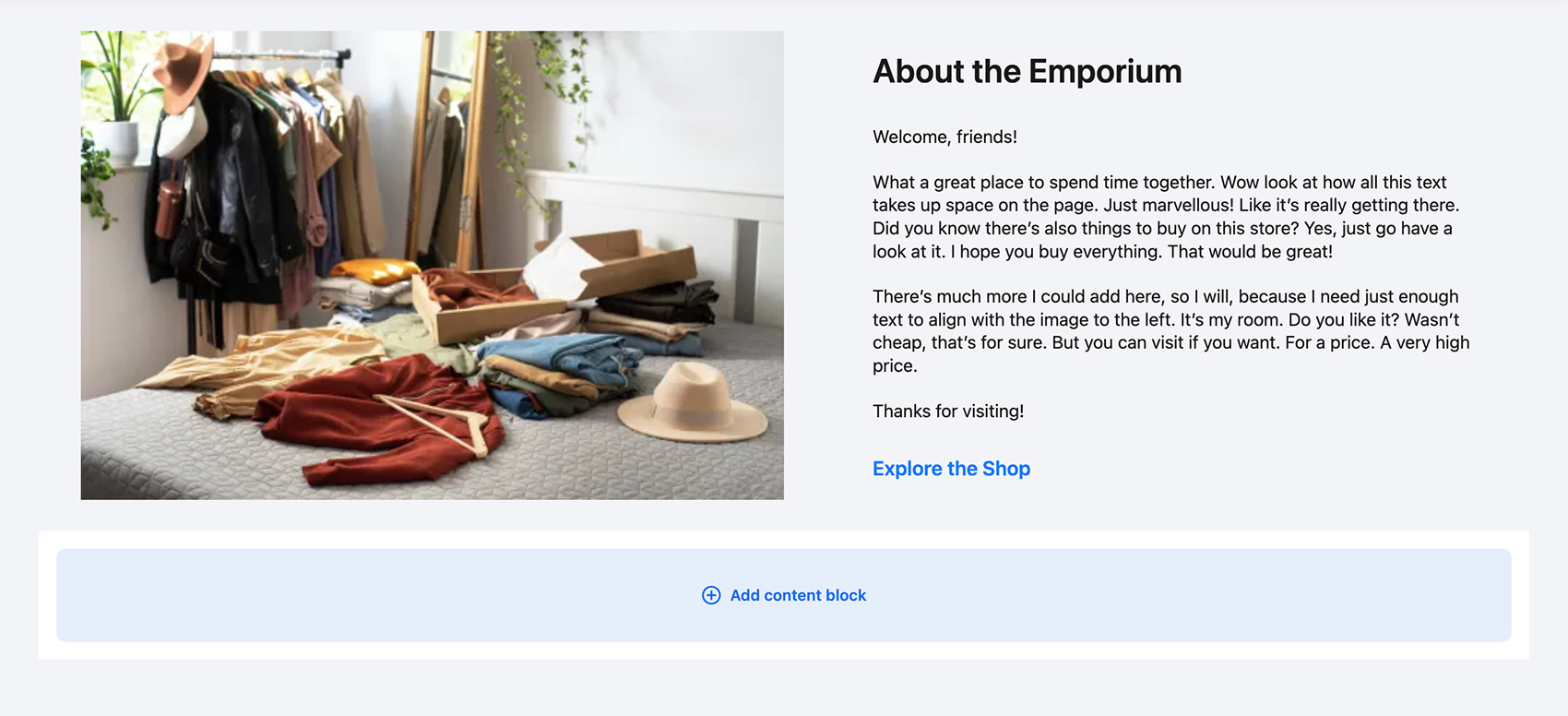
- Choose a content block template.
- Fill in the block’s content, then save it.
The block appears on the page in the position you added it. Content blocks are the main building material of a StoreConnect page, so for what the templates do, how to nest blocks, and how to name them, see using content blocks.
Reorder or remove content blocks
- Select the Contents icon in the sidebar. It lists every content block on the current page.
- Select an item to scroll the page view to that block and select it for editing.
- Select Re-order, then drag blocks up and down the list to rearrange them.
- To take a block off the page, select the trash can icon on the block.
:::note Removing a block here does not delete the Content Block record. It only removes the block’s relationship to the page, so the block stops appearing on that page and stays available to use elsewhere. :::
Change global site settings
Use this for the settings that apply across the store rather than to one page.
- Select the Settings icon in the left sidebar.
-
Open the section you need.
Section What it sets SEO Meta title, meta keywords, and meta description, used as defaults for pages that do not set their own. See SEO and site data. Theme The active theme for the store Content blocks The blocks assigned to the Head, Body, Header, and Footer areas Menus The header and footer navigation menus Pages The home page and the Terms and Conditions page Images The logo, category placeholder, and product placeholder images - Select Save changes at the bottom of the panel.
Add custom CSS or JavaScript
- Select the Styles icon in the left sidebar for CSS, or the Scripts icon for JavaScript.
- Enter your code.
- Select Save changes.
For what belongs here and what belongs in a theme, see adding custom CSS and adding custom JavaScript, CSS, and head content. To embed a third-party widget, see adding third-party widgets and code blocks.
The Themes icon in the same sidebar manages your custom themes and theme templates, and the Content icon manages content blocks and content.
Switch store or theme
The builder header carries a store menu and a theme menu, so you can change context without leaving the builder. Both load their options live, so they always reflect what your user can reach.
- Select the store menu to move to another store you have access to. The builder reloads with that store’s content and configuration.
- Select the theme menu to view the current store under a different theme.
Switching store resets your theme selection and preview mode to that store’s defaults.
:::warning A theme selection here is session-only. It changes only your builder view, never the live site’s active theme. :::
Preview your changes
- Select Preview changes in the top panel. The page renders as a visitor sees it, and inline editing is switched off, so selecting page elements no longer opens the editing tools.
- Use the device preview controls to check the page at mobile, tablet, and desktop sizes.
- Select Edit content to return to editing.
Submit your changes for approval
Select Submit Changes in the top panel.
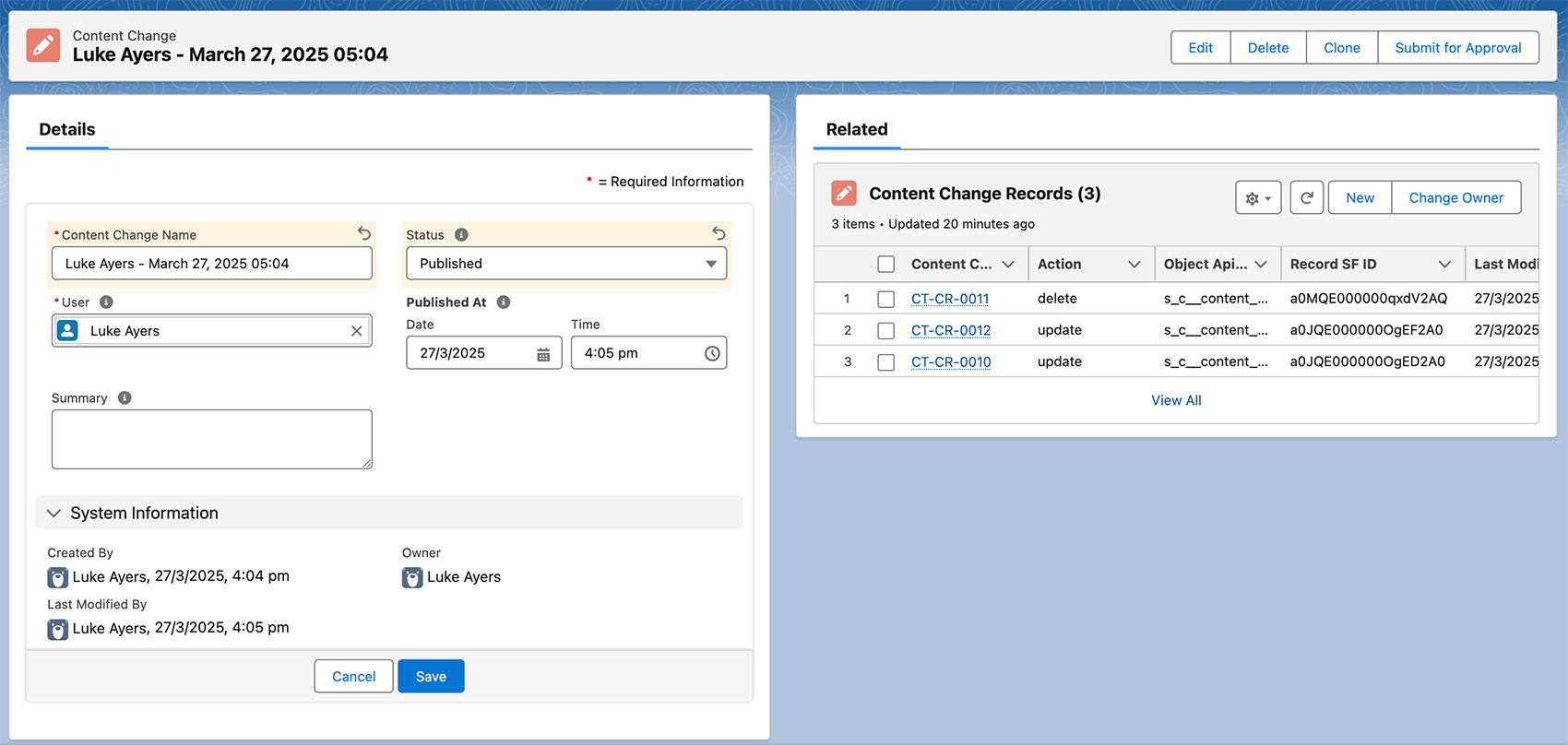
Your edits are saved to Salesforce as one content change, holding a Content Change Record for each create, update, or delete it makes. It is now waiting for review, and still not live.
An approver then reviews, approves and publishes it.
:::warning Selecting Exit with unsubmitted changes loses them. The builder warns you first: “Are you sure you want to leave? Any unsubmitted changes will be lost.” Submit before you exit. :::
To pick up where you left off before the change is published, select Resume on the content change record. The builder reopens with your saved changes.
Live update times after publishing
Allow up to a minute for the live site to pick a published change up, because your storefront holds rendered pages in a short-lived cache. Publishing clears that cache for you. How many stores it clears depends on the scope of the publisher’s Store Role: a single store, every store in a store group, or every store.
Editing content outside the Website Builder, for example by changing content blocks directly on their Salesforce records, runs no publish step and so does not clear the cache, and the live site can keep serving the previous version for a while. To apply that kind of change immediately, set the Cache Version field on the Store record to any different value. See changes not showing on the website for the full set of checks.
Was this article helpful?
Thanks for your feedback! It helps us improve our docs.