

Configure zones for tax and shipping areas
On this page
Build a zone when you need to treat a group of places the same way, so you can apply different shipping rates or tax rules to different parts of the world. Zones also let the geolocation feature send a customer to the store that matches where they are.
A zone does not have to follow traditional or physical borders. You can combine any countries, states or provinces, and postcodes or zip codes you want. Tax, shipping, and stores can share the same zones or each have their own, depending on your requirements.
What zones are used for
- Shipping — apply different shipping rates to different geographic areas, for example to separate city, metro, and regional deliveries.
- Tax rates — simplify how tax is applied. Taxes are complex in the US, for instance, with federal, state, and local taxes applying in one transaction.
- Geolocation — link a store to a zone so visitors from that region land on the right store. See use geolocation to send customers to their correct store.
How zones work in StoreConnect
First you create a Zone record, then add related records so the zone includes particular countries, states, or postcodes.
There is a hierarchy: postcodes belong to states, and states belong to countries. So if you include a country in a zone, it also includes every state and postcode related to that country. Add the broadest level that gives you the boundary you want, then narrow down only where you need to.
Add a zone
- Open the Zones object list in StoreConnect.
- Select New.
- Give the zone a name and Save.
-
In the Related Zone Identifiers section, add countries, states, or postcodes to the zone.
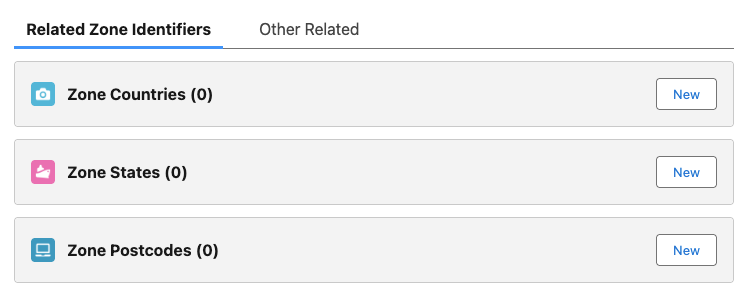
Add countries to a zone
- Open the zone record.
- In the Zone Countries related list, click New.
- Search and select an existing country.
- If the country does not exist:
- Select New Country.
- Give the country a Name.
- Select the country’s ISO Code.
- Select Save.
- Select Save.
Add states to a zone
- Open the zone record.
- In the Zone States related list, click New.
- Search and select an existing state.
- If the state does not exist:
- Select New State.
- Select the country the state belongs to.
- Give the state a Name.
- Enter the state Code.
- Select Save.
- Select Save.
Add postcodes (zip codes) to a zone
- Open the zone record.
- In the Zone Postcodes related list, click New.
- Search and select an existing postcode.
- If the postcode does not exist:
- Select New Postcode.
- Select the state the postcode belongs to.
- Give the postcode a Name.
- Enter the postcode Code.
- Select Save.
- Select Save.
Confirm the zone
- Open the zone record and check the Related Zone Identifiers section lists every country, state, and postcode you expect.
- Assign the zone to a shipping rate, tax rate, or Store, then place a test order to an address inside the zone and confirm the correct rate applies.
Example zones
These show the three levels you can build a zone at.
| Zone | Built from | Members |
|---|---|---|
| Oceania | Countries | Australia, Indonesia, Cook Islands |
| Eastern Australia | States | Queensland, NSW, ACT, Victoria |
| Sydney CBD | Postcodes | 2000, 2001, 2002, and so on |
Was this article helpful?
Thanks for your feedback! It helps us improve our docs.