

Link a staff member to an order
On this page
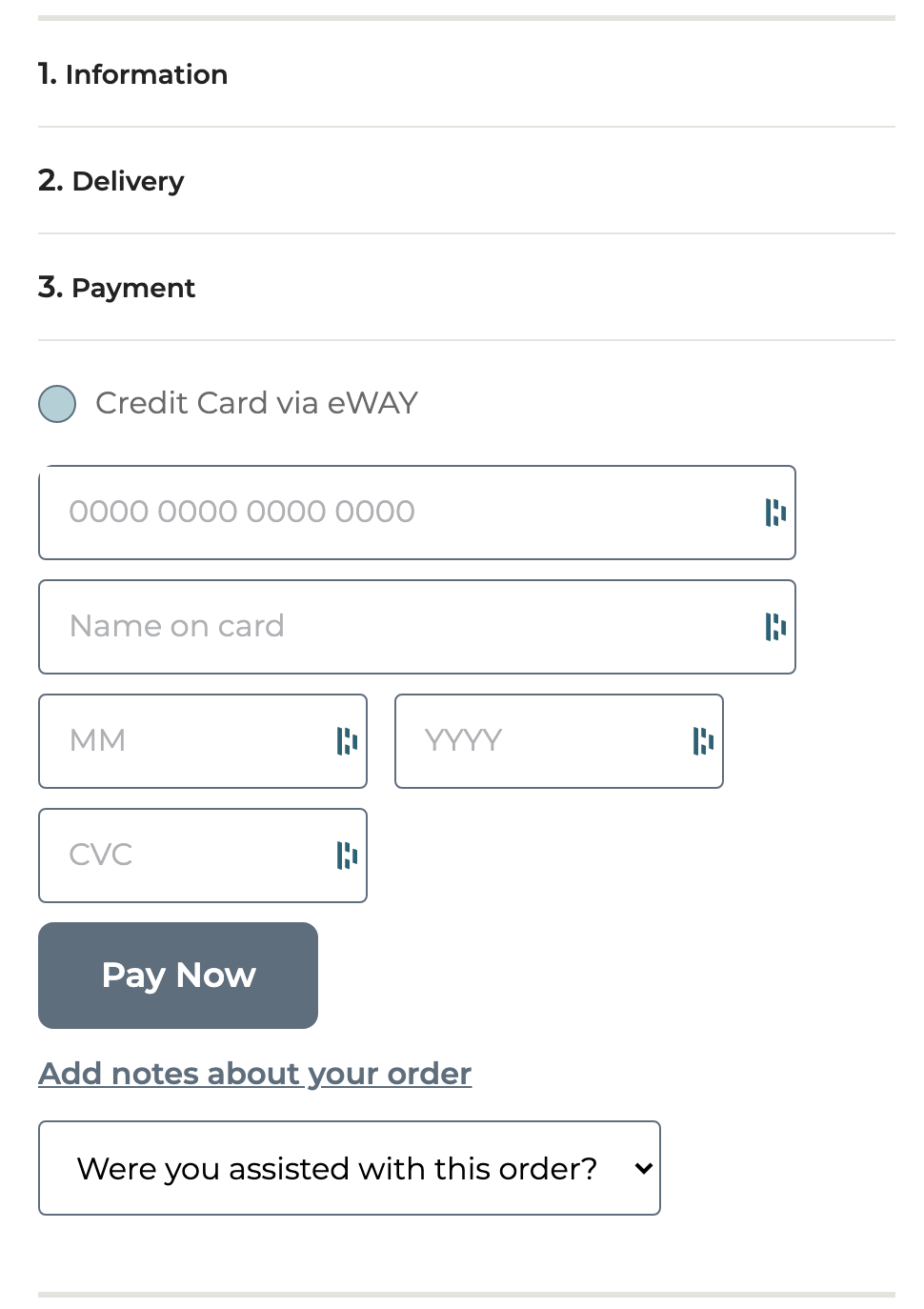
StoreConnect lets you record which staff member assisted with an order, storing it on the order record. When enabled, a dropdown appears at checkout where the customer can select who assisted them.
Add an assistant to an order in Salesforce
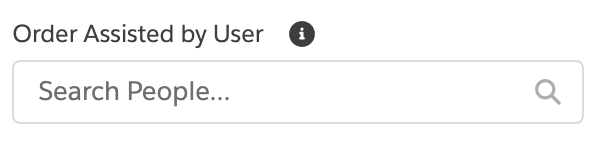
Add the Order Assisted by User field to the Orders page layout. You can then set an assistant on any order by selecting an active Salesforce user in the lookup field.
Make the assistant dropdown available at checkout
- Add the Assisted By Name field to the Users page layout.
- In that field, enter the name you want shown in the checkout dropdown. Do this only for the users you want to appear in the dropdown.
Add someone who is not a Salesforce user
You can also list a staff member who doesn’t have their own Salesforce login, by creating a free Chatter Free user for them:
- Create a new user.
- Assign them a Chatter Free License.
- Assign them the Chatter Free User profile.
- Set Active to
TRUE. - Add a name to the Assisted By Name field.
- Save the user record.
Was this article helpful?
Thanks for your feedback! It helps us improve our docs.