

Recalculating taxes
On this page
You can recalculate taxes on StoreConnect Orders, or calculate taxes on new Orders, all from within Salesforce, using the Tax records you already have configured. Tax recalculation works for all order types — including POS orders where the ship-to address is stored on the Fulfillment Item’s Shipment record rather than on the Order itself.
:::note Recalculating tax requires Tax records to be already configured. See Configuring Tax for details. :::
:::warning Calculate tax before you take payment wherever you can. On a tax-exclusive price book, applying tax raises the Unit Price on each order item, and with it the order total. If a payment has already been captured against the order, the order will then show an amount still owing equal to the tax that was just applied. Before applying tax to an order that is already paid, decide how you will collect or write off that difference. See Exclusive vs inclusive tax for how each pricing method behaves. :::
How to enable
Recalculation of taxes is disabled by default. To enable it for your org:
- Go to Setup > Custom Metadata Types > StoreConnect Setting and click Manage Records.
- Open Manual Tax Calculation Enabled.
- Set the Setting field to
trueand save.
Calculating tax on new orders
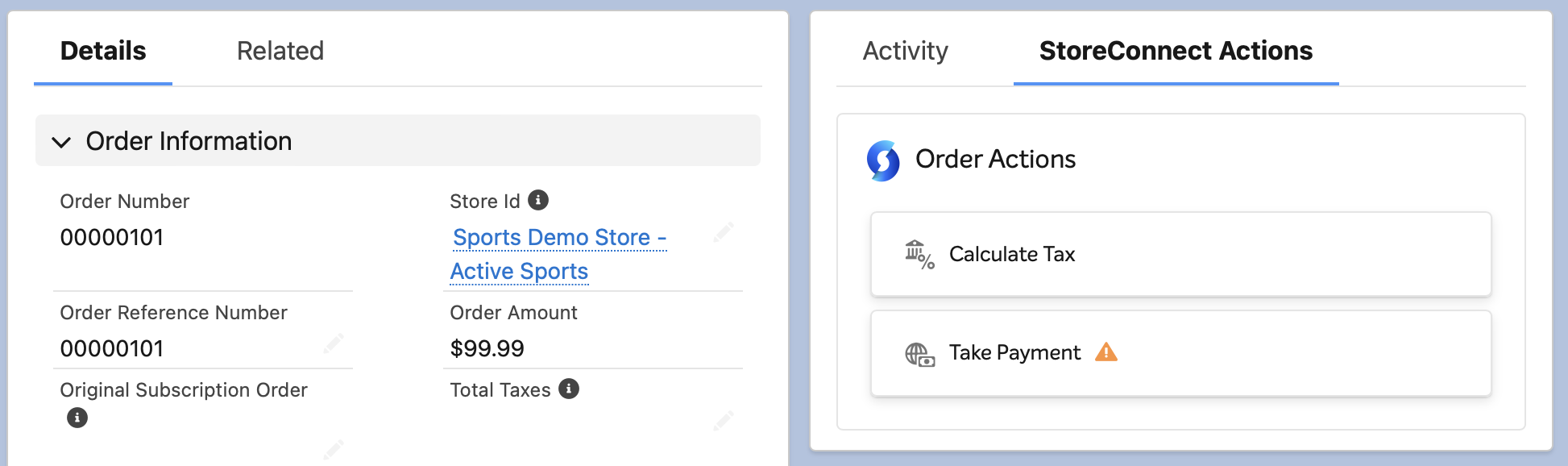
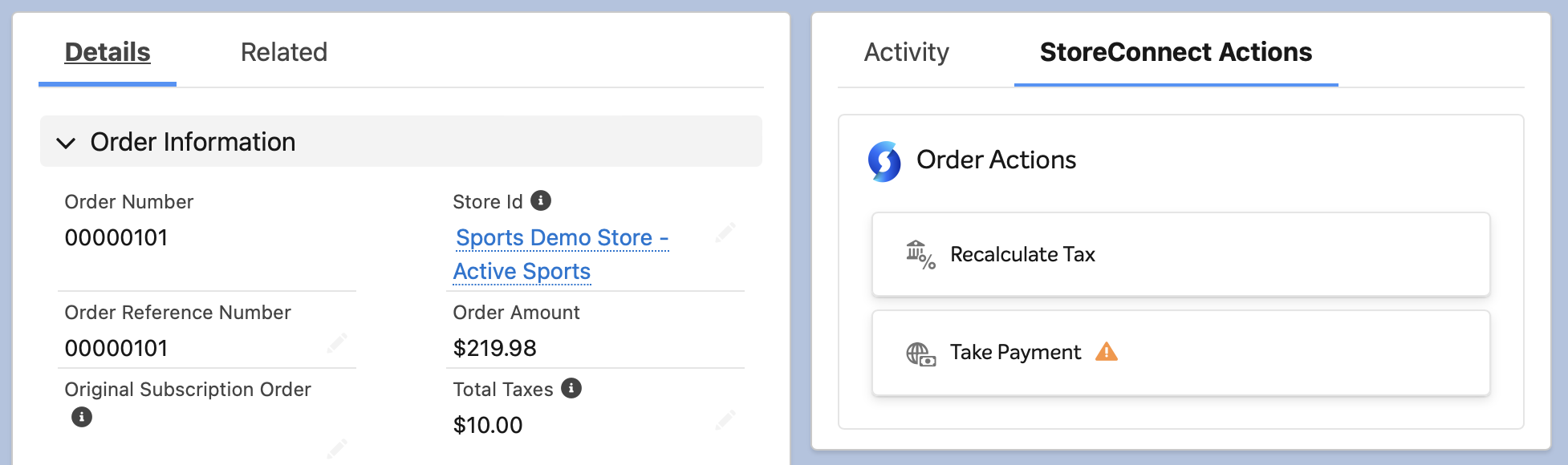
To calculate tax on a new order, ensure it has a Shipping Address and Order Products, and click Calculate Tax in the StoreConnect Actions sidebar tab.
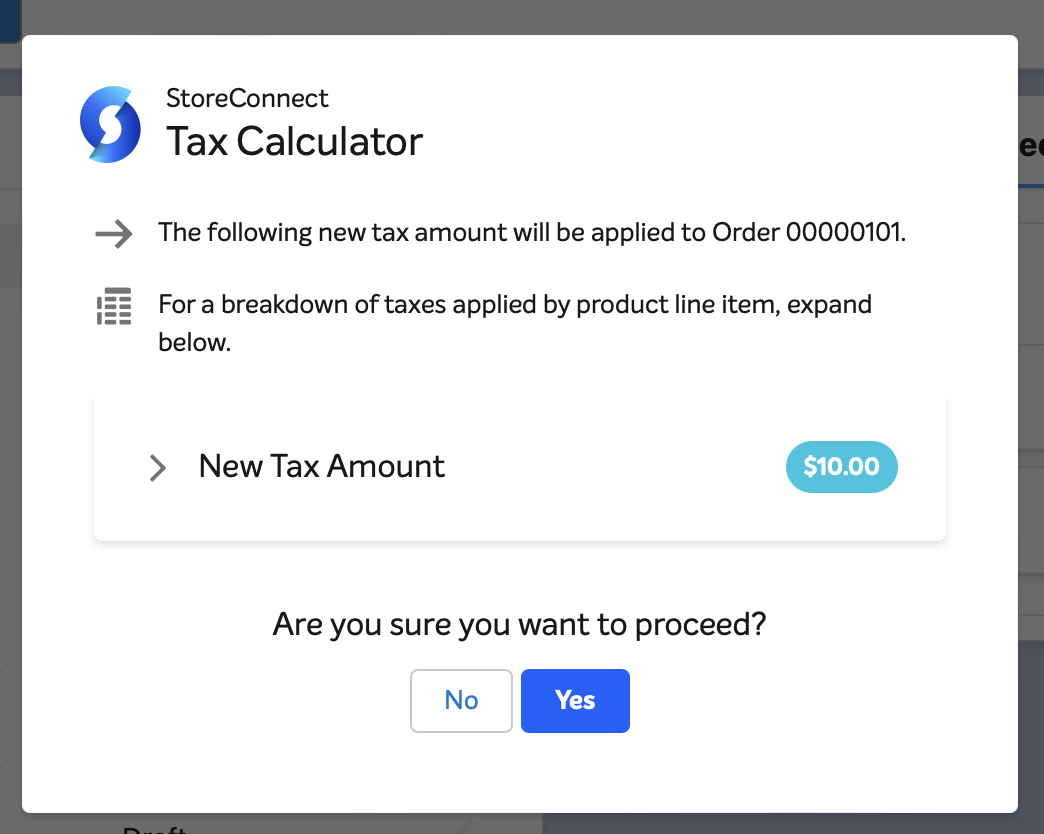
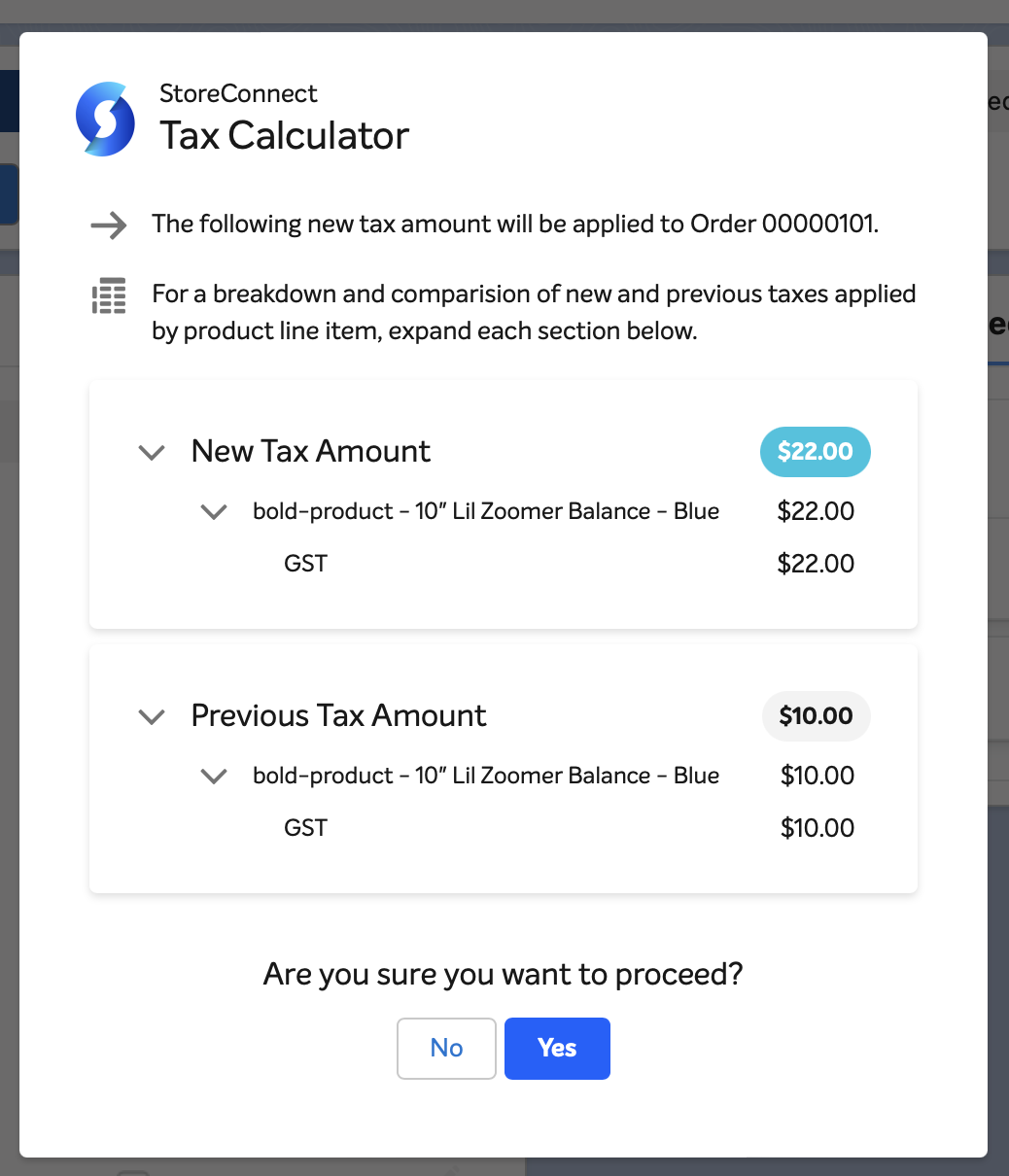
Clicking Calculate Tax will open the Tax Calculator window with a preview of what taxes will be applied.
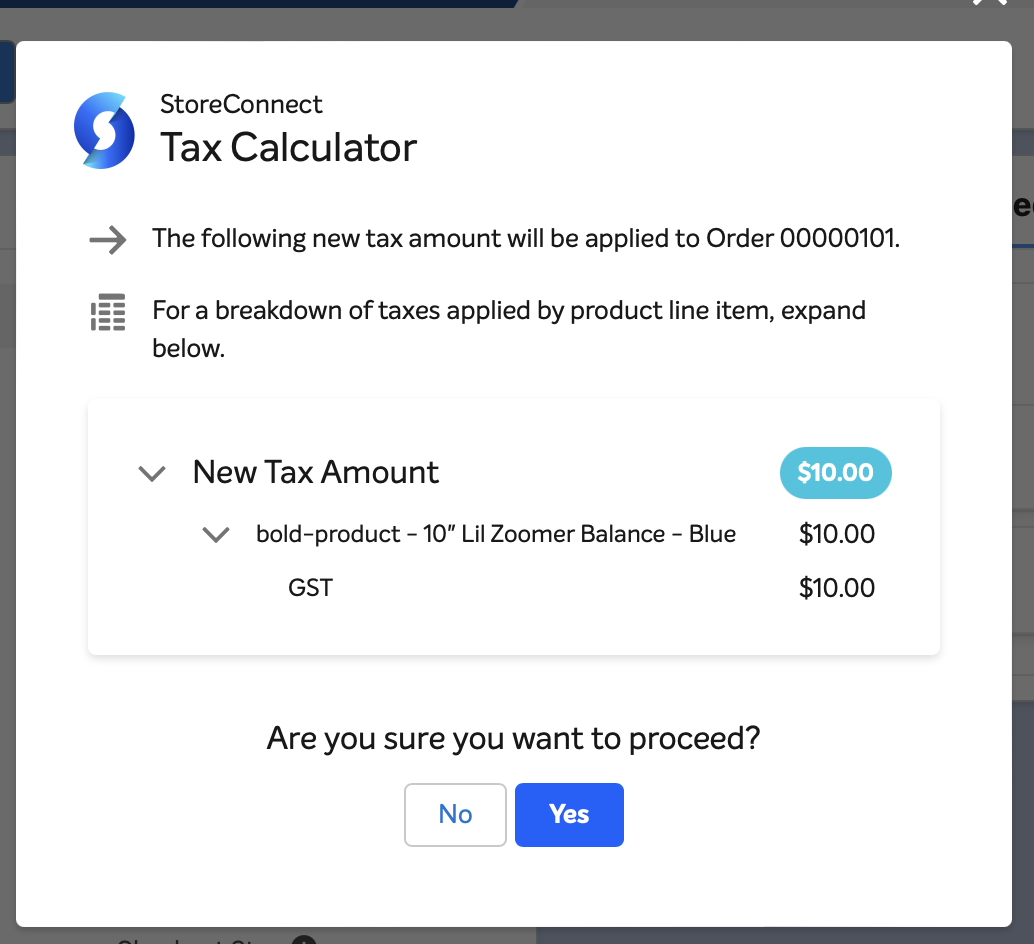
You can expand the product items list to dig deeper and see what taxes will be applied at the line item level.
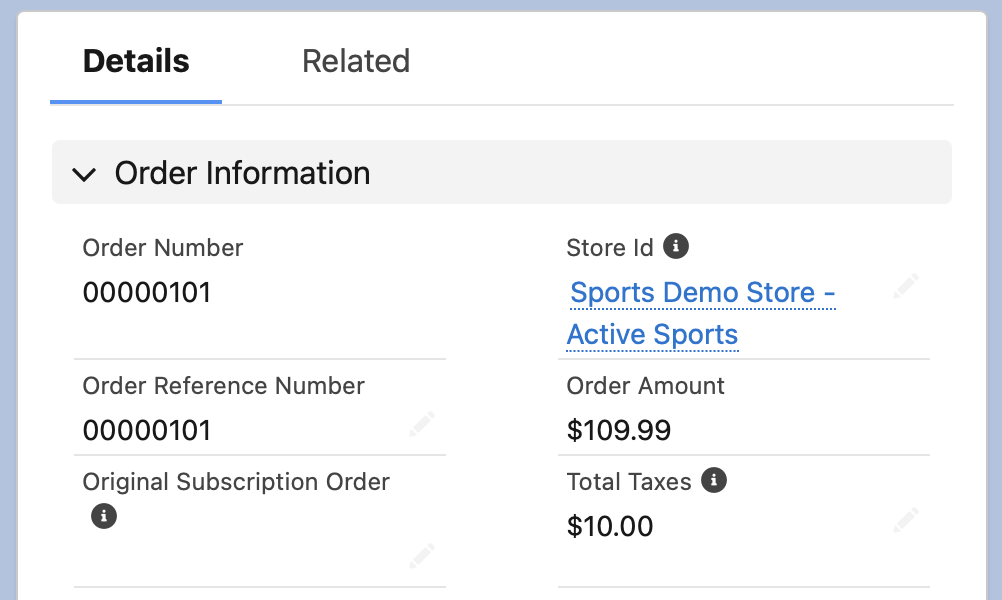
When you’re ready to proceed, click Yes, and the taxes will be applied to the Order.
Recalculating taxes on existing orders
If taxes have already been applied to an Order, you can recalculate them if you need to, for instance, if the quantity has changed, or items have been added or removed, or if the price has been modified.
The process for recalculating taxes is much the same, however this time the button will read “Recalculate Tax”.
And this time the Tax Calculator window will show you the existing applied taxes as well so you can compare and see the changes.
How the ship-to address is resolved
For ship-based taxes (taxes configured with Based on Ship Address enabled), StoreConnect determines the ship-to address for each Order Item in this order:
- Fulfillment Item Shipment — if the Order Item has related Fulfillment Items, each Fulfillment Item’s linked Shipment record provides the ship-to address for that portion of the quantity. This is how POS orders are handled, where the Order’s own shipping fields may be blank.
- Order shipping fallback — if a Fulfillment Item’s Shipment address does not match any configured tax zone, StoreConnect tries the Order’s shipping address for that Fulfillment Item. If the Order’s shipping address matches a zone, it is used and a warning appears in the Tax Calculator (see below).
- Order shipping (no Fulfillment Items) — if the Order Item has no Fulfillment Items at all, the Order’s shipping address is used directly (the standard path for web orders).
Billing-based taxes always use the Order’s billing address, regardless of fulfillment.
Country name formats
StoreConnect accepts both ISO country codes and full country names. For example, AU, AUS, and Australia are all valid values for the shipping or billing country field.
The Order-shipping fallback warning
If StoreConnect uses the Order’s shipping address as a fallback for one or more Fulfillment Items, the Tax Calculator displays a warning:
Some shipments couldn’t be matched to a tax zone and fell back to the order’s shipping address. Verify the fulfillment item shipment data is correct.
This warning indicates that the Shipment record on one or more Fulfillment Items either has a blank country or doesn’t match any of your configured tax zones. Check that the Shipment record has the correct destination address and that a tax zone is configured for that address.
The address mismatch error
If no address can be matched to a configured tax zone, the Tax Calculator displays:
The shipping or billing address doesn’t match a configured tax zone. Verify the country, state, or postal code on the related Shipment record or on the Order.
This applies to both kinds of tax:
- Ship-based taxes — no ship-to address (neither the Fulfillment Item’s Shipment nor the Order shipping fallback) matches a configured zone.
- Billing-based taxes — the Order’s billing address doesn’t match a configured zone.
To resolve it, check that:
- At least one Order Item has a resolvable destination (a Shipment with a matching zone, or an Order shipping address with a matching zone) for ship-based taxes
- The Order’s billing address matches a configured zone for billing-based taxes
- A tax zone is configured for the destination country (and state/postcode/city if applicable)
Other errors and warnings
Alongside the fallback warning and address mismatch error above, the Tax Calculator may surface the following.
Errors
These prevent tax from being calculated until resolved:
- No product taxes configured — No taxes are configured for the order items. Please add a product tax or tax group.
- Zero-quantity items — All order items have a quantity of zero. Tax can only be calculated for items with a quantity greater than zero.
- Pricebook zone mismatch — The pricebook’s tax zone doesn’t match the product’s tax zone. Please check the pricebook tax configuration.
:::note If the Order already has taxes applied (or its tax total is already $0), the No product taxes configured, address mismatch, and Pricebook zone mismatch conditions show a new tax amount of $0 instead of an error. This lets you clear stale taxes — for example, after moving a product to a tax-exempt pricebook — rather than being blocked. :::
Warnings
These don’t block applying tax, but flag data worth verifying first:
- Previously tax-exempt items — Some items may have been previously tax-exempt. The tax shown is based on the current unit price. Please verify the price is correct before applying.
- Quantity mismatch — shown when the quantity being taxed differs from the quantity ordered. The exact wording depends on whether items are taxed for less than ordered (typically because Fulfillment Items don’t cover the full quantity, or a shipment is to a destination not authorised by the price book’s tax zone), more than ordered, or both.
The Tax Calculator shows only one banner warning at a time. If more than one condition applies, the highest-priority warning is displayed, in this order: previously tax-exempt items, then quantity mismatch, then the Order-shipping fallback warning.
Tax-exempt orders
If the Order’s account is tax-exempt, or its pricebook entry is configured as Exempt, the Tax Calculator shows a new tax amount of $0 with an Exempt badge rather than an error or warning. No tax is applied.
Split-shipped orders
When an Order Item’s quantity is split across multiple Fulfillment Items shipping to different tax zones, StoreConnect calculates tax separately for each Fulfillment Item at its own destination zone.
For example, if an order has 6 units of a product split as 3 units shipping to California and 3 units shipping to New York, and you have state-level tax zones configured for both states, each portion is taxed at the applicable state rate. The Tax Calculator preview groups the breakdown by destination address so you can see the per-location tax amounts before applying them.
If all Fulfillment Items on an Order Item would attract the same taxes (for example, they all ship to addresses in the same zone), a single combined tax row is used — the result is the same as if there were one shipment.
Using invocable Apex in Flows
StoreConnect exposes a global invocable Apex action — StoreConnect: Invocable Action — that lets you trigger tax calculation from any Salesforce Flow (record-triggered, scheduled, screen, or autolaunched).
The action creates, updates, or deletes order item tax records as needed based on the current state of the order — no pre-existing tax records are required. The order’s total tax amount is updated whenever tax records change, and zeroed out if no taxes apply.
Action label
StoreConnect: Invocable Action
Input variables
| Variable | Type | Required | Description |
|---|---|---|---|
action |
Text | Yes | The action to perform. Set to CALCULATE_TAX to calculate or recalculate tax on an order. |
recordId |
Record ID | No | The ID of a single order to calculate tax for. Use in record-triggered flows where one order drives each flow interview. |
recordIds |
Record ID Collection | No | A collection of Order IDs to calculate tax for. Use in screen, scheduled, or autolaunched flows where you need to pass multiple orders at once. |
Supply either recordId or recordIds — not both. In a record-triggered flow, recordId is the natural choice; for all other flow types, use recordIds.
Output variables
| Variable | Type | Description |
|---|---|---|
isSuccess |
Boolean | true if the tax calculation completed without errors. |
error |
Text | Error message if isSuccess is false. |
Requirements
Tax calculation will not execute if any of the following conditions are not met:
- Manual Tax Calculation must be enabled. Go to Setup > Custom Metadata Types > StoreConnect Setting and confirm
Manual Tax Calculation Enabledis set totrue. - The running user must have the SC Admin or Order Manager permission set. Record-triggered flows run in system context by default, so explicit permission set assignment is not required for those flows. For flows running in user context, ensure the user has the required permission set.
- At least one Order ID must be supplied via
recordIdorrecordIds.
When to trigger
Trigger on Order, not on Order Item. The tax calculator processes all items on the Order in a single call. If you trigger from an OrderItem flow and multiple items are saved in the same transaction, each item fires a separate flow interview — each calling the calculator for the same order. This causes redundant calculations and can quickly exhaust governor limits.
Triggering on Order works reliably when there is a clear signal that all items are in their final state, such as a status change (for example, Activated) or a custom field being set on the order.
If no such signal exists on the order, a two-flow pattern works well:
- An OrderItem record-triggered flow (after save) that sets a flag field on the parent Order — one fast field update, no tax calculation.
- An Order record-triggered flow that fires when that flag is set and calls
CALCULATE_TAX— one calculation per order per transaction, regardless of how many items changed.
Example: record-triggered flow on order
To automatically recalculate tax when an order’s status changes:
- Create a Record-Triggered Flow on
Order, triggering on Update. - Add an entry condition for the status field change (for example,
Statuschanges toActivated). - Add an Action element and select StoreConnect: Invocable Action.
- Set
actionto the text valueCALCULATE_TAX. - Set
recordIdto{!$Record.Id}. - Use the
isSuccessoutput to branch to an error path if needed.
Exclusive vs inclusive tax
There’s a few things to note when comparing tax recalculation with regard to exclusive vs inclusive tax.
Exclusive
If you’re changing the unit price on an Order Item, when the tax is exclusive, you should set the value to the exclusive price and then recalculate the tax. During recalculation the unit price will be updated to include the tax amount.
Because the tax is added into the unit price, the order total rises by the tax amount. Any payment already captured against the order stays as it is, so an order that was fully paid before you calculated tax will afterwards show a balance owing equal to the tax. This applies whether you use the Calculate Tax action or the invocable action in a flow.
However if you do not plan to recalculate tax, you should set the unit price to the tax inclusive amount and update the tax amount with the new tax amount.
Inclusive
You should always set the unit price to the inclusive price. You can also update the tax amount if you wish and avoid recalculation, or leave it as-is and recalculate to let the system update it for you.
Was this article helpful?
Thanks for your feedback! It helps us improve our docs.