

Finding products at POS
On this page
Staff can add products to the POS cart by searching for them by keyword or by scanning a barcode.
Keyword search
Type any part of a product’s name, product code (SKU), or barcode into the search field on the POS dashboard. Results update automatically as you type, so there is no need to press Enter.
- On the POS dashboard, select the search field.
- Start typing the product name, SKU, or barcode number.
- Select the product from the results.
The product is added to the cart and appears in the transaction panel.
The search looks across product name, code, and barcode fields simultaneously. Multi-word terms are searched independently, so typing “red small” finds products matching both “red” and “small”.
To clear the search and return to the full product display, tap the clear button in the search field or delete the text.
Scanning barcodes
At point of sale, a cashier can scan a barcode to add an item to the register cart. A barcode can be scanned with a hardware scanner or typed manually.
- On the POS dashboard, start typing or scan the barcode number. The barcode input area highlights.
-
Press Enter to validate the barcode.
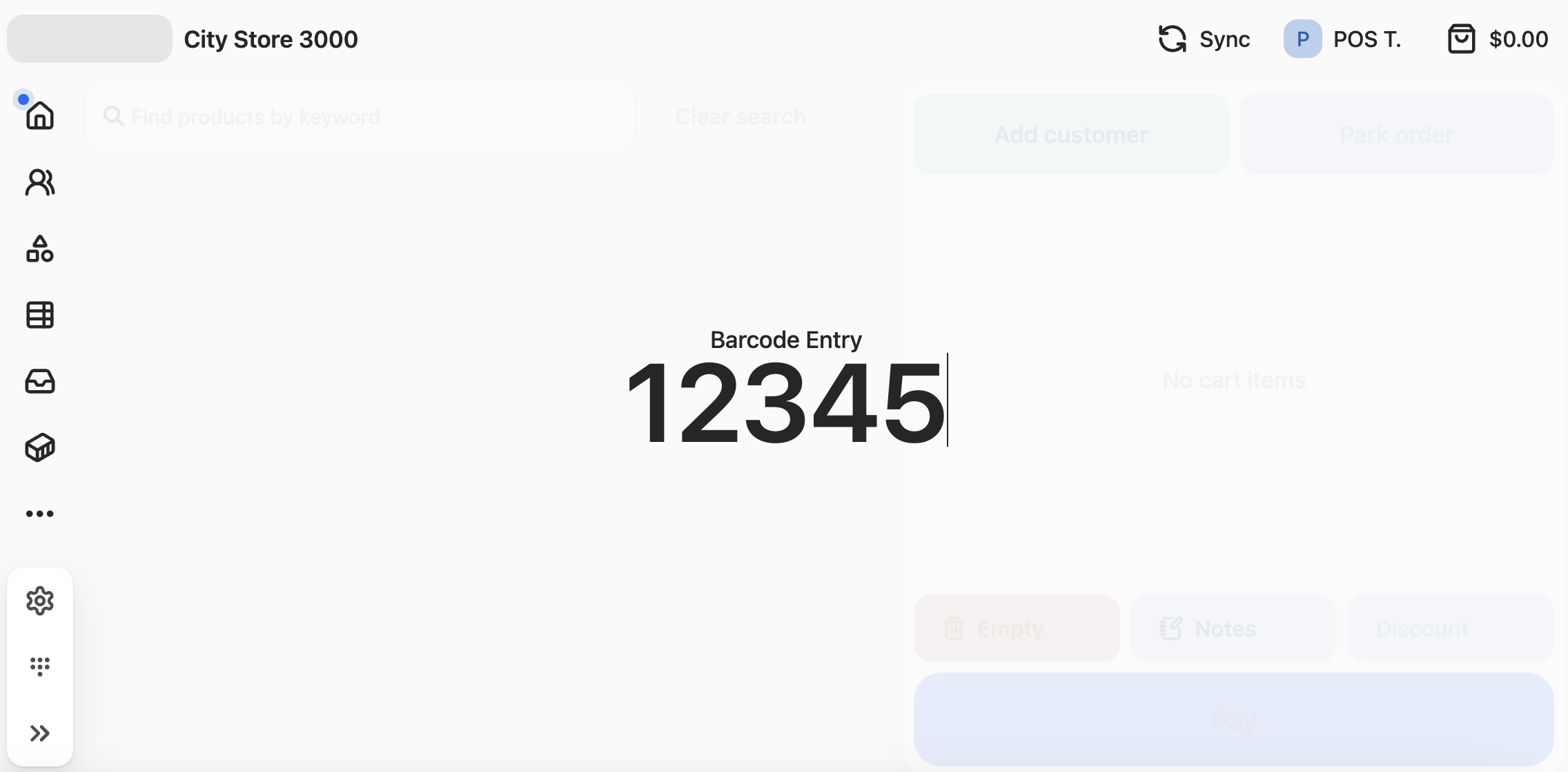
The item is added to the cart. If the barcode does not match a product, a code invalid message is shown instead.
:::note Barcode scanning via a connected hardware scanner works in the same search field as keyword search. If a scanned barcode uniquely identifies a product, it is added to the cart immediately. :::
Was this article helpful?
Thanks for your feedback! It helps us improve our docs.