

Sync summaries
On this page
Use Sync Summaries to confirm that the objects you are working with are actually synchronizing between Salesforce (SF) and your StoreConnect website (SC). Check it when a change you made in one place has not appeared in the other and you want to know whether sync is the cause.
Although record sync can complete in seconds, Sync Summaries are normally updated every 3 minutes, but can take a little longer when your org’s job queue is long.
Open sync summaries
Use whichever route suits where you are working:
- In the StoreConnect Console, click the Setup button in the header actions bar, then under Synchronization click View sync summary.
- From the App Launcher, search for Sync Summaries.
- From the StoreConnect Navigation utility bar.
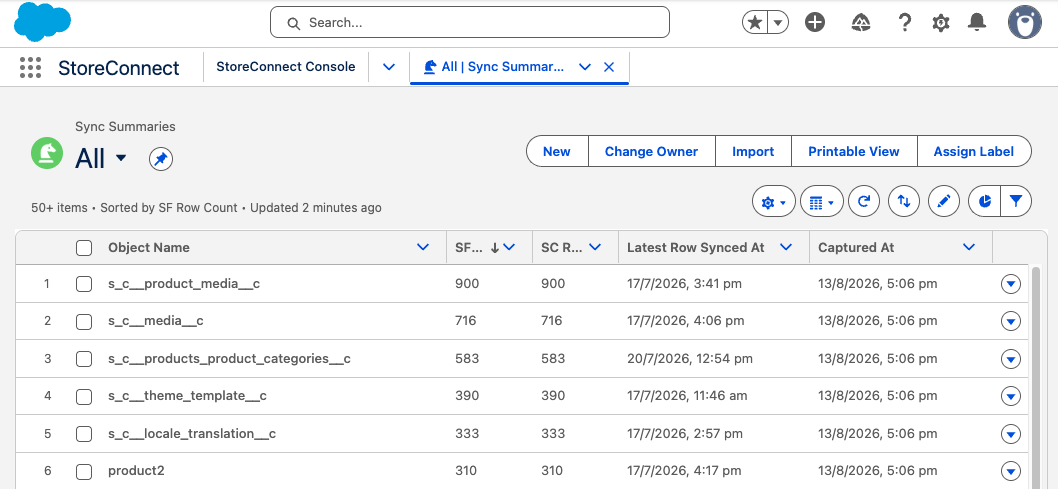
Sync Summaries displays information for each supported object and lists:
- Object Name: The name of the object being tracked.
- SF Row Count: The current record count for the object in Salesforce.
- SC Row Count: The current count of records for the object in StoreConnect web application.
- Latest Row Synced At: The value of the SystemModstamp for the most recent record changed in that object.
- Captured At: The timestamp showing when the snapshot of row counts was last updated.
How to use sync summaries
A gap between the two counts does not always mean something is wrong. Rule out these normal causes first.
- Order-related objects can have new order records in flight, so the SC Row Count is higher than the SF Row Count.
- Standard object records without a StoreConnect ID value do not sync to the store, so the SC Row Count is lower than the SF Row Count. See what records sync to your website.
Review row counts
Compare the SF Row Count and SC Row Count for objects you want to check. A discrepancy could indicate a sync issue, and it tells you whether records have yet to sync from SF to SC or from SC to SF. Remember these summaries can take 3 minutes to update.
Check latest sync time
If you have made changes and don’t see that the object has synced recently, that could indicate an issue with sync. Keep in mind though that you may not be looking at the most recent data as there is a delay between snapshots.
Check the summary snapshot time
The Captured At timestamp shows when the current summary snapshot was taken and therefore how up to date the summary is. If a lot older than 3 minutes, then the data may be unreliable. Wait for the next snapshot.
Glossary
SystemModstamp: the date and time when a record was last modified by a user or by an automated process such as a trigger.
Was this article helpful?
Thanks for your feedback! It helps us improve our docs.