

Add a customer to a POS transaction
On this page
Attaching a customer to a sale links the order to their record, so their purchase history, account credit, and warranty claims all resolve to the same person. You can create a customer at any time from the POS, or add one part-way through a transaction.
Create a customer record at POS
Use this method when no sale is in progress, for example when signing someone up to a mailing list.
- In the POS dashboard, select Customers in the left menu. The icon is a person.
-
Select Create new customer.
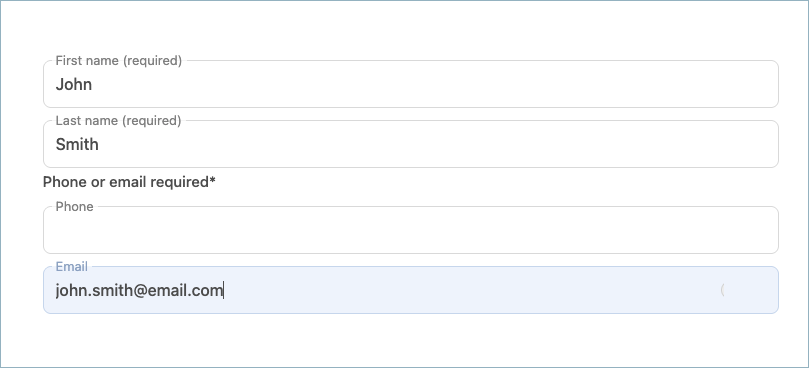
- Enter their first name, last name, and email address or phone number.
- Select Create new customer.
The customer appears in the Customers list and can be added to future transactions.
Add a customer during checkout
-
With the checkout cart open, select Add customer at the top of the cart. The customer list opens.
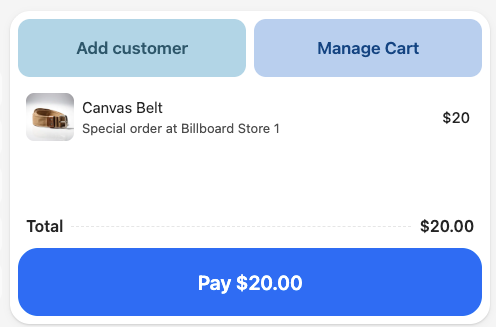
- Search for the customer and select them. If they already exist, they are added to the cart and no further steps are needed.
- If no record exists for them, select Create new customer.
- Enter their first name, last name, and email address or phone number.
- Select Create new customer.
- Complete the sale.
The customer name appears at the top of the cart, and the completed order is linked to their record.
Remove a customer from the cart
- In the checkout area, select the name of the customer.
- In the pane that opens, select Remove from transaction.
The cart returns to showing Add customer, and the sale completes without being linked to a customer record.
Was this article helpful?
Thanks for your feedback! It helps us improve our docs.