Product minimum requirements for POS
On this page
Work through this checklist when a product does not appear at a register, or appears but cannot be added to the cart.
:::note The Status by store panel on the product record describes your website, not your registers. A product can read as Offline there and still sell at a register, and the reverse is also possible. Use the checklist below for POS. :::
Requirements for a product to reach the register
These requirements decide which products are downloaded to a register. A product that misses any of them does not appear at the register at all.
Master or variant product
A product must be a master product, or a variant product linked to a master product. Select Is Master, unless the product is itself a variant of a master product.
Not a placeholder product
Leave Placeholder For empty. A product that stands in for another one is not sold in its own right, so it is not offered at the register.
Placeholder products are unrelated to restricted products, which are covered under settings that do not stop a sale below.
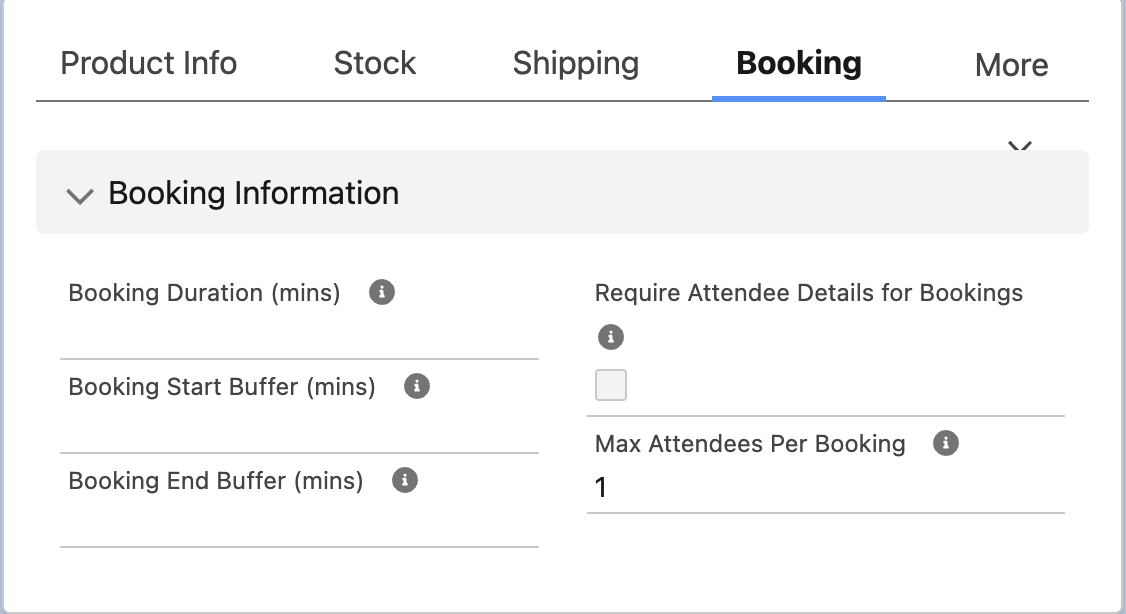
Booking duration empty
Applies to bookable products only. Booking duration is not rendered at POS, so a product with a value in Booking Duration (mins) is not offered at the register.

In a category in the store’s taxonomy
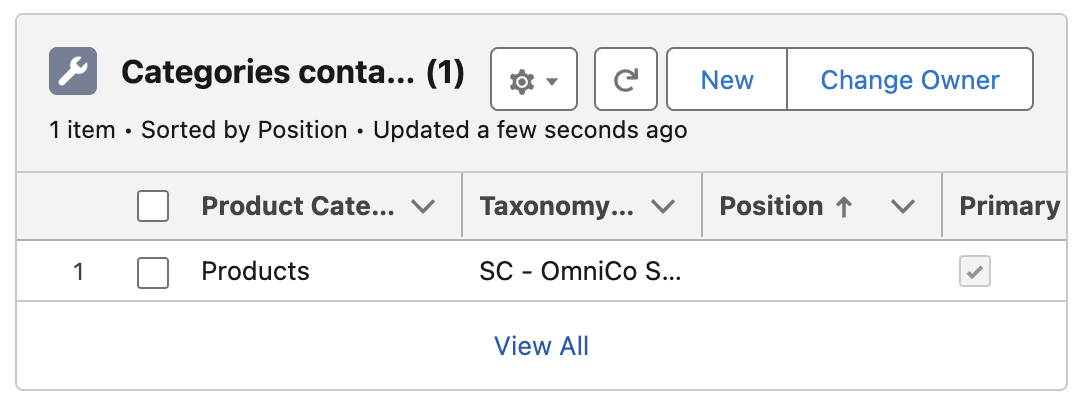
The product must belong to at least one product category, and that category must sit inside the taxonomy your store uses. Check the Categories containing this product related list on the product.
Active on each row of that related list controls whether the product counts as being in that category. It is selected by default, and clearing it removes the product as surely as deleting the row. The Active checkbox is on the row itself, not on the Product Category record, which has no such field.

If your store has more than one taxonomy, only the one with the lowest Position counts, so a category in any other taxonomy does not make the product available. See setting a taxonomy position for how to keep the right taxonomy in use.
Requirements for a product to be sold
A product that reaches the register can be added to a sale as long as it has a price.
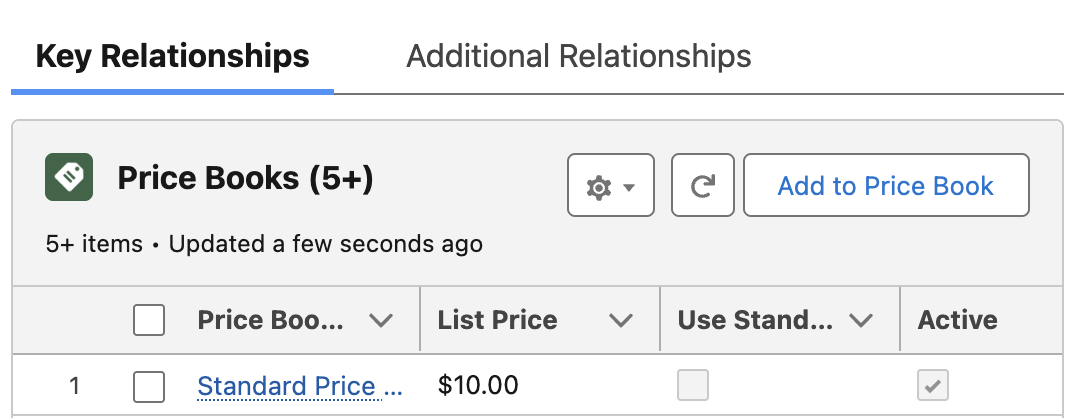
Price book entry
A product without a price book entry cannot be added to the cart at POS. It may still appear at the register, but it is not purchasable.
Make sure the entry is in the price book that register actually uses. A register does not always use the store’s price book. It takes the first active price book it finds, in this order:
- The Pricebook on the customer’s account, if a customer is on the sale.
- The Pricebook on that customer’s membership.
- The Pricebook on the outlet.
- The Pricebook on the store.
A price book is skipped if Active is not selected on it, so an inactive account price book falls through to the outlet or the store.

Settings that do not stop a sale at the register
These settings control your website. The register does not currently check them when a product is added to a sale:
- Active on the product
- Available On and Discontinue On
- Hide Price and Restricted on the price book entry
- Stock settings, including Track Inventory, Out of Stock Level, Backorderable, and Fulfill Online Orders
To stop a register selling a product, remove its price book entry from every price book a register can use for that sale (account, membership, outlet, and store), or take the product out of the store’s taxonomy, which also removes it from your website. Then resync the register.
Resync the register after any change
Each register keeps its own copy of your catalog and does not pick up a change until it syncs. A product that has been removed from a category can remain sellable on a register that already downloaded it.
After changing any setting above, open Settings on the register, then Manage data, and resync. See managing POS data sync for what each status means and how to clear and re-download an object.
Was this article helpful?
Thanks for your feedback! It helps us improve our docs.