

Create a voucher manually
On this page
To do this, you need at least one voucher product configured, and a recipient contact record with a valid email address.
- In the App Launcher, search for Vouchers.
-
Click New to create a new voucher record.
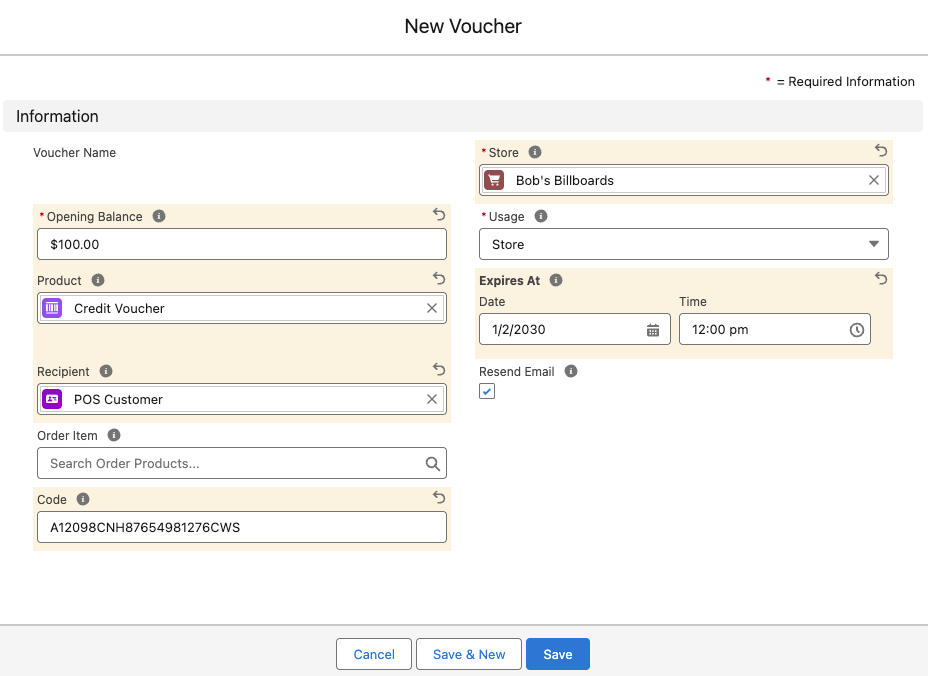
- Select the Store where the voucher will be used.
- Enter the Opening Balance (initial value) in your store’s currency (e.g., 50 for a $50 voucher).
- Select the Product that this voucher relates to (must be a voucher product).
- Select the Recipient (Contact) who will receive the voucher via email. If this is not known, select the person responsible for issuing the voucher.
- Enter a unique code for the voucher, or leave blank to autogenerate a secure 16-character alphanumeric number.
- Optional: Enter an Expires At date, or leave blank for no expiry.
- Optional: Enter an Activate Before Date to set a deadline by which the voucher must be activated. After this date and time, the customer cannot activate the voucher and will see an error if they try.
- Optional: Change the Usage setting if different from the product default.
- Optional: Check Resend Email to send the voucher immediately upon saving.
- Click Save.
Voucher fields
| Field | Description |
|---|---|
| Store | The store where this voucher was created |
| Opening Balance | The initial monetary value of the voucher |
| Product | The voucher product this relates to (determines email template) |
| Recipient | The contact who receives the voucher email |
| Expires At | Expiration date; blank means no expiry |
| Activate Before Date | Activation deadline; customers cannot activate the voucher on or after this date and time |
| Usage | Defines where the voucher can be used (defaults to product setting) |
| Order Item | Link to the order item if purchased (auto-populated) |
| Resend Email | Triggers email send when checked and saved |
| Code | Automatically generated 16-character unique code |
Was this article helpful?
Thanks for your feedback! It helps us improve our docs.