

Arrange content with nested content blocks
On this page
When you build your StoreConnect store, you’ll want control of how content is arranged on each page, so that you can meet product and brand needs.
In StoreConnect, nested content blocks give you full control.
Two-column layout
Here’s an example of a page layout where two content blocks are nested within another one, to form columns:
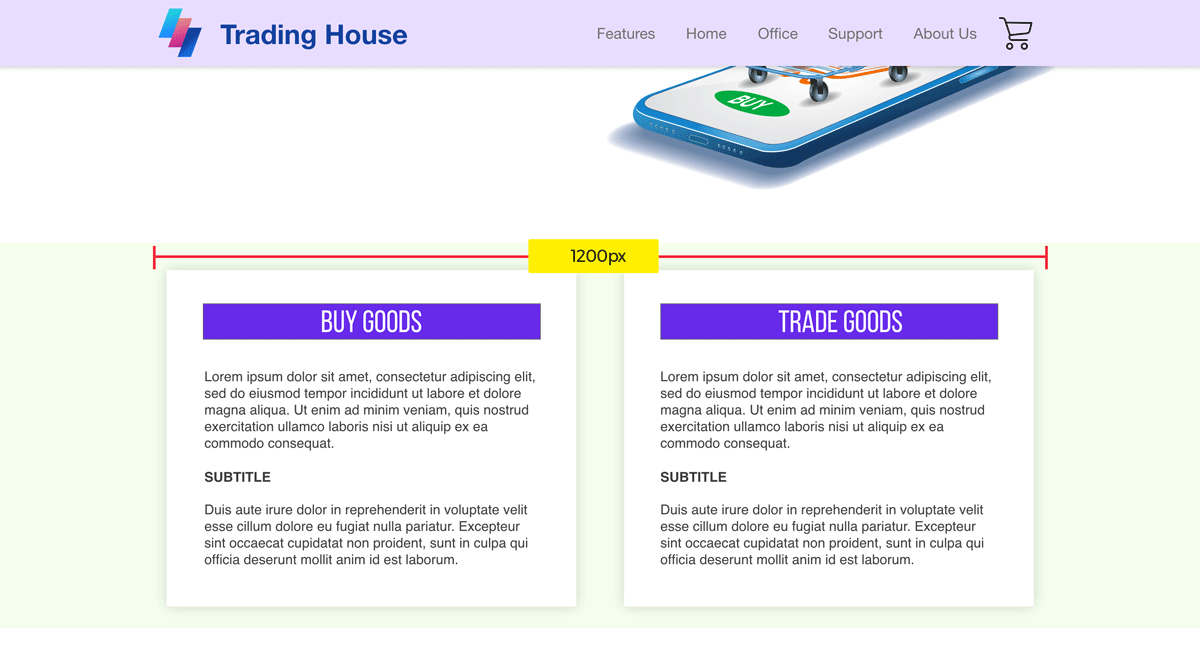
To create this layout:
-
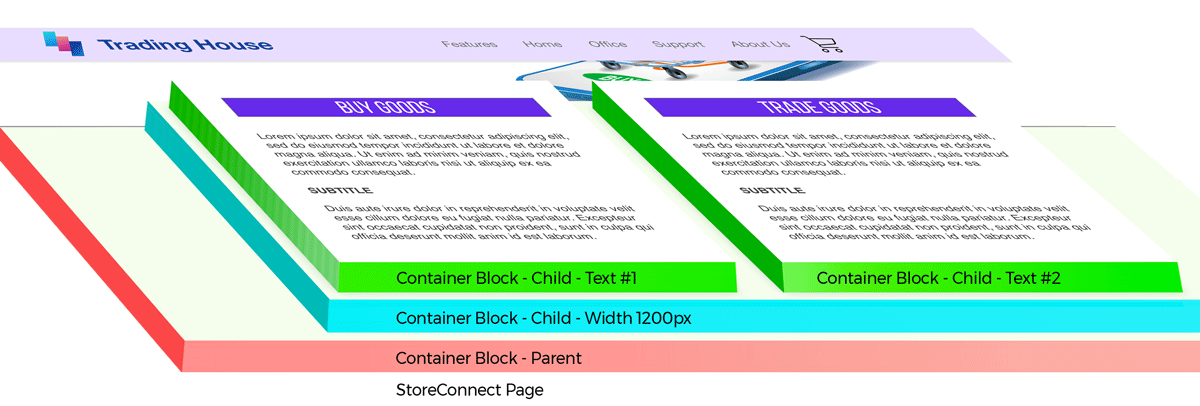
Add text blocks - Create two content blocks with the Content Template set to
Text. Add your text for column one in the first content block and your text for column two in the second content block. Add titles, subtitles and content as required. -
Add a container for text columns - Create a content block with the Content Template set to
Containerwith a Layout Style ofFull width on smaller screens and two columns on larger. In the Related tab, add the content blocks you created above, as children of this container. Assign the first text content Block Position 10, and the second Text Content Block Position 20. We can now use Custom CSS to target this content block and restrict it’s width to 1200px. Learn about Styling Content Blocks here. -
Style the background - Create a content block with the Content Template set to
Containerand add the earlier container content block as it’s child. We can now assign custom CSS to this content block to create a full-width background colour or image.
More about content blocks
The Content Template for each content block determines which fields in the Salesforce page are used when the system renders the content block.
More about styling content
Once you have created the content blocks, use the content block’s Identifier as your CSS selector to apply styles.
Was this article helpful?
Thanks for your feedback! It helps us improve our docs.