

Organize files and media
On this page
Organize images in folders
You can use folders to organize images. These can be nested up to three folders deep.
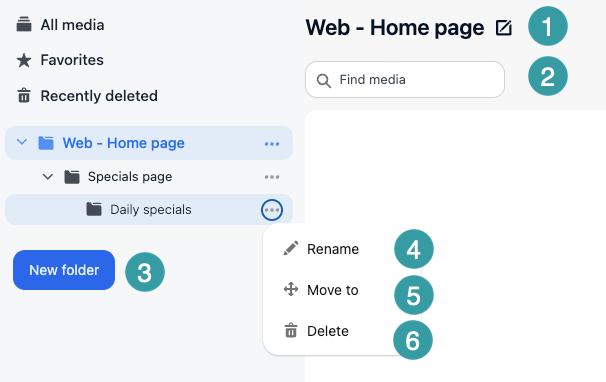
- Rename a folder by clicking the edit icon next to the name.
- Search for a file by name or ID.
- Add a new folder. Enter the name inline.
- Rename the folder inline.
- Move the folder. A dialog opens and you select where to nest the folder.
- Delete the folder. Any files in the folder will be moved to the top level and remain accessible in the All media section.
Search for media by name
- In the media manager toolbar, locate the Find media field.
- Type all or part of the media name. For example: banner
- The right panel has updated in real time to show matching records.
- To clear the search, delete the text in the Search field or select the clear icon.
Assign tags to a media record
Tags allow you to categorise media records with descriptive labels for filtering and discovery.
Your StoreConnect admin needs to enable Topics in Salesforce to use the tags feature.
- Open the media you want to tag.
- Enter or select tags in the Media Tags field.
-
Repeat to assign multiple tags.

- Select Save. The tags are now available as Filter options in the media manager.
Filter media by tag
- In the toolbar, select Filters.
- Type or select the tags you want to filter by.
- The display area updates with all media that meets the filter criteria.
- To remove the filter, deselect the active tags or select Clear filters.
Use favorites
Favorites allow you to bookmark media files for quick access. Each user’s favorites are private and stored as Console_Favorite__c records — they are not shared across the organization.
Add a media file to favorites
You can add a file to your favorites from grid view, list view, or a media record page.
- In the three dots menu on the media object, select Favorite. OR
- Open the media record and select the star (favorite) option.
-
To remove from favorites, do the reverse.
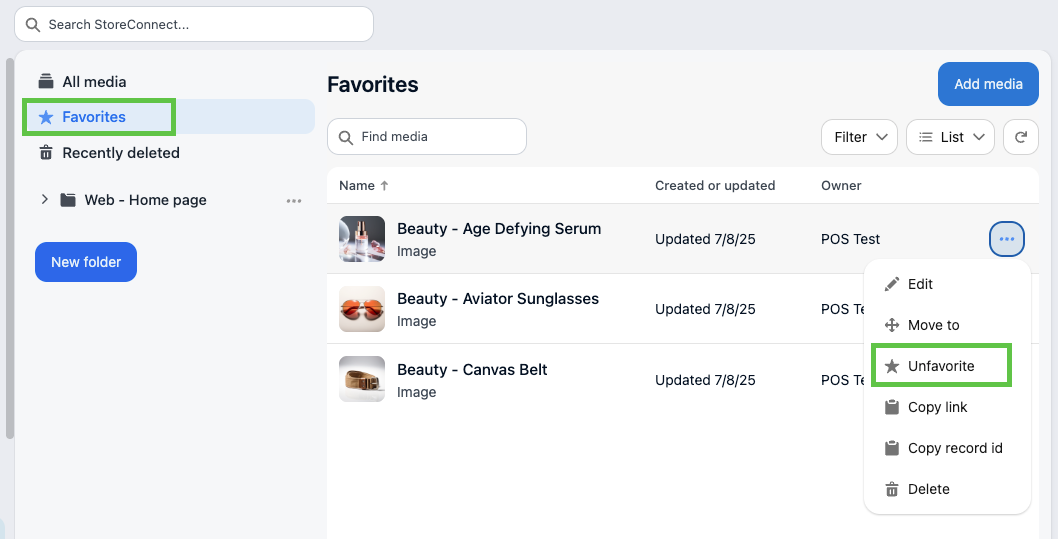
View a list of your favorite media
In the left panel or toolbar of the media manager, select Favorites.
Delete a media file
Deletion is permanent. Confirm the file is no longer referenced by any product, page, or content record before proceeding.
- Locate the file you want to delete.
- Click the menu icon (three dots) and select Delete.
- Confirm Delete.
Manage media from related lists
Media records can also be created, edited, deleted, and viewed directly from related lists on associated Salesforce objects, such as products. Changes made via a related list are reflected immediately in the media manager library.
Was this article helpful?
Thanks for your feedback! It helps us improve our docs.