

Review carts and generate cart reports
On this page
| Column | Description |
|---|---|
| Cart Name | The auto-numbered identifier (e.g., Cart-000142) |
| Account | The account associated with the cart |
| Contact | The contact who owns the cart |
| Status | The current checkout step |
| Abandoned | Whether the cart has been marked as abandoned |
| Order | The order record linked to the cart after checkout |
Create a custom cart list view
- Go to the Carts list.
- Click the list view controls icon (gear icon) and select New.
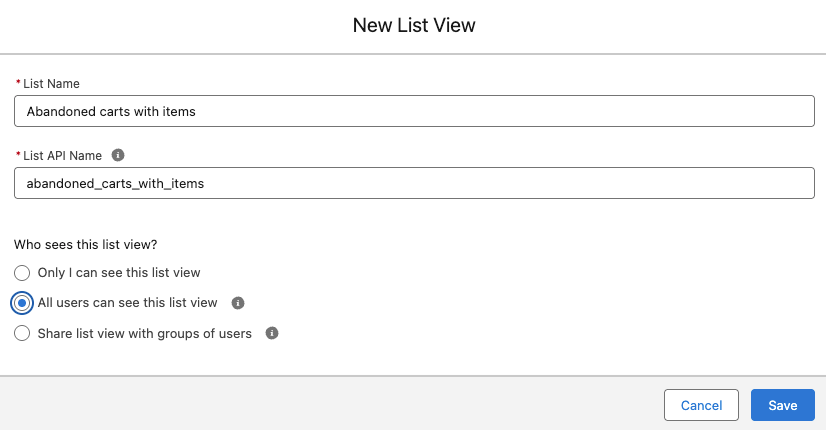
- Enter a name for the list view (for example, Abandoned carts with items).
-
Select who can see this list view.
- Click Save.
- Click Add Filters and add your filter criteria.
- Select fields to display (in cog menu).
- When you are finished, Save.
Suggested list views
Salesforce list views cannot directly filter on the absence of related records. To identify empty carts (no Cart Items), use a built-in report with a cross-filter instead.
Abandoned carts - Abandoned = True
Consider adding Checkout Email, Source, and Created Date columns for more context.
Active web carts
| Filter | Operator | Value |
|---|---|---|
| Source | equals | web |
| Abandoned | equals | False |
| Status | not equal to | complete |
Carts pending order creation (may indicate a sync issue)
| Filter | Operator | Value |
|---|---|---|
| Status | equals | paid |
| Order | equals | (leave empty) |
Built-in cart report
StoreConnect includes a built-in report called Ratio of Completed / Abandoned Carts located in the StoreConnect Default Reports folder. It groups results by Pricebook Name and includes an Abandoned Ratio formula field showing the percentage of abandoned carts over the last 30 days.
- Go to the Reports list.
- Open the StoreConnect Default Reports folder.
- Click Ratio of Completed / Abandoned Carts.
- Click Run Report.
- To change the time frame, modify the Submitted Date filter.
Custom cart reports
- Go to the Reports list and click New Report.
-
Select the Carts report type.
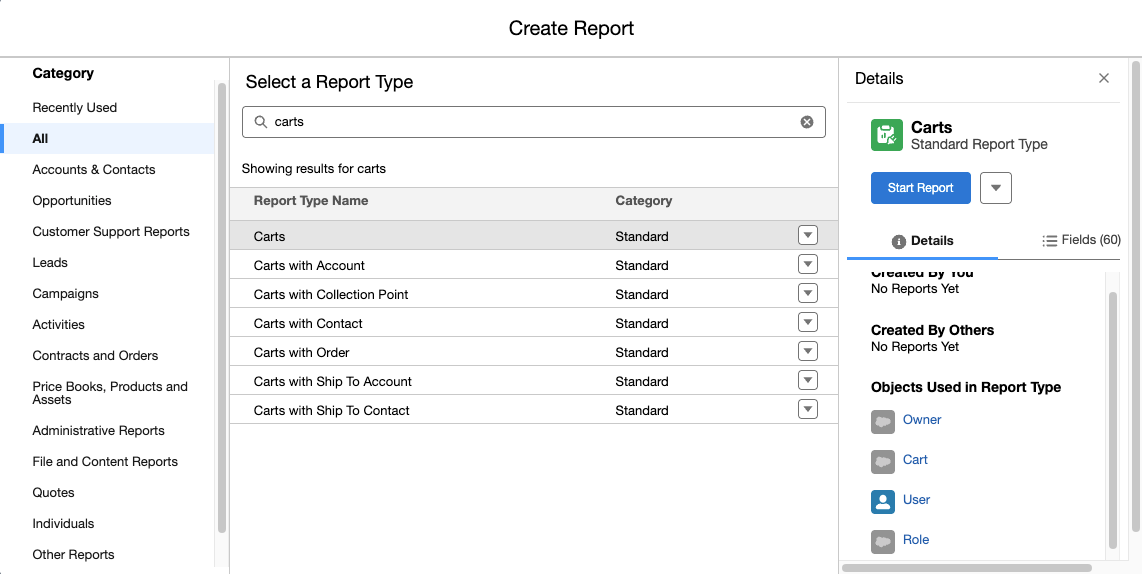
- For item-level detail, select Carts with Cart Items if available.
- Add columns, filters, and groupings as needed.
- Click Save & Run.
- Enter a report name, select a folder, and click Save.
Suggested custom reports
- Carts by status — group by Status, count records. Shows how many carts are at each checkout stage.
- Abandoned cart value — filter Abandoned equals True, use Carts with Cart Items report type, sum Unit Price × Quantity. Estimates total value left in abandoned carts.
- Cart source distribution — group by Source, count records. Shows distribution across web, POS, API, and manual.
- Carts by device type — group by Browser Device Type, filter Source equals web. Shows session breakdown by device.
- Empty carts — use Carts report type with a cross-filter: Carts without Cart Items. Useful before manual cleanup.
Cart campaign reporting
Each cart can have related Cart Campaign records that store UTM marketing attribution data.
| Field | Description |
|---|---|
| UTM Campaign | Campaign name |
| UTM Source | Traffic source (e.g., google, newsletter) |
| UTM Medium | Marketing medium (e.g., cpc, email) |
| UTM Content | Ad variant or content identifier |
| UTM Term | Search keyword |
| Visited At | Date and time of the campaign-attributed visit |
When a cart is deleted, its related Cart Campaign records are also deleted.
Create a campaign attribution report
- Go to the Reports list and click New Report.
- Select the Cart Campaigns report type (or Cart Campaigns with Carts).
- Add UTM Campaign, UTM Source, UTM Medium, and Visited At columns.
- Group by UTM Campaign or UTM Source.
- Click Save & Run, name the report, and save it to a folder.
Was this article helpful?
Thanks for your feedback! It helps us improve our docs.