

Configure zones for tax and shipping areas
On this page
Using zones allows you to customize geographic boundaries according to business needs, and provide a default store for a customer based on their location. When you build a zone, you don’t have to follow traditional or physical borders. You can make zones that include any states/provinces, postcodes/zip codes that you want. Tax, shipping and stores can share the same zones or have their own depending on your requirements.
Zones for shipping
Use Zones to apply different shipping rates to different geographic areas, for example to separate city, metro, and regional deliveries.
Zones for tax rates
Zones can help simplify the application of tax rates. For example, taxes are complex in the US, with Federal, State, and Local taxes applying in one transaction.
Example zones
Oceania
Countries: Australia, Indonesia, Cook Islands
Eastern australia
States: Queensland, NSW, ACT, Victoria
Sydney cbd
Postcodes: 2000, 2001, 2002, etc.
How zones work in StoreConnect
First, you create a zone object, then add specific relationship objects so the zone includes particular countries, states, postcodes, etc. Note that there is a hierarchy where postcodes belong to States, and States belong to countries. So that if you include a country in a zone, it also includes all States and postcodes with a related object to the country.
Add a zone
- Open the Zones object list in StoreConnect.
- Select New.
- Give the zone a name and Save.
-
In the Related Zone Identifiers section, add countries, States, or postcodes to the zone.
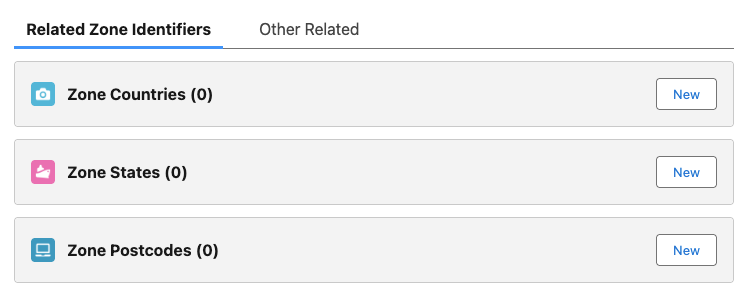
Add countries to a zone
- Open the zone record.
- In the Zone Countries related list, click New.
- Search and select an existing country.
- If the country does not exist:
- Select New country.
- Give the country a Name.
- Select the country’s ISO code.
- Select Save.
- Select Save.
Add states to a zone
- Open the zone record.
- In the Zone States related list, click New.
- Search and select an existing State.
- If the State does not exist:
- Select New State.
- Select the country the State belongs to.
- Give the State a Name.
- Enter the State Code.
- Select Save.
- Select Save.
Add postcodes (zip codes) to a zone
- Open the zone record.
- In the Zone postcodes related list, click New
- Search and select an existing postcode.
- If the postcode does not exist:
- Select New Postcode.
- Select the State the postcode belongs to.
- Give the postcode a Name.
- Enter the postcode Code.
- Select Save.
- Select Save.
Was this article helpful?
Thanks for your feedback! It helps us improve our docs.