

Process empty and abandoned carts
On this page
How the abandoned cart job works
StoreConnect runs a scheduled background job that processes carts that have been idle for longer than a configured period. For each eligible cart, the job takes one of two actions:
- Carts with items (and no linked order): the Abandoned checkbox is set to selected.
- Carts without items (empty carts): the cart record is deleted.
A cart is eligible for processing only if all of the following apply:
- Source is web.
- Status is one of: customer, shipping, terms_and_conditions, payment, or failed.
- The Abandoned checkbox is not already selected.
- The cart was created within the configured time range.
Decision logic
```text
Is the cart eligible?
↓ Yes
Does it have items?
↓ Yes → Does it have a linked order?
          ↓ Yes → Skip

          ↓ No  → Mark as Abandoned
↓ No → Delete the cart record ```
Configure cart abandonment time
The period after which a cart is considered abandoned is set per store using a Store Variable. The default is 10 hours if no variable is set.
| Setting | Value |
|---|---|
| Default | 10 hours |
| Minimum | 1 hour (values of 0 or negative revert to the 10-hour default) |
| Maximum | 1,080 hours (45 days) |
The job uses a 12-hour lookback window. For example, with a 10-hour abandonment period, the job processes carts created between 22 hours ago and 10 hours ago. This prevents the same carts from being reprocessed on every run.
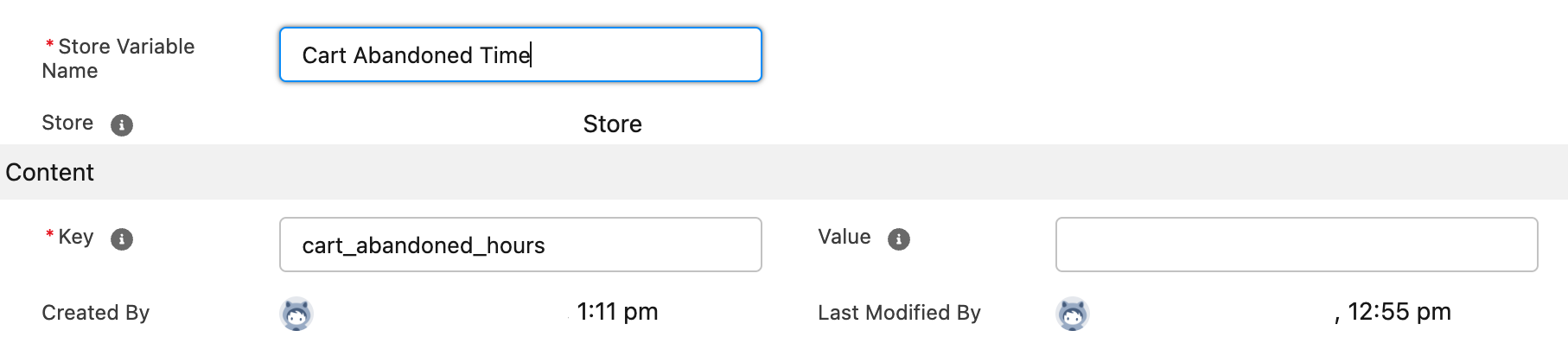
To change the default abandonment time
- Go to the Store record for the store you want to configure.
- Go to the Store Variables related list and click New.
- Give the variable a name.
- In the Key field, enter cart_abandoned_hours.
- In the Value field, enter the number of hours (for example, 24).
- Click Save.
POS cart differences
POS carts are excluded from automated abandoned cart processing. They are never automatically marked as abandoned or deleted, and will persist in Salesforce until manually managed. The same applies to carts with a source of api or manual.
Manually remove the abandoned flag
If a customer contacts support and wants to resume a cart that has been marked as abandoned, an admin can clear the flag.
- Go to the Cart record.
- Click Edit.
- Uncheck the Abandoned checkbox.
- Click Save.
Removing the abandoned flag does not automatically restore the customer’s browser session. The customer must still have a valid sc_token cookie. If the cookie has been cleared, direct them to start a new cart.
Manually delete empty carts
The abandoned cart job handles empty cart cleanup automatically. If manual cleanup is needed:
- Go to the Carts list.
- Create a list view or report filtered for carts with no related Cart Items.
- Before deleting, confirm that each cart has:
- No related Cart Item records
- No linked Order record
- No active checkout session (check the Status and last modified date)
- Delete the records as appropriate.
Was this article helpful?
Thanks for your feedback! It helps us improve our docs.