

Add a subscription product
On this page
What makes a subscription product different to other products is that it involves a recurring payment. So when setting up a subscription product, the payment rules and details need to be exact.
See the main subscriptions overview topic for detailed information on subscription product settings and configuration options.
Add a subscription product
- Open the Products list and select New.
- Enter a Product Name and a Display Name.
- If you want, mark as Active.
- Select the Virtual option.
- Scroll to the Subscription section.
- Set the details of the subscription product. Refer to the subscription overview topic to learn more about the configuration options.
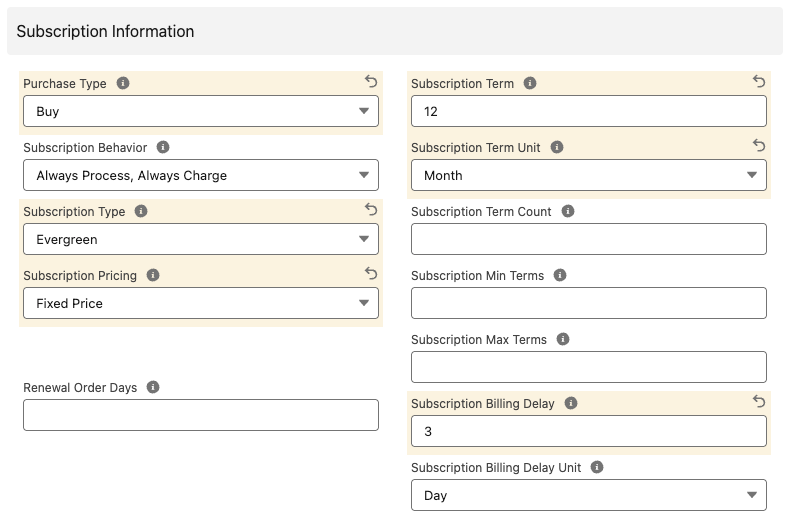
- Select Save.
Next steps
- Set the subscription price in the pricebook.
- Add the product to a product category.
- Add media for the product appearance on your website.
Related topics
Was this article helpful?
Thanks for your feedback! It helps us improve our docs.