

Change default street address layout
On this page
StoreConnect collects a customer shipping and billing addresses and saves these on each order in Salesforce. For new customers, these are also saved on the Account record. By default, your store will provide a single field for Street Address and separate fields for City, State, Zip Code, and Country.
Single-line street address
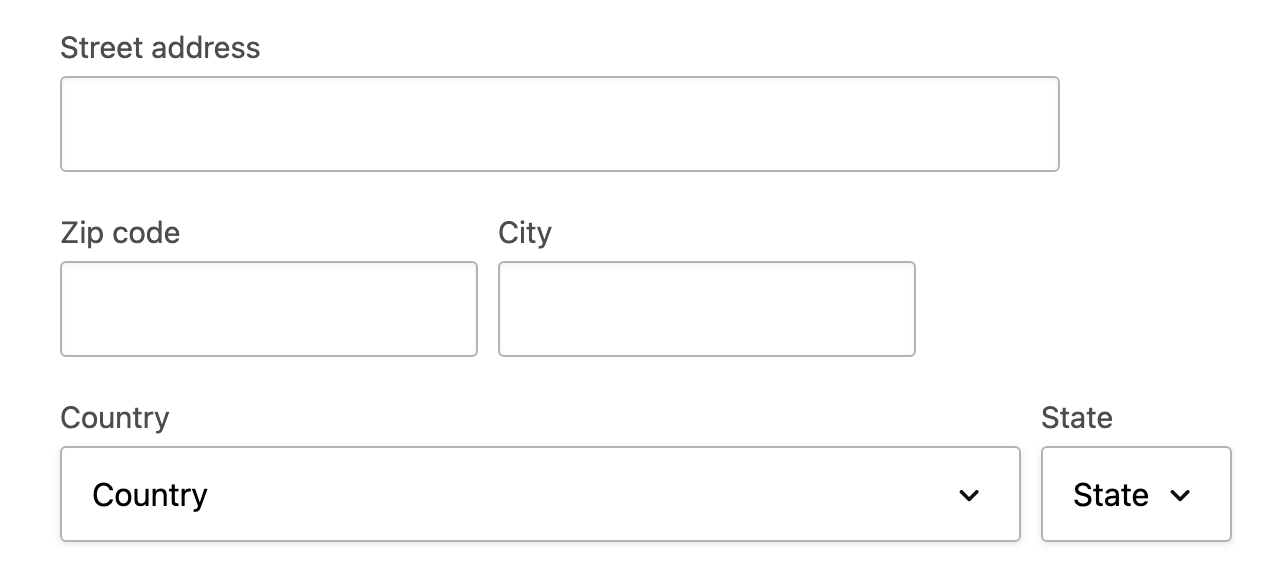
If you need to separate street address into multiple parts, like Suite, Building Number, etc. you can split the street address field out into multiple fields.
Multi-line street address
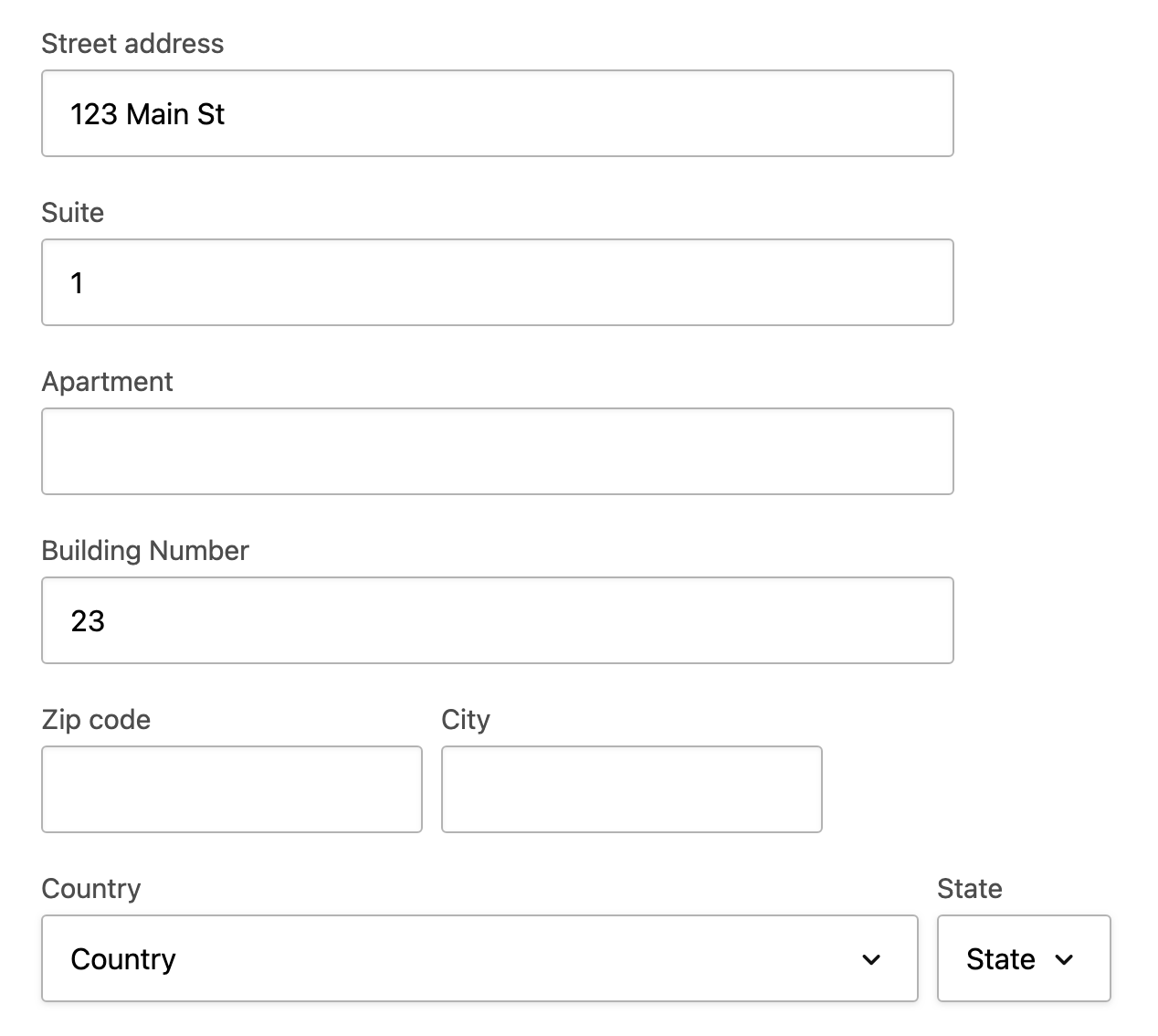
The extra fields will be available on all pages where an address is rendered, like checkout or an account profile page.
The default labels that come with the extra fields are:
- Street address
- Suite
- Apartment
- Building Number
- line 5
- line 6, etc.
There is no limit on the number of rows other than Salesforce’s 255 character limit. Labels can be changed to anything you want using translations within the stores theme.
Each field will display separately in your store but will all still be saved in the same street address fields in Salesforce but separated into multiple lines. This allows you to take each line and place each in your own custom fields in Salesforce to do with what you please. You could achieve this using an Apex trigger.
Salesforce street address field with multi-line
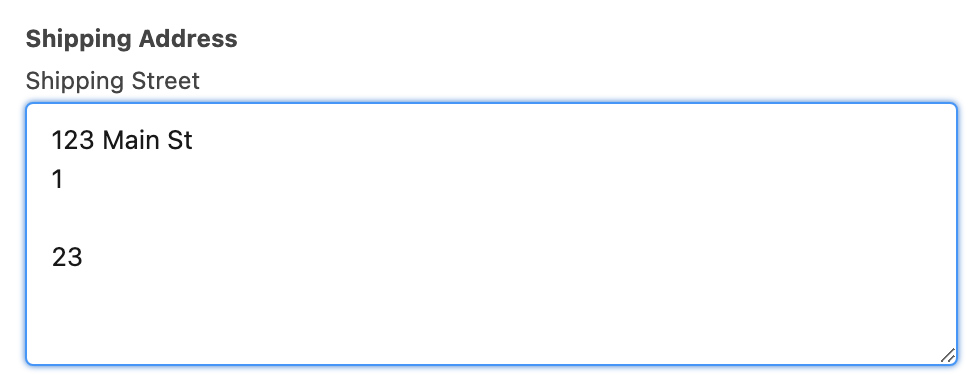
:::note Salesforce will remove any blank lines at the beginning of it’s fields so the first line must always contain a value. Your customers will be prompted to enter a value in Street Address Line 1 if they leave it blank. :::
Address validation
If you want to add address validation to your store to prevent typos causing packages being set to the wrong place, Check out Addressfinder. These guys have a great solution that works on single line and multi-line street addresses.
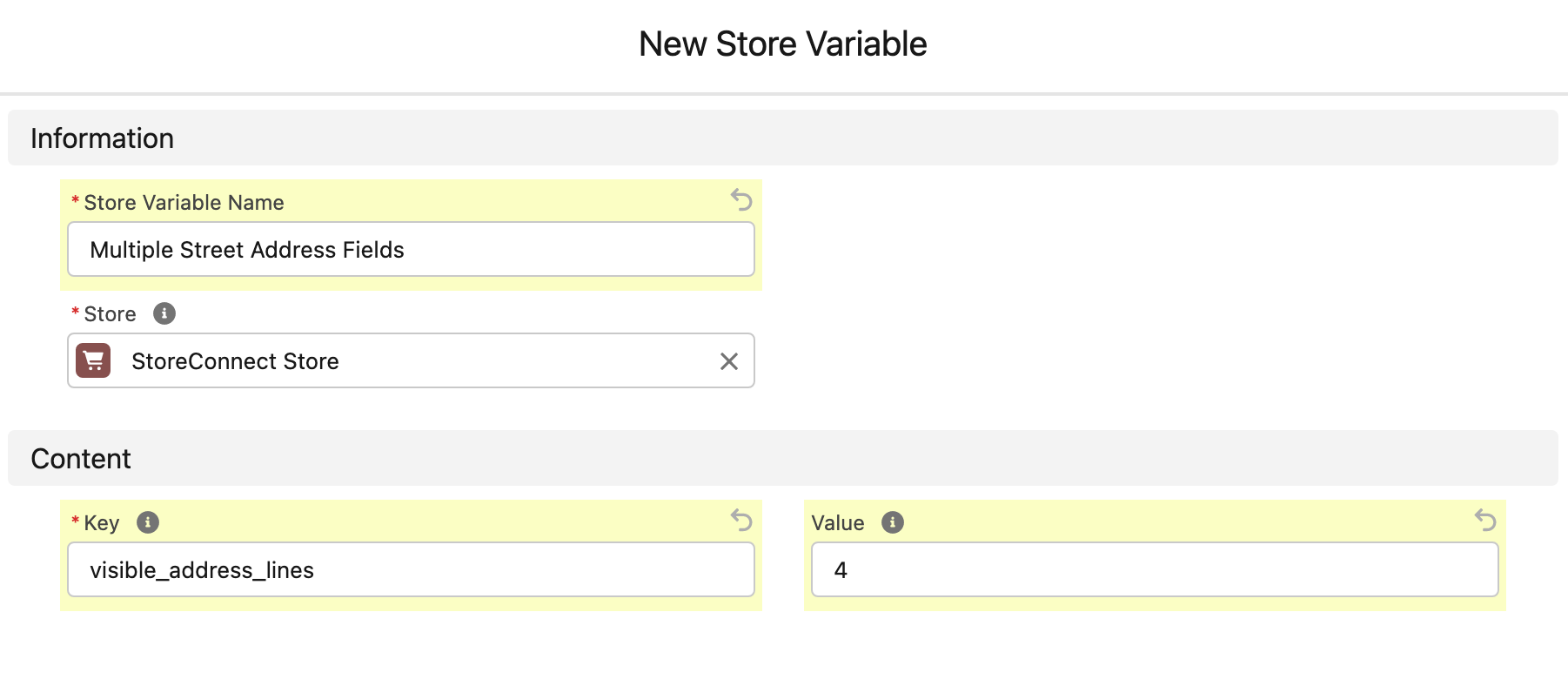
How to enable multi-line street address
- From your Store record, find the Store Variables related list
- Create a new Store Variable
- Give it a name
- Use this Key:
visible_address_lines - Set the Value to how many lines you want to show in place of the single Street Address line (Integer eg. 1-9)
- Click ‘Save’
Your new fields will now show for this store.
To change the labels for your new fields, you will need to add translations to your store’s theme. You will find instructions on Theme locales under ‘Locales’.
The translation keys are as follows:
- Line 1:
accounts.shared.address_form.address_lines.count.#1 - Line 2:
accounts.shared.address_form.address_lines.count.#2 - Line 3:
accounts.shared.address_form.address_lines.count.#3, etc.
Was this article helpful?
Thanks for your feedback! It helps us improve our docs.