

Process vouchers at POS
On this page
This topic covers:
- Selling gift cards at your retail checkout counter
- Processing voucher payments for in-store purchases
- Checking voucher balances for walk-in customers
Before you start
- Your store must be configured to use vouchers.
- You need at least one voucher product.
- To sell pre-printed gift cards, an Asset record must already exist in Salesforce for every physical card, with the card’s number stored in Serial Number.
For online redemption and balance tracking, see managing and spending vouchers.
Sell vouchers in-store
How a sale works at the register depends on whether the voucher product has Voucher Uses Assets selected. Check the product configuration before you start, because the two flows differ.
Make sure the transaction is fully completed and paid before you give the voucher code to the customer.
Sell a voucher that generates its own code
Use this flow for voucher products that do not have Voucher Uses Assets selected. StoreConnect generates the code after the sale.
- At the register, add the voucher product to the customer’s transaction.
- If the product offers a choice of amounts, select a preset amount or enter a custom amount.
- Add a customer to the transaction. POS blocks checkout with the message “A customer is required for vouchers that auto-generate a code or PIN.” until you do.
- Complete the sale and finalize the transaction, as you would for any other product.
- Tell the customer their voucher will arrive by email once the order is processed.
:::note The code for this type of voucher is not available at the register and is not printed on the receipt. StoreConnect creates the voucher once the order reaches the status set in Deliver Vouchers At Order Status on the Store record, then emails it to the customer using the product’s Voucher Email Template. :::
Sell a pre-printed gift card
Use this flow for voucher products that have Voucher Uses Assets selected. Each physical card is an Asset record in Salesforce, and the card’s Serial Number becomes the voucher code.
- At the register, add the voucher product to the customer’s transaction. The Enter voucher code screen opens.
- Scan or type the number printed on the physical card. POS shows “Voucher found” when the card is available to sell.
- If the product offers a choice of amounts, select a preset amount or enter a custom amount.
- Select Add to cart.
- If POS asks for a customer, add one. This happens when the card does not already carry an activation code or PIN that the product requires, because StoreConnect generates the missing value and needs a recipient to send it to. A card that already carries everything the product requires can be sold to a walk-in customer with no account.
- Complete the sale and finalize the transaction.
- Hand the physical card to the customer. The number already printed on the card is the voucher code, so there is nothing to write down.
:::note One physical card is one line on the transaction, so the quantity picker is hidden for these products. To sell several cards, scan each one separately. :::
If a card will not scan
| Message | What it means |
|---|---|
| Item with voucher code could not be found. | No Asset record matches that number for this product. The card was never loaded into Salesforce, or the number was mistyped. |
| Voucher is no longer available. | The card has already been sold, or a voucher already exists for it. |
| Item with serial number is already in the cart. | The same card is already on this transaction. |
| Device offline. | The register has lost its connection. See the warning below. |
:::warning Pre-printed gift cards cannot be sold while the register is offline. The card records are not held on the device, so POS has to look the card up against Salesforce to confirm it exists and has not already been sold, and each card has to be allocated to one sale at a time so that two registers cannot sell the same card. Vouchers that offer a choice of amounts are also unavailable offline. Add to cart stays disabled until the connection returns. A voucher product with a single fixed price and no asset backing can still be sold offline. :::
After the sale
Tell the customer:
- The voucher balance
- Expiry date, where the voucher has one
- Where the voucher can be used (single store, store group, or any location)
- How to check their balance online, at the voucher page on your storefront (for example,
shop.example.com/check-voucher)
Accept a voucher at checkout
- With the items in the cart, go to the POS checkout.
- Select Voucher as the payment method.
-
Enter the voucher code in the Code field. POS checks that the voucher exists, can be used at this store, has a balance, has not expired, and has been activated.
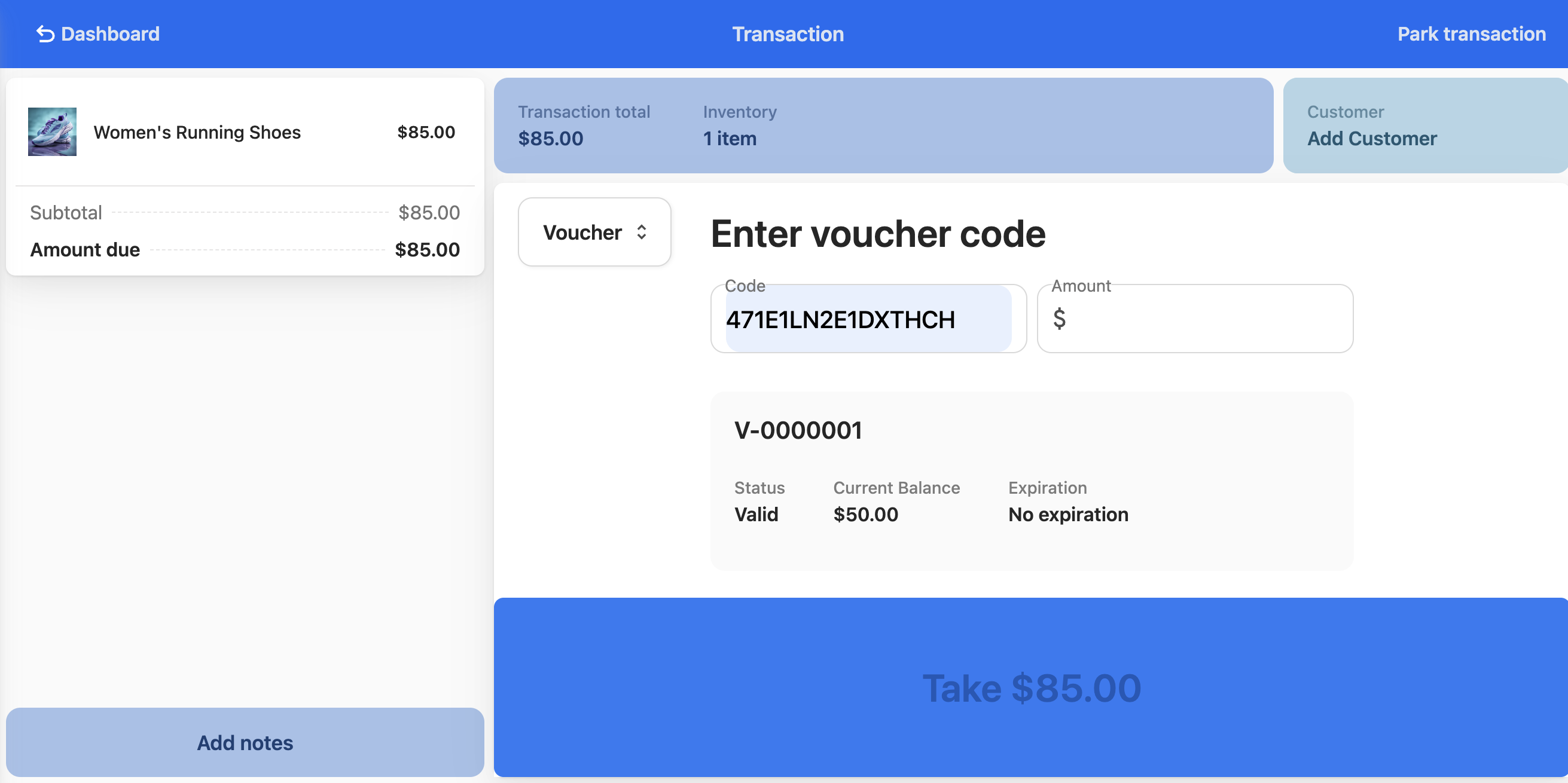
- If the voucher is PIN-protected, enter the PIN when prompted. The voucher is not applied until the correct PIN is entered.
- Enter the amount of the voucher the customer wants to use. This can be the full balance or part of it.
-
Select Take [Amount].
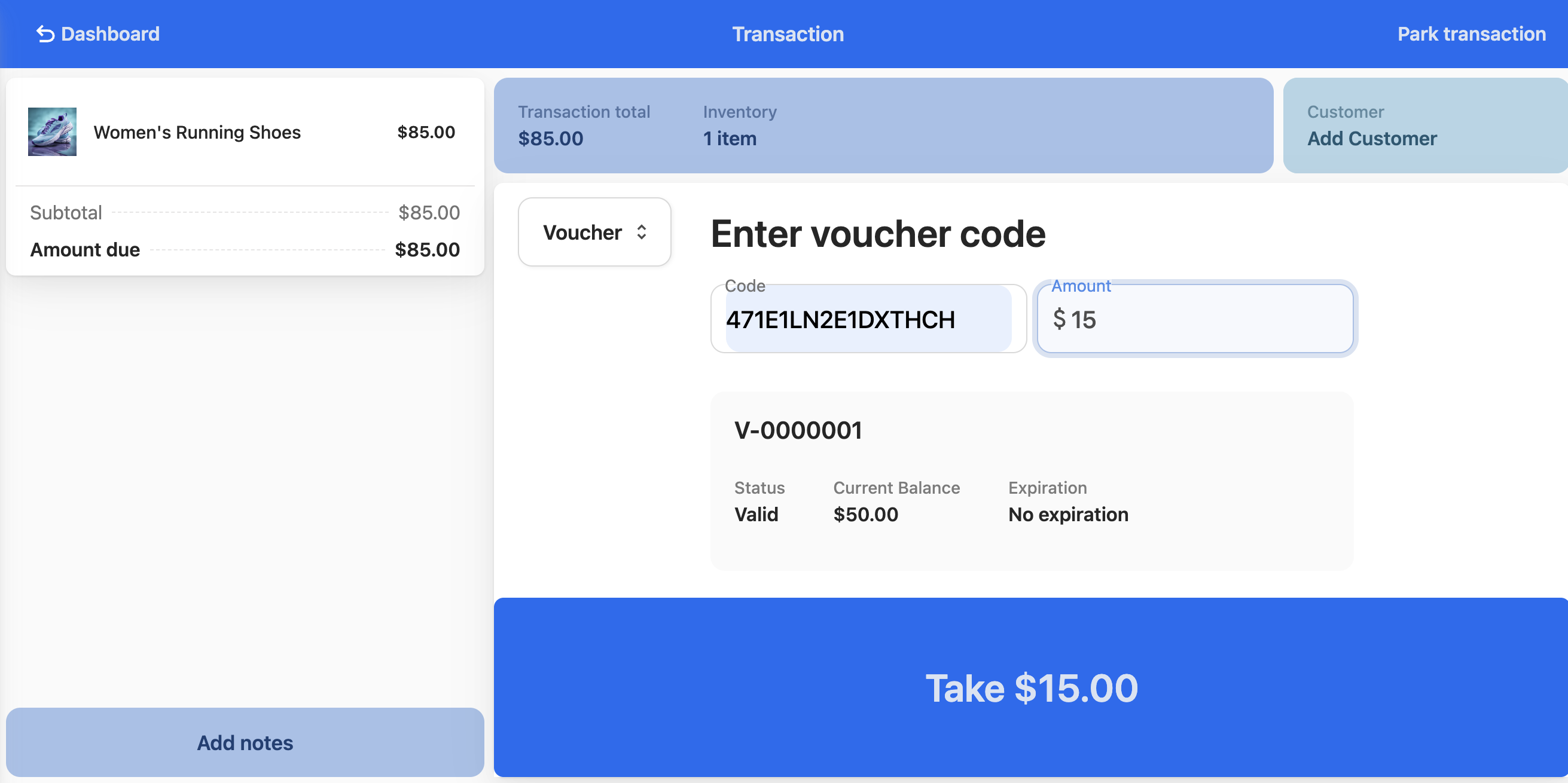
- Settle any remaining balance according to the amounts:
- Voucher covers more than the total — complete the transaction and return the voucher to the customer, who can present it again for a future purchase.
- Voucher covers less than the total — select another payment method to finalize the transaction.
The voucher balance reduces by the amount taken, and the payment appears on the order as a Voucher payment.
Check a voucher balance in-store
- Ask the customer for their voucher or voucher code.
- At the POS register, enter the code into the lookup function.
- Read the details POS returns:
- Current voucher balance
- Original voucher value
- Expiry date, where the voucher has one
- Tell the customer their current balance and any expiry information.
What StoreConnect records
Each stage of a voucher transaction writes its own records in Salesforce. Knowing which is which helps when you reconcile a register or answer a customer query.
When you sell a voucher
- The sale creates an Order with an Order Product line for the voucher product, exactly like any other sale.
- A Voucher record is created once the order reaches the status set in Deliver Vouchers At Order Status on the Store record. One voucher is created per unit sold, so selling a quantity of three produces three vouchers.
- Opening Balance on the voucher is taken from the unit price of the order line, and Order Item links back to the line that paid for it. Usage, Product, and the expiry date come from the product and store configuration.
- Status is set to
activestraight away, unless the product requires activation, in which case it stayspendinguntil the voucher is activated. - Recipient is set to the customer on the transaction. On an anonymous walk-in sale there is no recipient, so no voucher email is sent. This is why POS insists on a customer whenever it has to generate a code, activation code, or PIN.
For a pre-printed gift card, the sale also updates the card’s Asset record. StoreConnect stamps it with the customer’s Account and Contact, the Order Line Item, the purchase date, and the customer’s address. The voucher’s Code is copied from the asset’s Serial Number instead of being generated, and Asset on the voucher points back at the card. An asset belongs to the transaction that sold it, which is why scanning an already sold card is rejected at the register.
When a customer pays with a voucher
- A Payment record of type voucher is added to the order for the amount taken, with Payment Item records allocating that amount across the order lines it paid for.
- A Voucher Payment record links that payment to the Voucher. This is what ties a voucher to every order it has been spent on.
- A Voucher Log entry records the attempt, including failed ones, with the reason for the failure (such as an expired voucher, no balance left, or an incorrect PIN).
- The voucher code is not written to the payment’s Transaction Number, so codes are not exposed on payment records.
- The card’s Asset record is not touched. It records the original sale, not the spending.
- The voucher’s Status does not change when it is spent. A fully spent voucher stays
activewith a zero balance.
:::note There is no remaining balance field on the Voucher record. The balance is calculated as Opening Balance minus every payment linked through Voucher Payment, so a partly spent voucher still shows its original value in Opening Balance. To see what is actually left, check the balance at the register or on the store’s check voucher page. :::
Voucher security
- Protect codes: Never share voucher codes except with the intended recipient
- Verify identity: Always verify customer identity when replacing lost vouchers
- Watch for fraud: Be alert for suspicious redemption attempts
- Secure cards: Keep blank gift cards in a secure location
Issues that may require escalation
You may need to refer to your manager if any of the following happens.
- Voucher code not found in system
- Customer disputes expiry or balance
- Voucher restriction issues
- Lost voucher replacement requests
- Any technical system errors
- Suspected fraud
Was this article helpful?
Thanks for your feedback! It helps us improve our docs.