

Process special orders at POS
On this page
Use this process to order an item in for a customer that the outlet does not hold in stock. You take the customer’s details and any payment up front, then complete the sale when the item arrives.
Video demo
Create a special order
- At the POS register, add the item to the cart.
- Select Add customer and enter the customer details.
-
Select the item in the cart to show additional options.
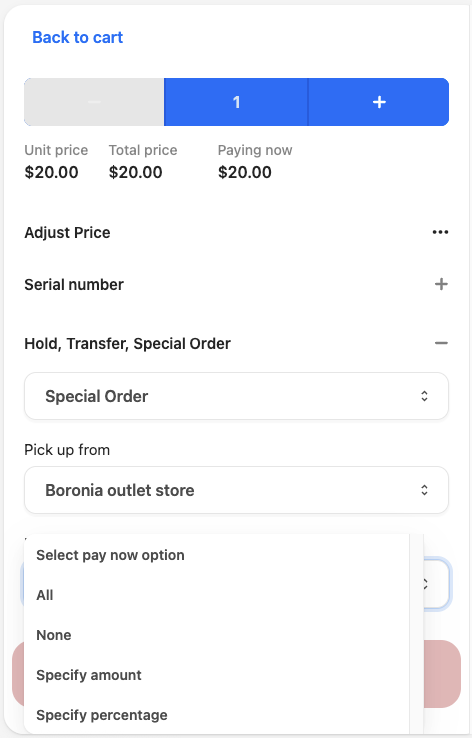
- In the Hold, Transfer, Special Order field, select Special Order.
- Select the Store location for pickup.
- Select how the customer wants to pay: the full amount now, a percentage, or a set amount.
- If they are paying now, follow the prompts to complete the transaction and issue a receipt.
The order appears in the Pickups list on the POS register with a status of Requested.

Complete the sale of a special order
As the special order progresses, its status moves from Ordered to Shipped, and then to Ready to pickup when the item arrives at the outlet. At that point you can finish the sale.
- At the POS register, open the Pickups list in the sidebar menu.
- Filter the list by type to show Special Orders, then search or scroll to find the order.
- Open the order and select Confirm available items.
- If the customer has an outstanding balance, select Process Payment and take the payment as normal.
- Select Release items.
The special order is complete, the goods are handed over, and the order drops out of the Pickups list.
Was this article helpful?
Thanks for your feedback! It helps us improve our docs.