

Cookie management and privacy compliance
On this page
Use this process to give visitors a cookie banner and a settings screen where they can accept or reject the tracking scripts your store runs. You build it from three record types, configure the banner text on the Store, then switch the feature on.
Before you begin
- You need edit access to the Store record, and to the Script Block, Cookie, and Compliance Group objects.
- Have the JavaScript for each tracking service you use, such as Google Analytics or Facebook Pixel, ready to paste in.
- Decide which of your cookies are strictly required for the site to work. Those go in a Compliance Group marked Required; everything else must be rejectable.
:::warning Do not enable privacy compliance until your Cookies and Compliance Groups are configured. Once it is on, any script attached to a cookie a visitor has not accepted stops loading, so a half-configured setup silently drops tracking you meant to keep. :::
What is privacy compliance?
Privacy compliance is the catch-all term for requirements imposed on websites in various territories, such as GDPR in the EU and SCA in the UK. The aim is to let a visitor understand how their interactions are tracked, what information is collected, and how it is shared. Visitors must also be able to disable any of it except what is strictly required for the website to work.
Set up the cookies banner scripts
StoreConnect assumes cookies are set by custom JavaScript on the site, so it needs to know which script is responsible for each cookie. Three objects record that:
- Script Block (
s_c__Script_Block__c) - Cookie (
s_c__Cookie__c) - Compliance Group (
s_c__Compliance_Group__c)
Create them in this order, because each one is looked up by the next:
- A Script Block is a container for one script. Google Analytics goes in one Script Block, Facebook Pixel in another.
- You assign a privacy-sensitive Script Block to a Cookie. That marks the script as cookie-managed.
- You assign the Cookie to a Compliance Group, such as “Marketing Cookies”.
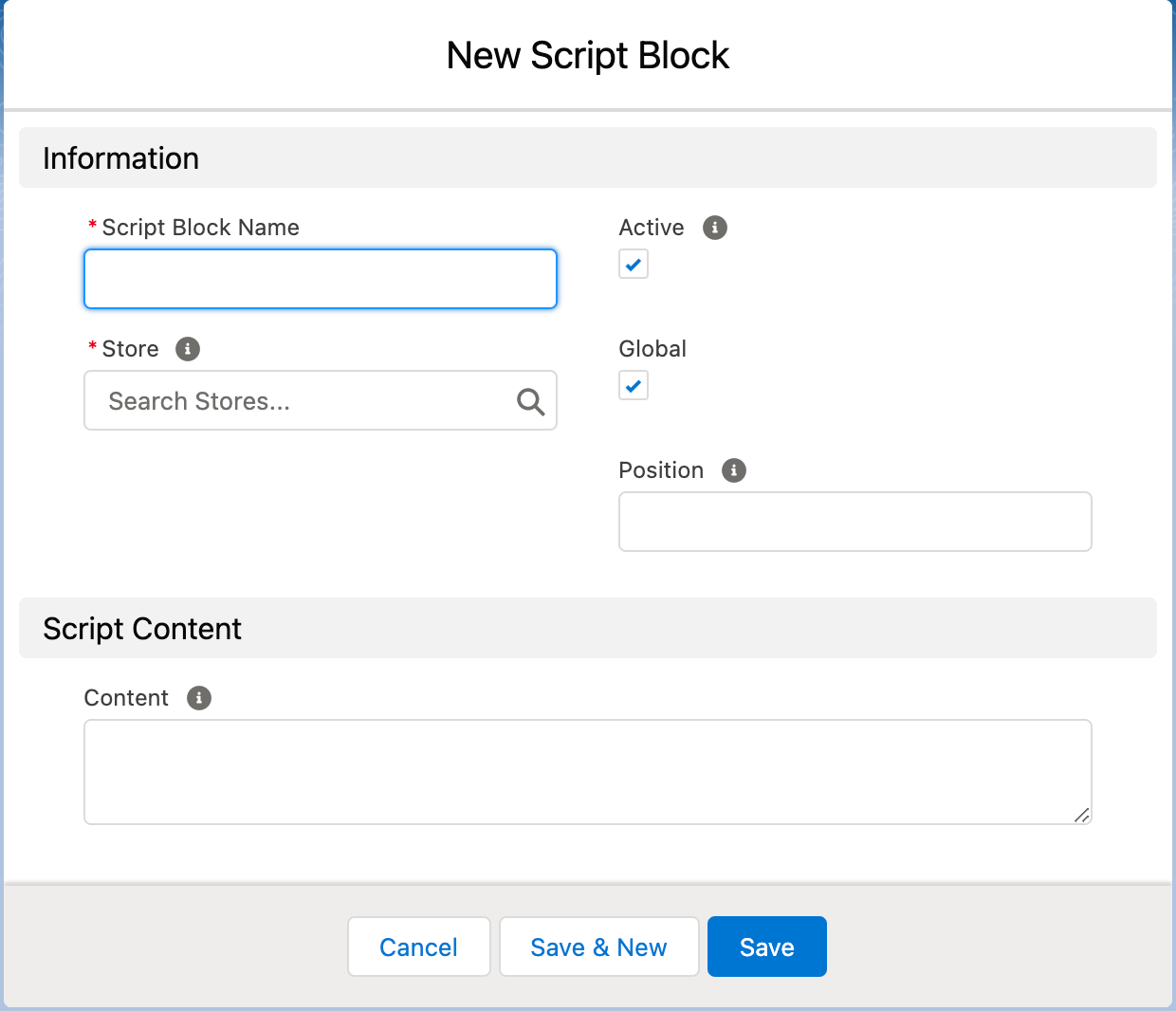
Script blocks
A Script Block holds a JavaScript snippet such as Google Analytics or Facebook Pixel. Script Blocks can also hold any JavaScript unrelated to the cookies and compliance system.
| Field | API name | Notes |
|---|---|---|
| Active | s_c__Active__c |
Only active Script Blocks are included on the website. |
| Content | s_c__Content__c |
The JavaScript, without <script> tags. |
| Global | s_c__Global__c |
Include the block on the website automatically. |
| Position | s_c__Position__c |
Display order. Lower numbers appear first. Only applies when Global is checked. |
| Script URL | s_c__Url__c |
URL of an external JavaScript file. If set, Content is ignored. |
| Store | s_c__Store_Id__c |
The Store the block belongs to. Required. |
| Channels | s_c__Channels__c |
Which channels the block applies to, such as web or POS. |
Script Blocks that are both Global and Active are included on the store in Position order.
Cookies
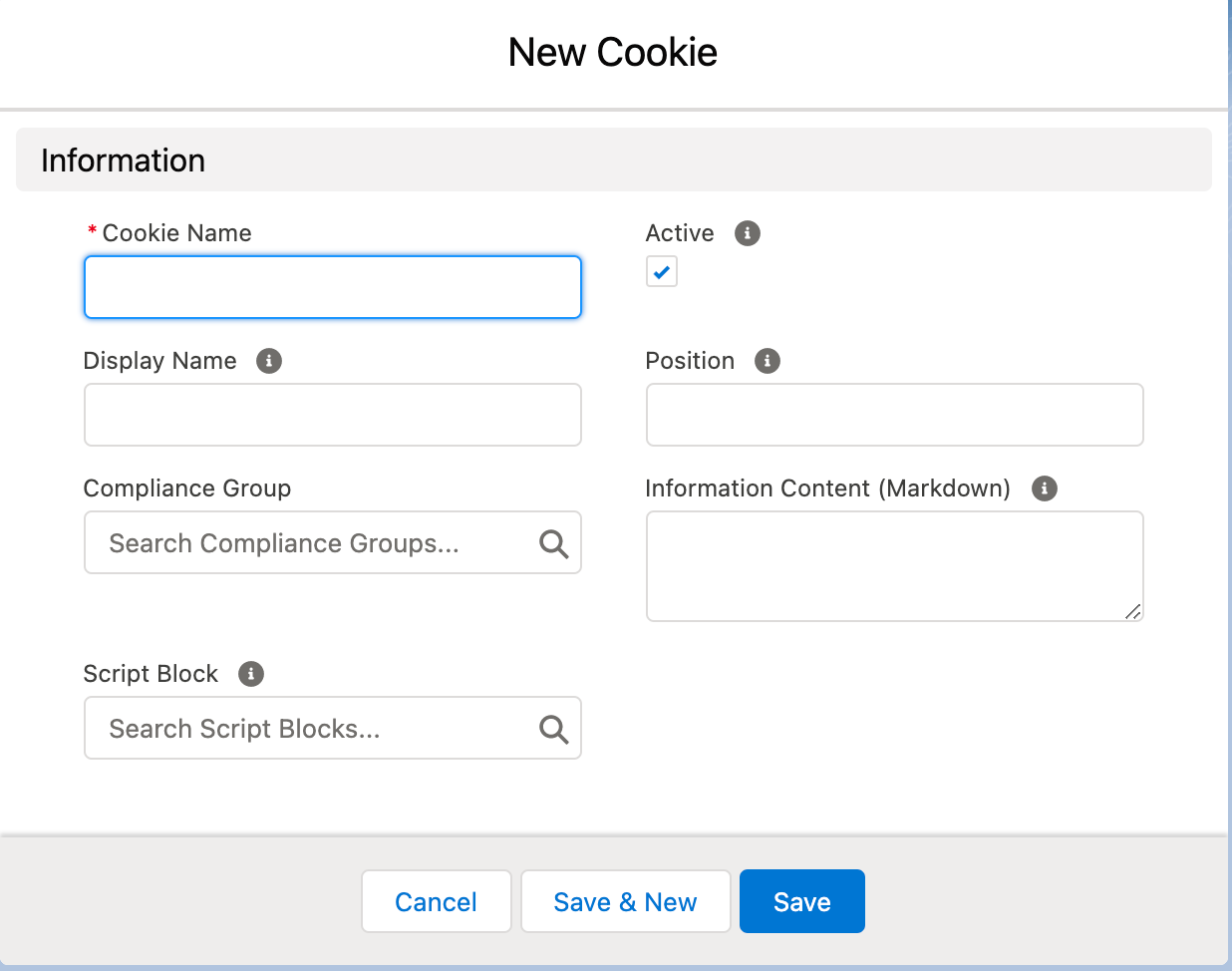
A Cookie record represents one cookie your site sets in a visitor’s browser, and links it to the Script Block that sets it.
| Field | API name | Notes |
|---|---|---|
| Active | s_c__Active__c |
Only active Cookies are referenced on the website. |
| Compliance Group | s_c__Compliance_Group_Id__c |
The group this Cookie belongs to. |
| Display Name | s_c__Display_Name__c |
The name shown on the website. Falls back to Name if empty. |
| Information Content (Markdown) | s_c__Information_Markdown__c |
Description shown on the website. |
| Position | s_c__Position__c |
Display order within the group. Lower numbers appear first. |
| Script Block | s_c__Script_Block_Id__c |
The Script Block responsible for this cookie. If a visitor disables the cookie, the block is not included. |
Compliance groups
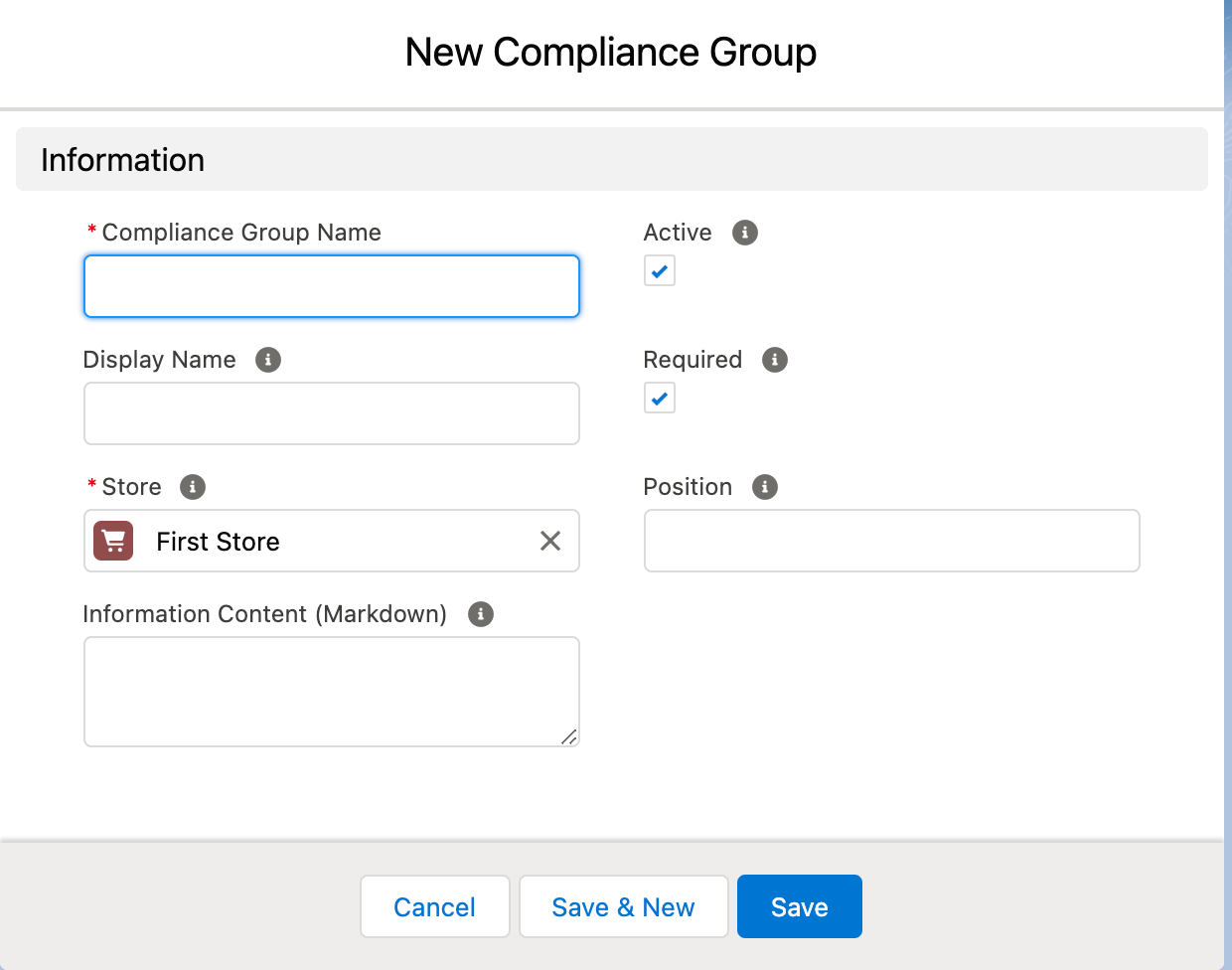
A Compliance Group groups cookies by function and marks a whole group as required. Cookies in a required group are always enabled and a visitor cannot turn them off.
| Field | API name | Notes |
|---|---|---|
| Active | s_c__Active__c |
Only active Compliance Groups are shown on the website. |
| Display Name | s_c__Display_Name__c |
The name shown on the website. Falls back to Name if empty. |
| Information Content (Markdown) | s_c__Information_Markdown__c |
Description shown on the website. |
| Position | s_c__Position__c |
Display order. Lower numbers appear first. |
| Required | s_c__Required__c |
When checked, a visitor cannot disable this group. |
| Store | s_c__Store_Id__c |
The Store the group belongs to. Required. |
Implement privacy compliance
Once your scripts are in place, configure each part of the cookie and compliance feature, then enable it on the Store.
Configure cookies
A Cookie must belong to both a Compliance Group and a Script Block to have any effect on the site.
Uncheck Active to turn a Cookie off.
Three fields drive what a visitor sees for the cookie on the settings screen:
- Position sets the order cookies are listed in within their Compliance Group.
- Display Name is the label shown.
- Information Content (Markdown) is the description shown beneath it.
Several Cookies can point at the same Script Block, which is useful when one third-party script sets multiple cookies. In that case the script only loads if the visitor enables every cookie attached to it.
Configure compliance groups
A Compliance Group must belong to a Store.
Uncheck Active to turn a group off. Check Required to make the group always enabled, so a visitor cannot disable it.
Three fields drive what a visitor sees for the group on the settings screen:
- Position sets the order the Compliance Groups are listed in.
- Display Name is the label shown.
- Information Content (Markdown) is the description shown beneath it.
Configure the compliance banner
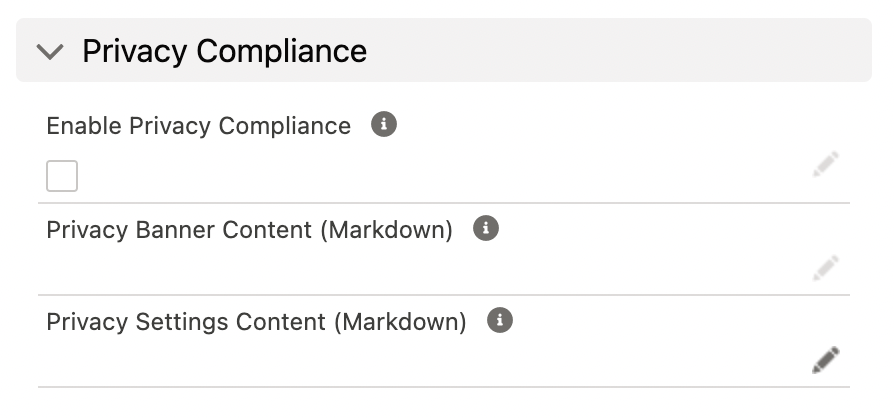
The Store record has two more fields for privacy compliance:
- Privacy Banner Content
- Privacy Settings Content
These supply the text shown in the banner and on the settings screen.
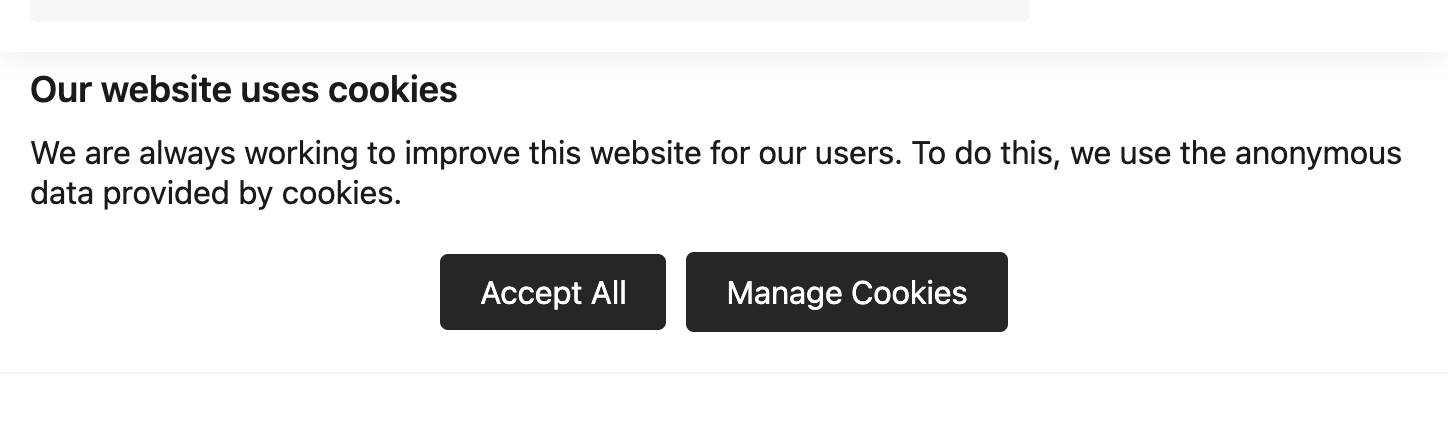
In the default themes, the banner has three parts:
- The text from Privacy Banner Content
- An Accept All button
- A Manage Cookies button
Apart from the button labels, all the text in the banner comes from Salesforce.
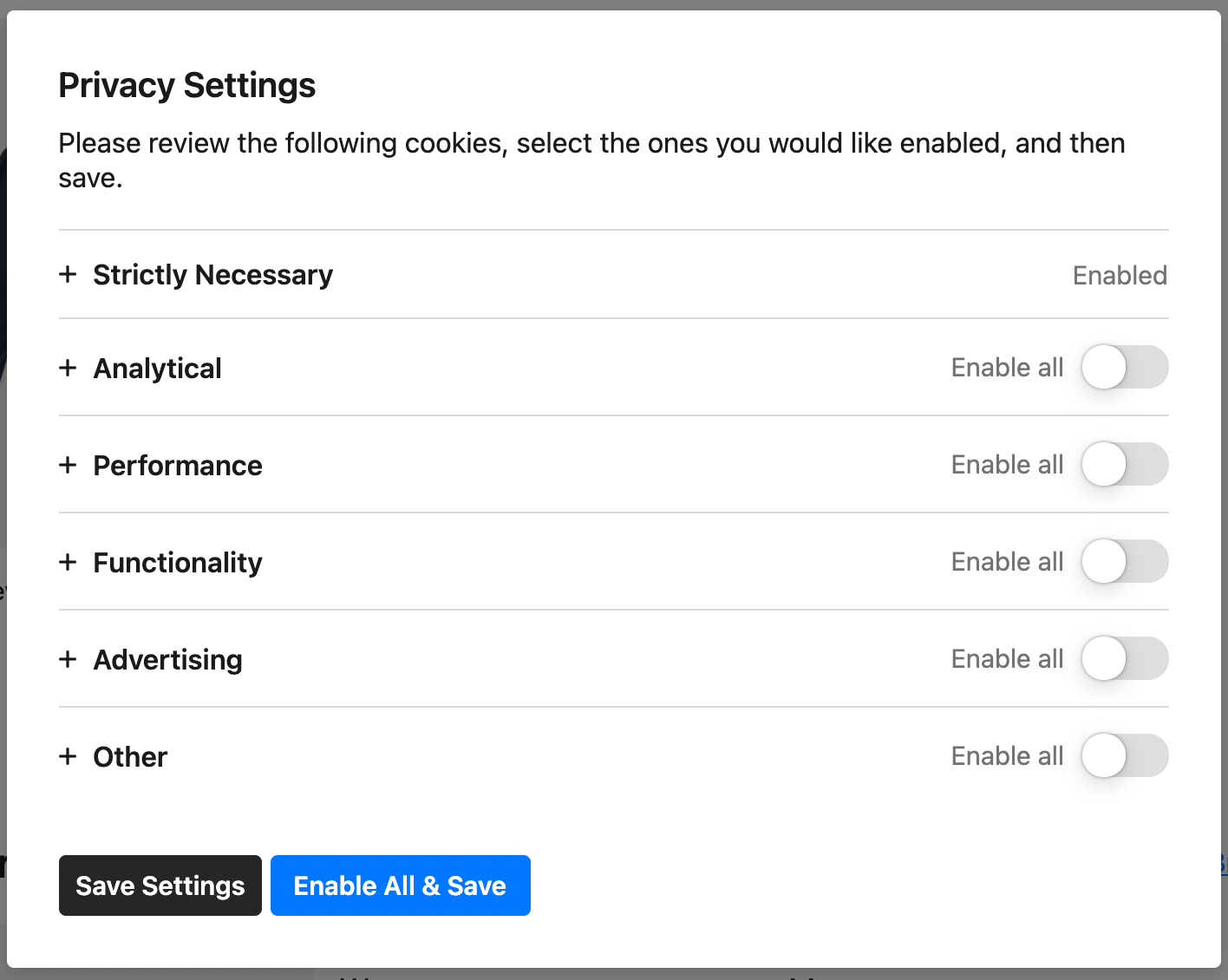
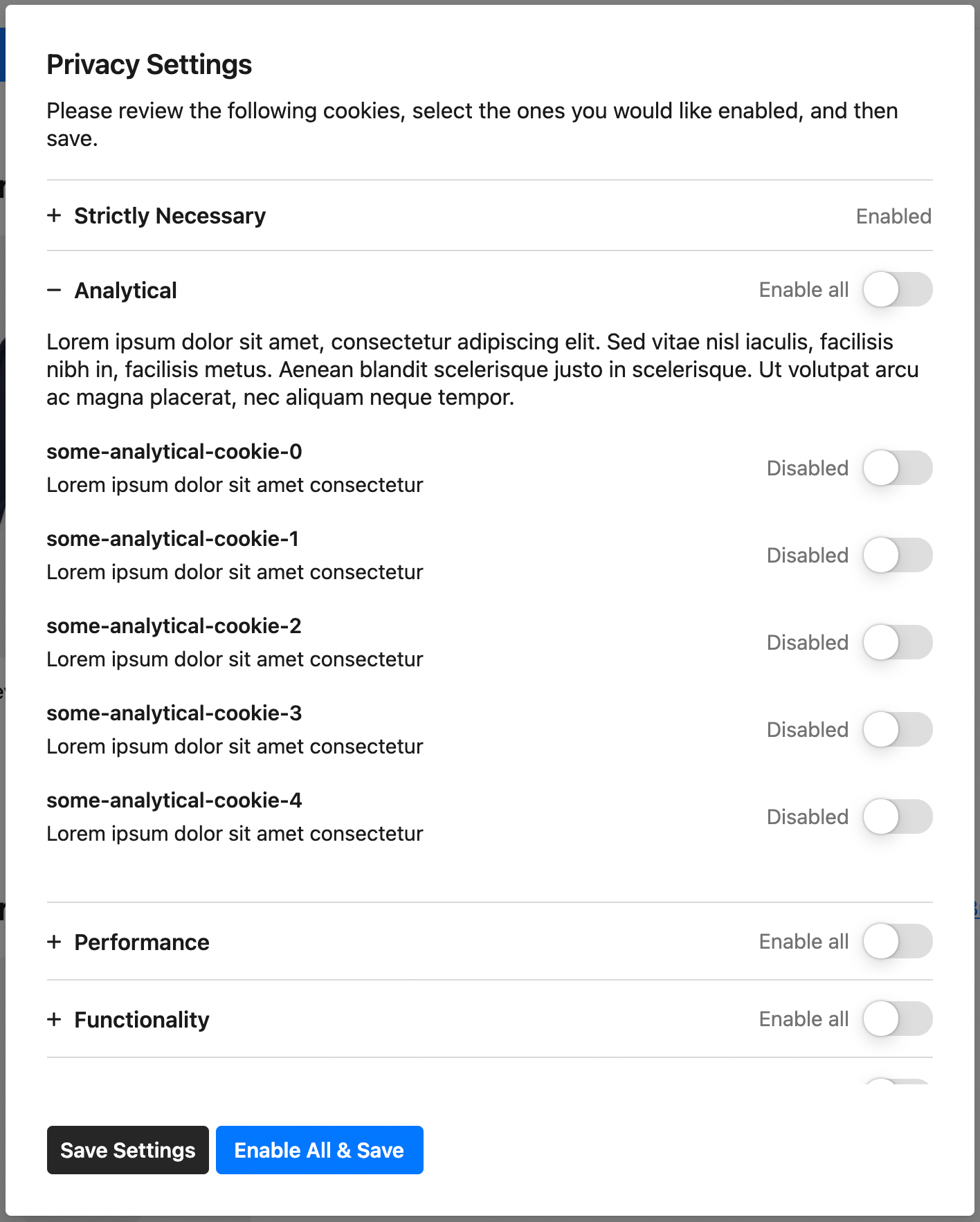
The settings screen is likewise almost entirely your own content:
- The text from Privacy Settings Content as an introductory heading
- The Cookies, grouped by Compliance Group. Each group shows its Display Name and Information Content (Markdown), and so does each Cookie within it
- A Save Settings button
- An Enable All and Save button
Everything except the button labels and the enable/disable toggles comes from Salesforce.
Enable privacy compliance
Privacy compliance only works once it is enabled on the Store.
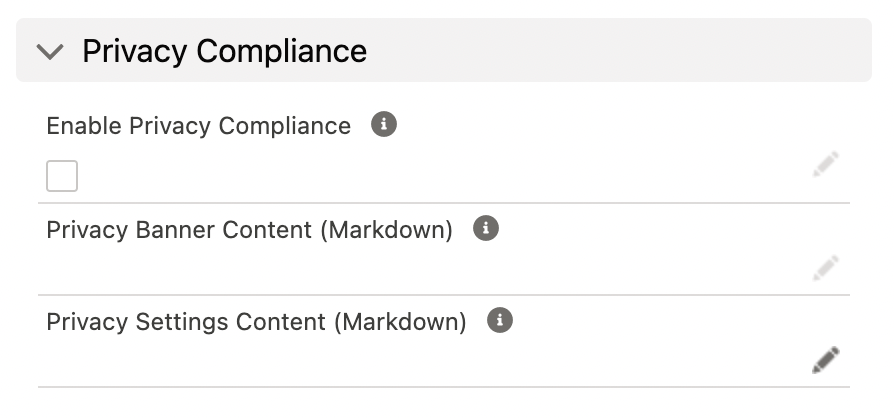
On the Store record, go to the Privacy Compliance section and check Enable Privacy Compliance.
Once privacy compliance is enabled:
-
A privacy banner appears on the store, telling the visitor about cookies and letting them accept all cookies or open the settings to manage them individually.
-
Only three kinds of script are included in the page: Script Blocks that are independent of the cookies and compliance system, those linked to a required Compliance Group, and cookies the visitor has accepted.
If a visitor never uses Accept All or Manage Cookies, the banner stays and only the independent scripts and required cookies are included.
Once they accept or manage cookies, the banner stops showing and the independent scripts, the required cookies, and the cookies they accepted are all included. This lasts for the browser session only. If they close the browser and return later, they see the banner again.
Confirm it is working
Open your storefront in a private browsing window:
- The banner appears, showing your Privacy Banner Content with Accept All and Manage Cookies buttons.
- Select Manage Cookies. Each Compliance Group you created is listed, with its cookies beneath it. Required groups have no toggle.
- Reject an optional group and save. View the page source; the Script Block behind that group’s cookies is no longer in the page.
- Accept it and reload. The script is now present.
Privacy compliance with social and ad source tracking
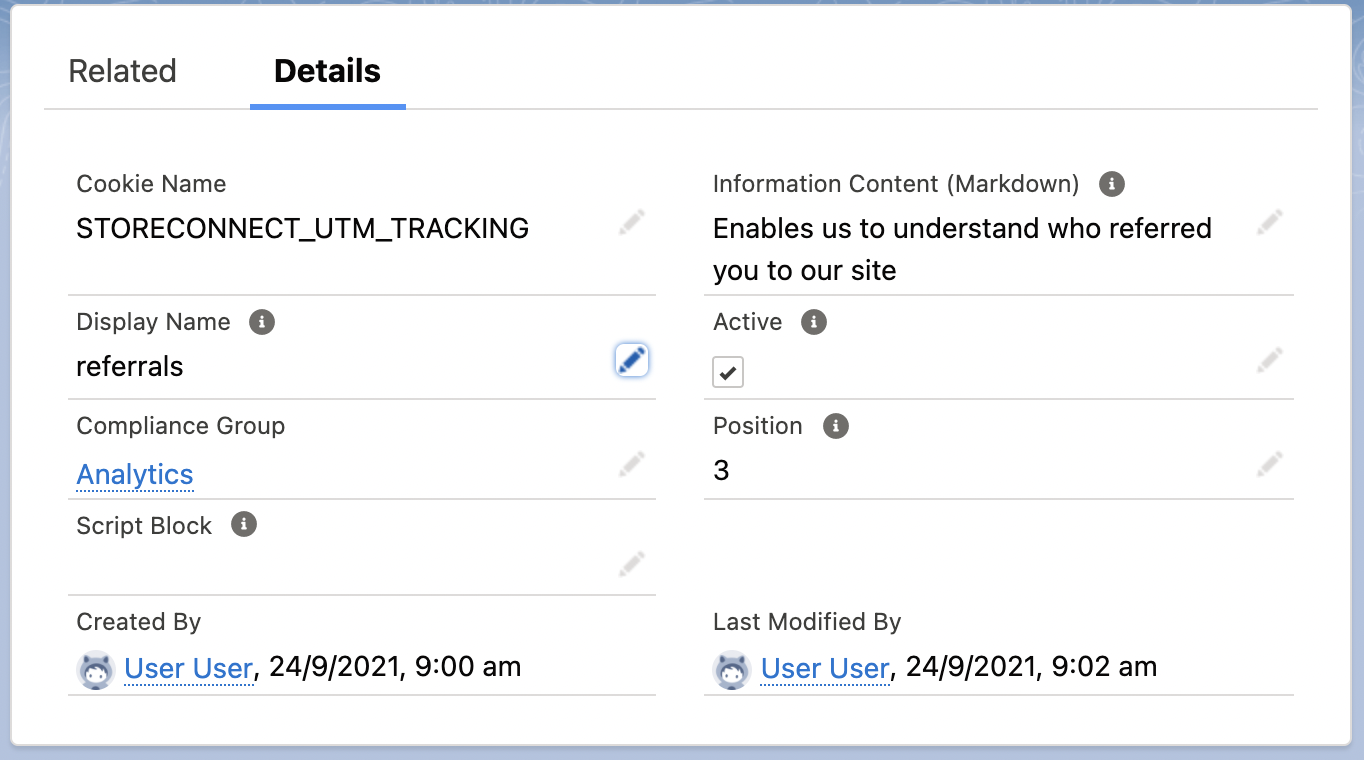
Enabling privacy compliance disables UTM tracking. To keep it, add a Cookie with the name STORECONNECT_UTM_TRACKING.
While a cookie with that name is enabled, privacy compliance no longer disables UTM tracking. It can still be disabled for other reasons; see UTM tracking codes for those.
Was this article helpful?
Thanks for your feedback! It helps us improve our docs.