

Track activity with the audit log
On this page
The audit log records security- and business-significant events in your store, so you can see who did what, when, and to which record. Each event is stored as an Audit Log record (s_c__Audit_Log__c) capturing what happened, when it occurred, who performed it, the outcome, and links to the records involved.
Use the audit log for security reviews, troubleshooting, and compliance. Records are written automatically as customers and staff use your store, but you can choose how much detail to keep.
:::note Audit log records are append-only. They are created automatically and are never edited afterward, so they reflect exactly what happened at the time of the event. :::
What gets recorded in the audit log
Events are grouped into categories. Each event has a fixed severity, which decides whether your store’s logging level records it, and a default retention period suited to its sensitivity.
| Category | Event | Severity | Default retention |
|---|---|---|---|
| Authentication | Signup | NOTICE |
365 days |
| Authentication | Login | NOTICE |
90 days |
| Authentication | Login Failed | WARNING |
365 days |
| Authentication | Logout | INFO |
90 days |
| Password | Password Reset Requested | NOTICE |
365 days |
| Password | Password Reset Completed | WARNING |
365 days |
| Password | Password Changed | WARNING |
365 days |
| Invitation | Invitation Sent | NOTICE |
365 days |
| Invitation | Invitation Accepted | NOTICE |
365 days |
| Account Changes | Email Changed | WARNING |
730 days |
| Payments | Payment Attempted | NOTICE |
2555 days |
| Payments | Payment Failed | WARNING |
2555 days |
| Payments | Payment Succeeded | NOTICE |
2555 days |
| Payments | Risk Screening Approved | NOTICE |
2555 days |
| Payments | Risk Screening Declined | WARNING |
2555 days |
| Payments | Risk Screening Error | WARNING |
2555 days |
| Payments | Risk Screening Review | WARNING |
2555 days |
| Payments | Risk Decision Updated | WARNING |
2555 days |
| POS | POS Register Login | NOTICE |
365 days |
| POS | POS Shift Started | NOTICE |
365 days |
| POS | POS Shift Ended | NOTICE |
365 days |
| Custom | Any event your theme records, see Track custom audit log events | NOTICE |
365 days |
The five risk events are recorded only when risk screening is configured for your store. If you do not use risk screening, no risk events appear.
Logging levels
Severity ranks from lowest to highest: INFO, NOTICE, WARNING, CRITICAL. Audit Log Level sets the lowest severity a store records, so each level records its own severity and everything above it.
| Level | What it records |
|---|---|
Off |
Nothing |
Essential (warnings and above) |
WARNING and CRITICAL events, such as failed logins and password changes |
Standard (notices and above) |
Adds NOTICE events, such as successful logins and payments. This is the default when the field is blank |
Verbose (everything) |
Adds INFO events. Logout is the only standard event at this severity |
:::tip
Keep the level at Standard unless you have a reason to change it. Choose Verbose for the fullest possible trail, or Essential when you only need high-signal security events.
:::
How categories narrow what gets recorded
Audit Log Categories limits a store to recording only the categories you select. Leave it blank to record every category, which is the default.
A record is written only when it passes both checks: its severity meets the store’s Audit Log Level, and its category is one the store records.
Configure the audit log for a store
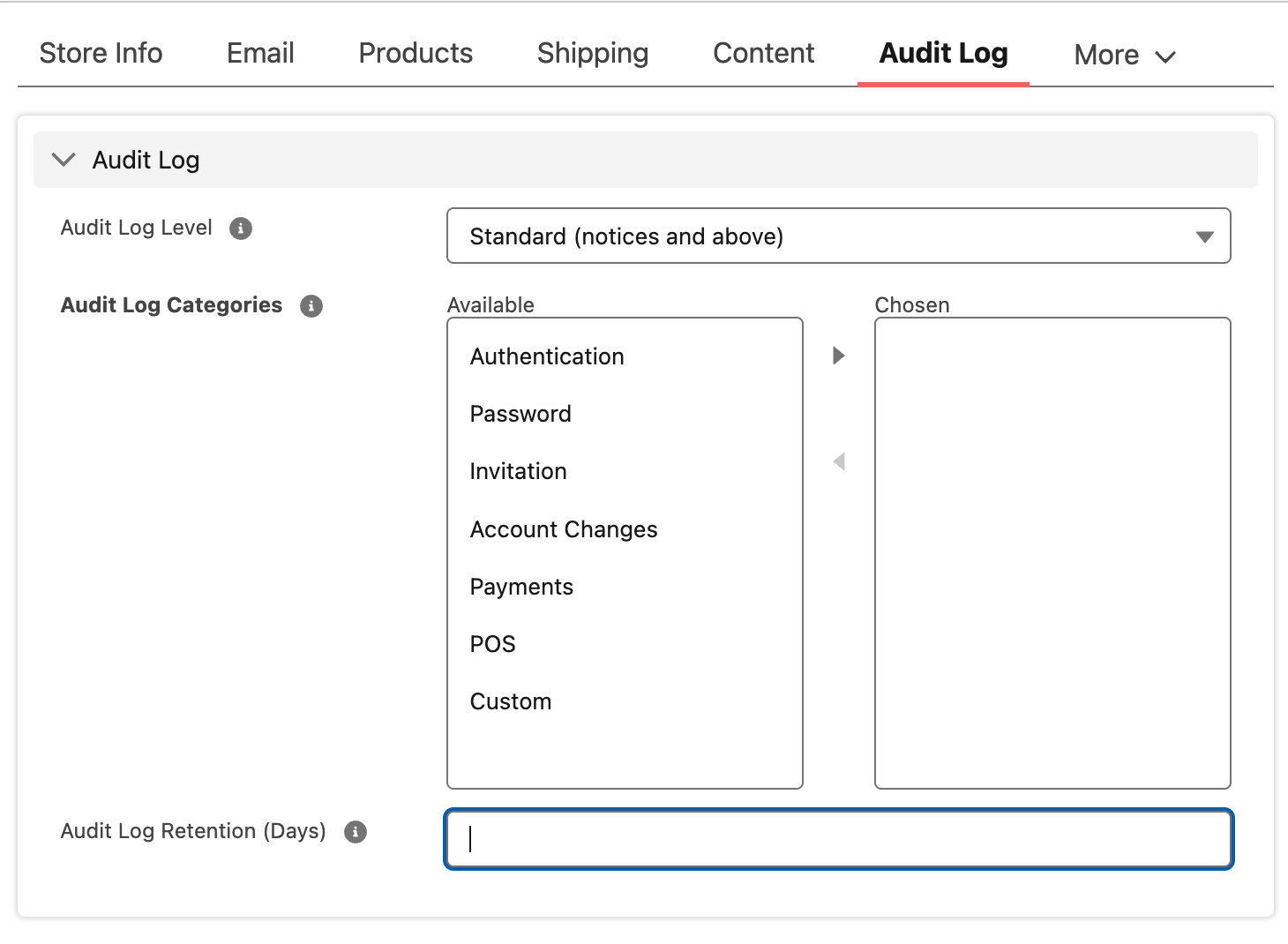
Three fields on the Store record control what a store records.
| Field | API name | Purpose |
|---|---|---|
| Audit Log Level | s_c__Audit_Log_Level__c |
The lowest severity recorded. Blank records at Standard |
| Audit Log Categories | s_c__Audit_Log_Categories__c |
The categories recorded. Blank records all categories |
| Audit Log Retention (Days) | s_c__Audit_Log_Retention_Days__c |
Minimum days to keep records. Blank uses each event’s default |
Before you begin
- You need edit access to the store record.
- Decide which categories you need to record, and how long you need to keep them. Regulated industries often set retention explicitly rather than relying on the defaults.
Steps
- Open the Store record.
- Set Audit Log Level to
Off,Essential,Standard, orVerbose. - (Optional) Set Audit Log Categories to the categories you want recorded. Leave it blank to record all categories.
- (Optional) Set Audit Log Retention (Days) to keep records longer than their defaults, for example to meet a regulatory requirement in your industry or region. See How long audit records are kept.
- Save the Store record.
The settings apply to events that occur after you save. New activity now appears as Audit Log records at the level you selected.
View audit log records
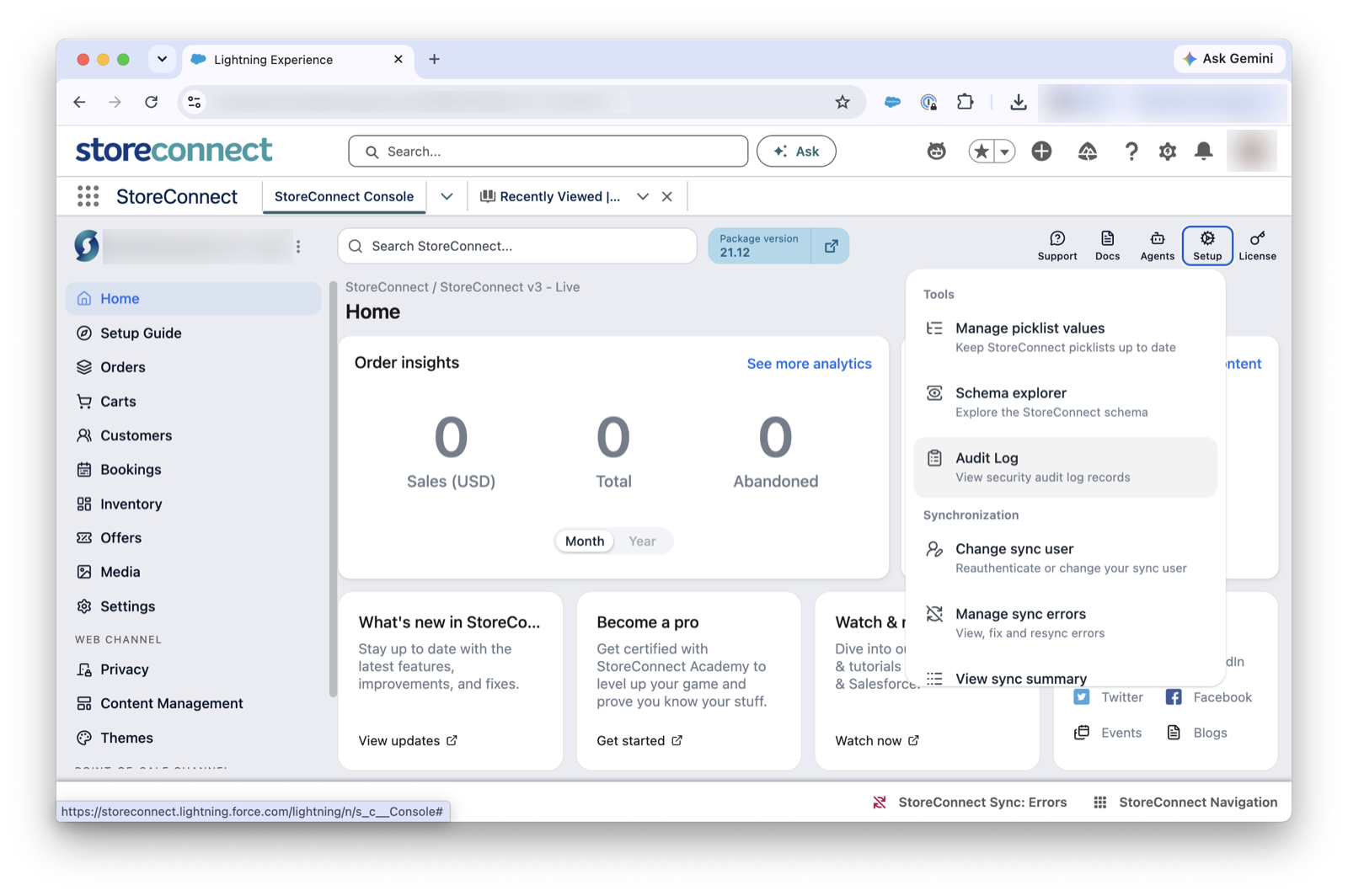
In the StoreConnect Console, click Setup (the gear icon in the top right) and choose Audit Log under Tools. You can also search for Audit Log in the App Launcher. Four list views are provided: All, Recent Security Events, Failed Logins, and Failed Payments.
Audit records are read-only for everyone. Salesforce system administrators can see them, and every other user, including StoreConnect administrators, needs the StoreConnect Audit Viewer permission set. It grants read access to every audit record and nothing else, and the StoreConnect Administrator permission set does not include it.
Each record captures:
- Event Type, Category, and Occurred At, which holds the time to the second. Occurred At Precise holds the same instant with microseconds, so you can order events that happened within the same second.
- Actor Type, which is
Contact,User, orSystem, and Actor Label and Actor Email, the name and email as they were when the event occurred. Actor Contact and Actor User link to the record that acted. - Outcome and Channel. Channel is
web,pos,admin,api, orsystem. See the outcome values below. - Lookups to the records involved: Account, Contact, Store, Order, Cart, and Payment, plus Outlet, Register, and Register Shift for POS events.
- Message, a short summary, and Details, event-specific JSON.
- IP Address and User Agent, the address and browser or device the event came from.
- Event Link, a link to the event in the system it originated in, where one exists. Risk screening events use this to link back to the provider’s record of the decision.
:::note
A failed login has no resolvable identity, so Actor Type is System and Actor Label holds the username that was attempted.
:::
Outcome values
| Outcome | Meaning |
|---|---|
success |
The action succeeded, including a risk screening that approved the order |
failure |
The action failed |
pending |
The action has not completed |
flagged |
Risk screening sent the order for manual review |
monitored |
Risk screening declined the order while in monitor-only mode, so the order was not blocked |
enforced |
Risk screening declined the order and it was blocked |
failed_open |
Risk screening could not complete and the order was allowed through |
failed_closed |
Risk screening could not complete and the order was blocked |
updated |
The risk provider revised an earlier decision |
Audit records also appear as an Audit Logs related list, newest first, on the Account, Contact, Store, Order, Cart, Payment, Register, and Outlet records, so you can review the history of a single record without filtering the whole log.
:::tip
Record names are formatted AL-<Occurred At Precise>, so sorting a list view by Name sorts it chronologically.
:::
Export audit records
Audit Log is a standard Salesforce custom object, so you export it the same way as any other object. There is no separate export button.
- Reports: create a report on the Audit Logs report type, filter it to the records you need, and export it to CSV or Excel. This is the simplest option for a one-off review or for an auditor.
- Data Loader or the Bulk API: extract
s_c__Audit_Log__cin bulk, for example to archive records before they pass their retention period or to load them into a SIEM or data warehouse. - Data Export: include the object in your scheduled Salesforce data export to keep a regular offline copy.
How long audit records are kept
Each event type has a default retention period, listed in the table above. Payment events are kept for 2555 days (about seven years), while routine logins and logouts are kept for 90 days. Records past their retention period are purged automatically.
To keep a store’s records for longer, set Audit Log Retention (Days) on the Store record. It acts as a floor: records are kept at least that many days, even where an event type’s default is shorter. It never shortens retention. Leave it blank to use each event type’s default.
Salesforce is the system of record for retention. Your online store keeps its own copy for twice the event type’s default as a safety net, so a record can disappear from the store’s database while remaining in Salesforce.
Track custom audit log events
If you build or customize your store’s theme, record your own events from Liquid with the audit_event tag. Use it for actions that matter to your business but are not standard StoreConnect events.
Liquid has no way to write an object literal, so build the detail value with the deserialize filter and pass the result:
```liquid
{%- assign tier_detail = ‘{“from”:”silver”,”to”:”gold”}’ | deserialize -%} {% audit_event “loyalty_tier_changed”, message: “Customer reached Gold”, detail: tier_detail %} ```
| Parameter | Required | Description |
|---|---|---|
| First argument | Yes | Your event name, in quotes. Recorded in Custom Event Name |
message |
No | A short summary, up to 255 characters |
detail |
No | Event-specific detail, stored as JSON in Details. Build it with deserialize |
Every entry the tag makes is recorded with Event Type custom, Category CUSTOM, and Severity NOTICE. A theme cannot record an entry that looks like a standard event such as login or payment_succeeded.
These limits apply automatically:
- Because custom entries are
NOTICE, they are recorded only when the store’s Audit Log Level isStandardorVerboseand theCustomcategory is recorded. - Ten entries per request. Further calls in the same request are ignored silently, so do not put the tag inside a loop over products or cart items.
- Any key in a structured
detailwhose name containspassword,passwd,secret,token,api_key,apikey,_key,crypt,salt,certificate,card_number,cardnumber,authorization,ssn, orotp, or is exactlypan,pin,cvv, orcvn, is stored as[FILTERED]. A key that names a secret any other way, such associal_security_numberor a barekey, is stored as written. Filtering matches key names, so it cannot redact a secret buried in a plain string. - A failed write never breaks the page. If the entry cannot be recorded, the tag renders nothing and the page continues. An undefined variable passed as
messageordetailstill shows a Liquid error. messageis truncated at 255 characters anddetailat 32768, so adetailover the limit is stored as incomplete JSON.
The tag is not available in POS templates.
:::warning
Do not pass sensitive data such as card numbers, passwords, or secrets in message or detail. The filter catches obvious secrets by key name only, and you remain responsible for what your theme passes in.
:::
Names and email addresses are deliberately not filtered from Details, in any event. Knowing who did something is the purpose of an audit record, so treat the audit log as a store of personal data when you plan your data-retention and privacy obligations.
Troubleshooting
No audit records are being created
Check Audit Log Level on the Store record. If it is set to Off, nothing is recorded. If it is blank, the store records at Standard.
Logout events are missing
Logout is the only standard event with INFO severity, so Standard does not record it. Set Audit Log Level to Verbose to capture it.
A record shows the wrong name or email for the actor
Actor Label and Actor Email are snapshots taken when the event occurred, and are deliberately not recalculated. A record showing an old name or email is correct: it shows the values as they were at the time of the event.
I see two records for the same email change
When a customer changes their email address on your online store, the change is recorded there with the customer as the actor. When the contact syncs to Salesforce, the update is recorded a second time with the integration user as the actor and admin as the channel. Both records are accurate: one captures the change where the customer made it, the other captures the record changing in Salesforce.
I need to correct or delete an audit record
You cannot. Audit records are append-only, and the Salesforce integration user has create-only access, so records cannot be altered or removed after they arrive. Records leave the log only when they pass their retention period.
Was this article helpful?
Thanks for your feedback! It helps us improve our docs.