

Style the POS
On this page
Use this process to change how the point of sale app looks, for example to enlarge a touch target for a busy counter or to tint a screen so staff can tell two registers apart.
A Style Block is the only way to get CSS into the POS. The Custom Styles field on the Store record, theme CSS assets, and head content blocks all apply to your online store alone, and none of them are loaded by the POS.
Before you start
- You need access to the Style Blocks list. If you cannot see it in the App Launcher, ask your Salesforce administrator for tab and object access.
- You need a register you can sign in to, so you can confirm the change.
- Know which CSS custom properties the POS defines before writing colors or type sizes
by hand. Using the POS’s own properties keeps your CSS correct when the palette
changes. Read them off
:rootin the browser’s developer tools on a register.
Create a style block for the POS
- Go to the Style Blocks list and select New.
- Give the style block a Name you will recognize later, such as “POS counter tweaks”.
- Set Store to the store the register belongs to.
- Check Active. An inactive style block is never loaded.
- Set Channels to
POS. AddWebas well only if the same CSS should apply to your online store, which is rare, because the two use different markup. - Check Global. A style block that is not global is not loaded by the POS at all.
- Set Media to
screen, or toprintfor CSS that should only affect printed output. - (Optional) Set Position to control the order when you have more than one POS style block. Lower numbers load first, so a higher number wins a tie.
-
Enter your CSS in the Content field, written without
<style>tags. StoreConnect adds them for you.The POS puts an
sc-prefix on its own class names..sc-button,.sc-card,.sc-nav-button,.sc-app-topbarand.sc-screenare all real elements you can target. This enlarges every button for a touchscreen:```css
.sc-button { min-height: 3.5rem; font-size: var(–sc-type-body-large-size); } ```
- Select Save.
- Wait for the change to reach the POS, then reload the POS in the browser on the register.
The style block is rendered in the <head> of the POS app on every page load, after the
app’s own stylesheets, so a rule of equal specificity to a built-in one wins.
:::note
A change to a style block is not instant. The record has to reach the POS server before a reload can pick it up, which took just over two minutes when this was last measured. If a reload shows no change, wait a minute and reload again before you start editing the CSS.
:::
Recolor the POS by overriding a token
Rather than restyling elements one at a time, redefine a design token on :root and every
part of the app that uses it follows. This is the quickest way to make two registers
visually distinct, or to put a store’s own accent color through the app.
```css
:root { –sc-color-primary: #7B2D8E; } ```
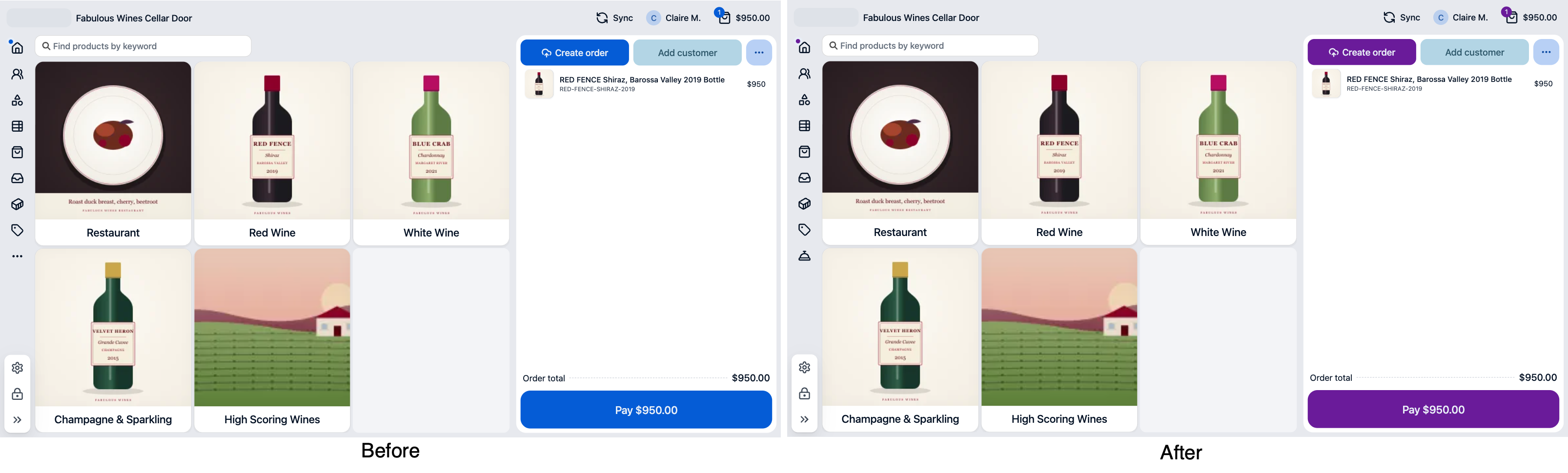
Because the style block loads after the app’s stylesheets, the override wins, and buttons,
links, and active navigation all pick up the new color together. Check the result on a
register: the tokens carry meaning, so an accent with too little contrast against
--sc-color-surface makes text hard to read across the whole app at once.
Use the POS design tokens, not the web theme ones
This is the most common way POS CSS fails, and it fails quietly.
The POS and the web storefront both name their CSS custom properties with an --sc-
prefix, but the two sets are almost entirely different. A name that is correct in a theme,
such as --sc-spacing-medium, --sc-shade-dark, --sc-border-radius or
--sc-input-height, is not defined in the POS. The browser drops the whole declaration at
computed-value time, so the property keeps its inherited or initial value and nothing
appears in the console. The rule looks right, does nothing, and gives you no reason why.
Two names are worse than missing, because they exist on both sides meaning different things:
--sc-font-*is a font family in the POS (--sc-font-plain,--sc-font-brand) and a size or weight on the web (--sc-font-small).- The primary color is a single hex value in the POS. On the web it is split into
--sc-color-primary-h,-sand-lfor use inhsla(), so anhsla()rule copied from a theme produces no color in the POS.
Before moving CSS across from a theme, check each --sc- name against what the POS
actually defines. Inspect :root in the browser’s developer tools on a register: a name
that is not listed there does nothing.
Scope a rule to one screen
A POS style block loads on every screen, so the selector is what limits where a rule applies. Inspect the screen in the browser’s developer tools and target a class on the element you want to change. There is no per-screen style block setting.
Stop a style block without deleting it
Uncheck Active, wait for the change to reach the POS, and reload. The block stays in place with its CSS intact, which is the quickest way to rule a style block out when a screen looks wrong.
After reloading the POS on the register, your CSS appears in a <style> tag in the page
source, with the Media value as the tag’s media attribute, and the screen reflects
it. If nothing changed, first give it another minute and reload again. If it still has not
appeared, confirm the block is Active, Global, and has POS in Channels, in
that order, and that you are looking at a register belonging to the same store.
Was this article helpful?
Thanks for your feedback! It helps us improve our docs.