

Record who assisted a sale and who took payment at POS
On this page
Use this process to make sure each sale, and each payment on it, is credited to the staff member who earned it. POS records staff against an order at three levels, and each one is used for something different: the order-level assister appears on the receipt and the order record, each line item remembers who added it, and each payment remembers who took it. Tips follow the payment, so the payment record is what decides who a tip belongs to.
What POS records
| Recorded on | Salesforce field | How it is set | Can an operator change it? |
|---|---|---|---|
| The order | Order Assisted by User on the Order (Order.s_c__Assisted_By_User_Id__c) | The signed-in operator when the cart is created. When the first item is added to an empty cart, the operator who added it takes over. | Yes, on an open order, from the Create open order screen or Order actions in the cart. The checkout Assisted by changes the payment, not the order. |
| Each line item | Assisted By User on the Order Product (OrderItem.s_c__Assisted_By_User_Id__c) | The operator signed in when that item was added. | No. It is set once and is not shown at the register. |
| Each payment | Salesforce User Id on the Payment (s_c__Payment__c) | The staff member chosen at checkout, otherwise the order’s assister, otherwise the signed-in operator. | Yes, on an open order with tipping on, from the checkout header. |
Parking and resuming a cart does not change any of these. If one operator parks a cart and another resumes it, the original operator keeps the order and the items they added, and items added after resuming record the new operator. See park an order.
Because most attribution comes from who is signed in, the single most effective habit is to lock the register between users rather than serving under someone else’s session. See sign in to a POS register.
Set who assisted an open order
Assisted by starts on the signed-in user, so when staff swap, lock the register and sign in as yourself before you start the order. Change it only when the person to credit is not the person signed in, for example a sommelier who took the table’s order while a colleague keys it in.
- At the register, add the first items to the cart and select Create order.
- On the Create open order screen, open Assisted by. It starts on the signed-in user, marked
(Current user). - Select the staff member who assisted the sale.
-
Enter the Memo, such as
Table 4, and select Confirm & save.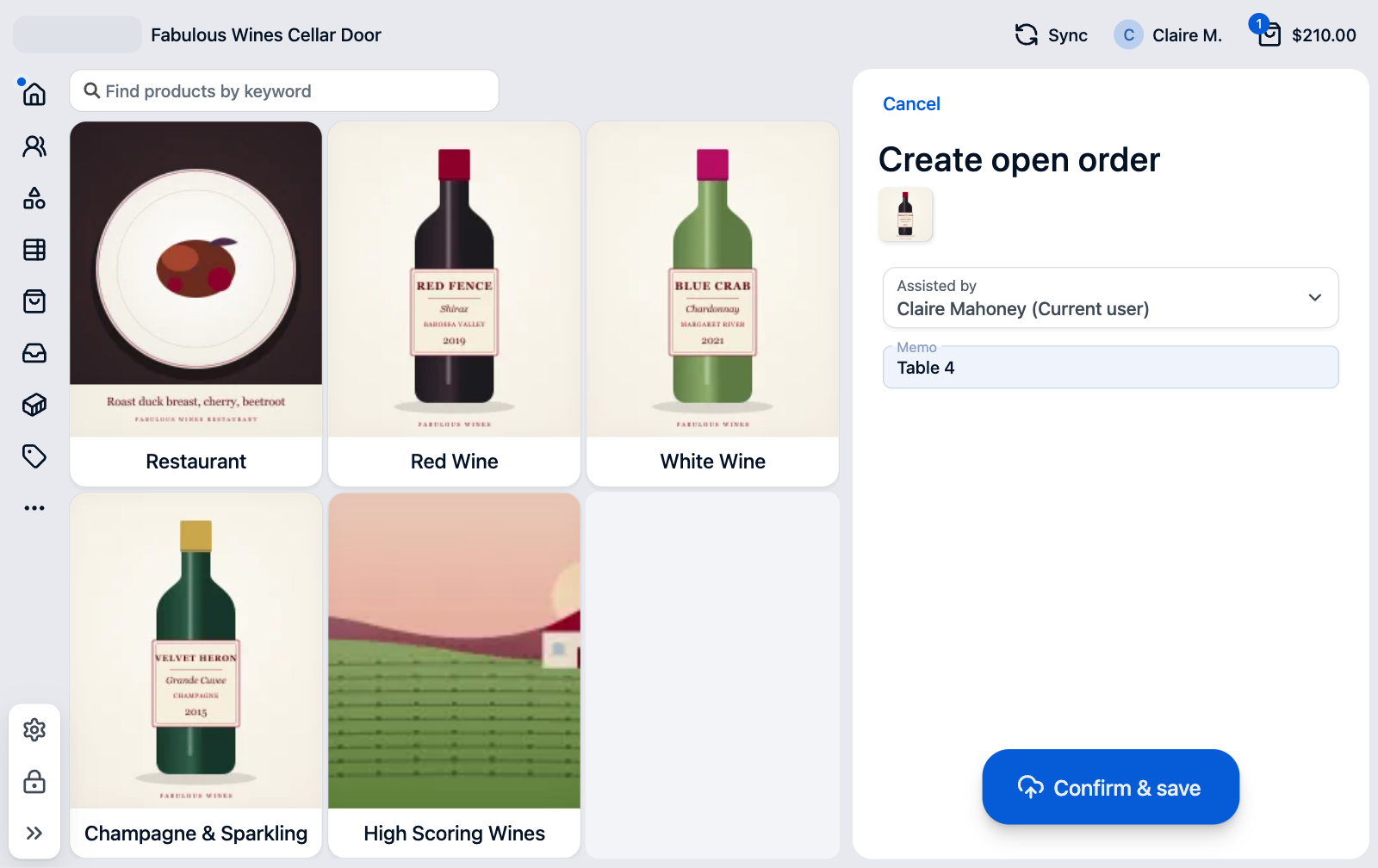
To change it later, open Order actions in the cart and select Assisted by. The Assisted by screen lists the signed-in user first, then the users on the current shift, then everyone else. Select a name and Confirm. The change is saved to the order on the store straight away, so the next register to resume the order sees it.
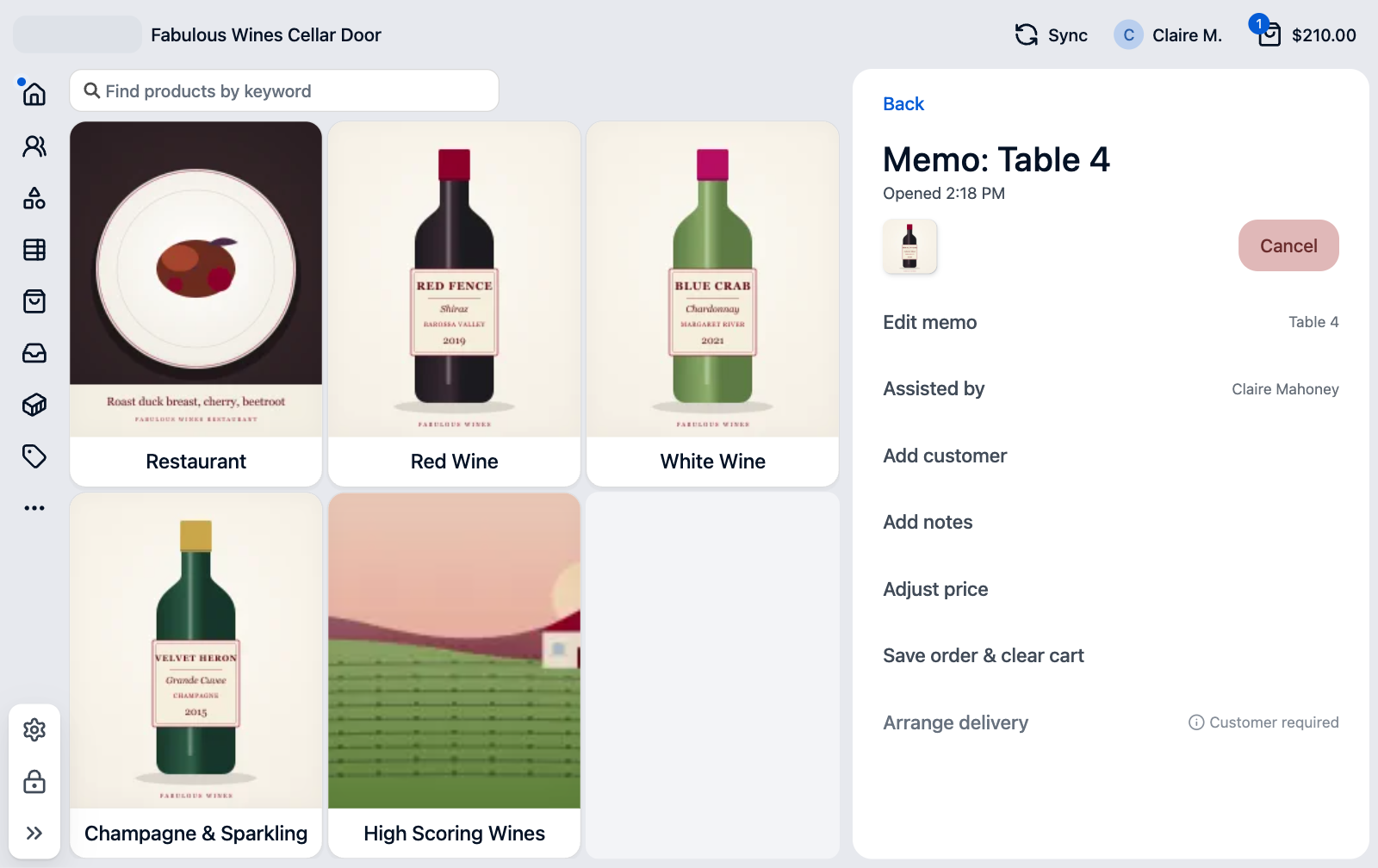
The name appears against the order in the Orders list and on the Order placed screen, and it is what the receipt prints in its cashier row. See POS receipt template.
On a plain cart that is not an open order, there is no Assisted by action. The order is credited to whoever added the first item.
Choose who is taking a payment
Payments are credited separately from the order, so a bill split between two operators can credit each part, and its tip, to whoever collected it.
The checkout header shows Assisted by with the name of the staff member the next payment will be credited to. It appears when the cart is linked to an open order and tipping is on for the store. It starts on the order’s assister, so change it only when someone else is collecting the payment. See configure tipping at POS.
- With the open order in the cart, select Pay.
- In the checkout header, select Assisted by. The Assisted by screen opens with the note
The staff member taking this payment. - Select the staff member collecting this payment and select Confirm.
- Take the payment as usual. If tipping is on, the POS asks for a tip. Cash asks before the charge rather than after it. See add a tip at POS.
- For a split bill, change Assisted by again before each payment that a different person is collecting.
Each payment is saved with the staff member selected at the moment it was taken. The selection lasts for this checkout only and resets when the cart is cleared, so it never carries over to the next customer.
If you do not choose anyone, the payment is credited to the order’s assister, or to the signed-in operator when the order has none. Signing in as a different user does not change who an open order’s payment is credited to, so a different person collecting a payment changes Assisted by here.
Where to see the result
- The Order placed screen, and the order’s detail screen from the Orders list, show Assisted by with the order-level assister at the top, and
Assisted by <name>under each payment, withTip:beside it when the payment carried one. See look up a customer’s order history. - In Salesforce, report on Payment records by Salesforce User Id to total the payments and tips each staff member took, and on Order Product records by Assisted By User for per-item sales.
Staff lists at POS and on the web
The staff list at the register is the outlet’s POS users, so a staff member has to be added to the outlet before they can be credited. See add a POS user. The web checkout uses a different list: a user appears in the storefront’s assisted-by dropdown only when their Assisted By Name field is filled in. Setting that field is not needed for POS attribution, but it is what the receipt’s cashier row prints when it is set, falling back to the user’s name otherwise. See link a staff member to an order.
After a sale, open it from the Orders list and confirm that the order shows the intended assister and that each payment lists the person who took it.
Was this article helpful?
Thanks for your feedback! It helps us improve our docs.