

Process empty and abandoned carts
On this page
How the abandoned cart job works
StoreConnect runs a background job every hour that looks for web carts created more than a set number of hours ago. It runs automatically for every store and needs no setup.
Age is measured from when the cart was created, not from the customer’s last activity. A cart the customer is still working on is treated the same as one they walked away from.
For each cart it selects, the job does one of three things.
| The cart has | The job does this |
|---|---|
| Items, and no linked Order | Selects the Abandoned checkbox |
| Items, and a linked Order | Nothing, the cart is left as it is |
| No items | Deletes the cart record |
Which carts the job selects
A cart is processed only when all four of these are true.
| Requirement | Detail |
|---|---|
Source is web |
POS, API, and manual carts are never processed. |
| Status is a checkout step | One of customer, shipping, terms_and_conditions, payment, or failed. A cart in open status has not entered checkout yet and is never selected. |
| Abandoned is not selected | Carts already flagged are skipped, so a cart is never processed twice. |
| Created inside the time window | See The time window below. |
The time window
The job works on a window, not a simple “older than” cutoff. Each run selects carts created between the abandonment time and 12 hours further back.
With the default 10 hours, a run selects carts created between 22 hours ago and 10 hours ago.
| Cart created | Selected on this run? | Why |
|---|---|---|
| 4 hours ago | No | Newer than the 10-hour abandonment time |
| 15 hours ago | Yes | Inside the window |
| 3 days ago | No | Older than the window |
Because the job runs every hour, a cart sits inside the window for about 12 runs, so under normal operation it is picked up well before the window passes it.
:::warning Once a cart is older than the window it is out of scope permanently. No later run goes back for it, so it stays unflagged and undeleted indefinitely. If the job was unable to run for a period, for example while the store was disabled, every cart created in that period has to be cleaned up manually. :::
Carts that are never processed automatically
If old carts are still sitting in the Carts list, they are almost always in one of these groups rather than a sign that the job has stopped.
- Carts past the time window — anything older than the abandonment time plus 12 hours. This is the usual explanation for carts that are weeks or months old.
- Carts in
openstatus — every visitor to the store gets a cart record, and a visitor who never starts checkout leaves anopencart behind. These are never flagged, and empty ones are never deleted. - POS, API, and manual carts — only carts with a Source of
webare in scope. POS carts persist in Salesforce until someone removes them. - Carts with a linked Order — the customer reached the point of having an order created, so the cart is deliberately left as it is.
To work through the rest of the possible causes, see Troubleshoot carts.
Configure cart abandonment time
The number of hours after a cart is created before it is considered abandoned is set per store using a Store Variable. The default is 10 hours if no variable is set.
| Setting | Value |
|---|---|
| Default | 10 hours |
| Minimum | 1 hour. A value of 0, a negative number, or text that is not a number falls back to the 10-hour default |
| Maximum | 1,080 hours (45 days). Higher values are capped at 1,080 rather than rejected |
Changing this value moves the window; it does not widen it. The window stays 12 hours long whatever the abandonment time is set to. Setting it to 168, for example, means each run selects carts created between 180 hours and 168 hours ago, and carts are left untouched for a week before anything happens to them.
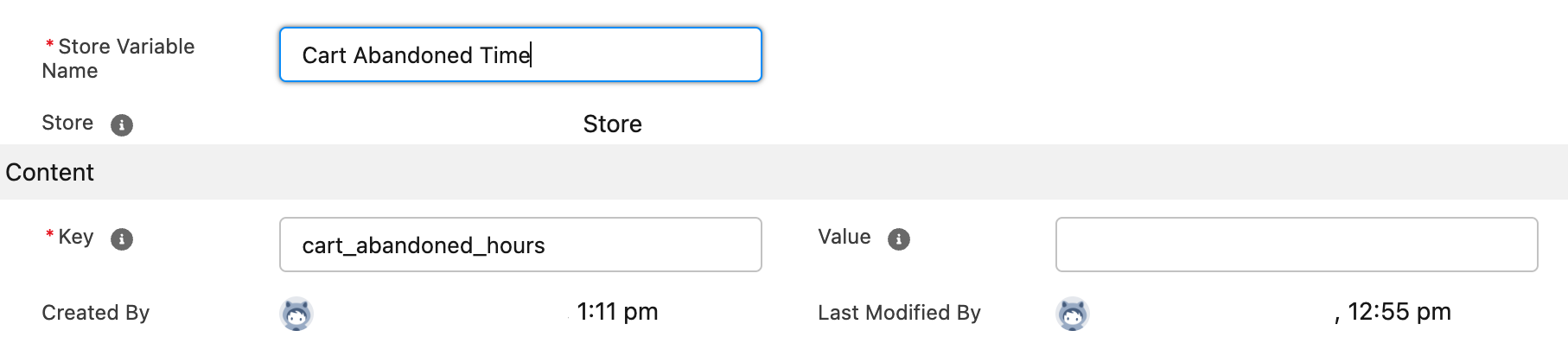
To change the default abandonment time
- Go to the Store record for the store you want to configure.
- Go to the Store Variables related list and click New.
- Give the variable a name.
- In the Key field, enter
cart_abandoned_hours. - In the Value field, enter the number of hours (for example,
24). - Click Save.
Manually remove the abandoned flag
If a customer contacts support and wants to resume a cart that has been marked as abandoned, an admin can clear the flag.
- Go to the Cart record.
- Click Edit.
- Uncheck the Abandoned checkbox.
- Click Save.
Clearing the Abandoned checkbox makes the cart resumable, but whether the customer can access it again depends on whether they were logged in.
Logged-in customers
Because the cart is linked to the customer’s account, no session cookie is needed. Once the flag is cleared, the cart is available again the next time they log in, and appears in their saved carts if you use Manage multiple carts per customer.
Guest customers
A guest cart is identified only by the sc_token cookie in the customer’s browser. Clearing the flag restores the cart only if that same browser still has the original cookie. If the cookie no longer exists (for example, the customer used a different device, a private window, or cleared their browser data), there is no way to reconnect them to the cart, and they must start a new one.
Manually delete empty carts
The job deletes empty carts only while they are inside the time window and have reached a checkout step. Empty open carts, and anything that has aged past the window, need to be removed by hand.
- Go to the Carts list.
- Create a list view or report filtered for carts with no related Cart Items.
- Before deleting, confirm that each cart has:
- No related Cart Item records
- No linked Order record
- No active checkout session (check the Status and last modified date)
- Delete the records as appropriate.
Was this article helpful?
Thanks for your feedback! It helps us improve our docs.