

Collect customer signature at checkout
On this page
To collect an e-signature during the checkout process, you’ll need to integrate a custom form that allows customers to digitally sign an agreement. This feature is useful for terms acceptance, donation authorization, or any other legal acknowledgment required before payment.
Below are the procedure steps to successfully configure and render this feature using StoreConnect and Salesforce.
Example scenarios
Stores across most industries need a signature somewhere in the buying process. Each situation below uses the same setup described in this article; only the wording of the agreement changes.
B2B and wholesale
- A business customer signs your credit terms the first time they order on account, and the signed terms are stored against the order.
- A buyer signs to accept a quote before it is converted to an order and paid.
- A reseller signs distribution or minimum-advertised-price terms as part of onboarding.
- A trade customer signs freight, delivery, and restocking terms when ordering palletized or made-to-order goods.
Events and ticketing
- A participant in a run, ride, or obstacle event signs a liability waiver when buying a ticket.
- A parent or guardian signs consent and a medical release for an entrant under 18.
- An attendee signs a photo and media release for an event that will be filmed.
- An exhibitor signs booth terms, including setup times and damage liability, when buying stand space.
- A volunteer signs a waiver and a code of conduct when registering for a shift.
Dining and hospitality
- A guest booking a private dining room or function space signs the hire agreement and minimum-spend terms with the deposit.
- A customer ordering catering signs the contract covering final numbers, cancellation windows, and delivery access.
- A guest signs an allergen and dietary acknowledgment when preordering a set menu.
- A group booking a package with alcohol signs the responsible-service acknowledgment.
Public sector and community
- A resident booking a sports field, a pool lane, or a community room signs a liability waiver before payment, and staff can produce it later if there is an incident.
- A parent enrolls a child in a youth program and signs consent and a medical release.
- A resident hiring council equipment or a venue signs a damage and return-condition agreement at the point of booking, rather than on paper at collection.
Retail, rental, and services
- A customer hiring equipment signs the damage, insurance, and return-condition agreement.
- A buyer of a personalized or made-to-order item signs an acknowledgment that it cannot be returned.
- A member joining a gym, studio, or club signs the membership agreement and health declaration with their first payment.
- A client booking a treatment or service signs an informed-consent form before the appointment.
Nonprofit and fundraising
- A donor signs to confirm a recurring gift, or a tax-deduction style declaration where your jurisdiction requires one.
- A fundraiser participant signs a waiver and a fundraising code of conduct at registration.
The signature is captured as an image of what the customer drew. Whether that satisfies a given legal or regulatory requirement is a question for your own legal advisors, and it varies by jurisdiction and by the kind of agreement. This article covers how to capture and store it, not whether it is sufficient for your use case.
What people call this
Stores describe this requirement in a lot of different ways. If you are looking for any of the following, this article is the right one:
- Capture a signature at checkout, sign at checkout, or sign before payment
- E-signature, electronic signature, or digital signature
- Sign a waiver, liability waiver, release form, or disclaimer online
- Terms acceptance with a signature, rather than just a checkbox
- Signed consent form, parental consent, or permission slip
- Signed credit application, account terms, or purchase order acceptance
- Signed hire agreement, function contract, catering contract, or booth agreement
- Signed membership agreement or health declaration
- Replace a wet signature or a paper sign-off
- Sign on the glass, or draw a signature with a finger or stylus
This article covers the web storefront checkout. Capturing a signature on a POS register is a separate setup.
Before you begin
- Decide how you will load the signature library. This article uses signature_pad, which is MIT licensed, has no dependencies, and is around 16 KB minified. The example loads it from a CDN. If your store must not call a third party at checkout, download
signature_pad.umd.min.js, add it to your theme as a Theme Asset record, and load it with{{ 'signature_pad.umd.min.js' | asset_url }}instead. Without a matching Theme Asset record,asset_urlreturns the literal stringunknown asset: <key>and the script does not load. - Check that Accept Terms Enabled is on for the store. The base theme renders checkout forms as part of the accept-terms step, so the step has to exist for the signature to have somewhere to appear.
Set up a checkout form with an e-signature
Add a checkout form
- In Salesforce, go to App Launcher and search Forms (
s_c__Form__c). - Select the Form Type as Checkout Form.
- Give the form a Name and select Save.
See Checkout forms for more information.
Add the e-signature form question
- In the Related tab of the new form, select New in the Form Questions section (
s_c__Form_Question__c). - Set the Data Type as Text. (This is required because the signature is saved as a Base64 PNG string.)
- Set the Required field as True.
- Leave the Hidden field as False.
-
Copy this markdown code and paste it in the Question (Markdown) field.
- Select Save.
:::warning
Hidden must be False. The base theme renders a hidden question as a bare <input type="hidden"> and never renders its Question (Markdown), so setting Hidden to True means the snippet never runs and the customer sees nothing at all. The snippet hides the answer input itself once it loads, which gives you the same result.
:::
This adds the signature field to the form in the checkout flow.
Add the e-signature snippet to your theme
You also need to update your theme, so that the signature block appears correctly on the checkout page.
:::warning
Do not wrap the question, or the snippet, in a {% form %} tag of your own. A checkout step is already a form, and the step’s own answers[<question id>][answer] fields accept the answers. Nesting a second form inside it produces invalid HTML: the browser discards the inner form element and reparents its inputs, which breaks both the submission and any script that looks for an element relative to the block.
:::
- Open the theme that you want to add the signature block to.
- In the Theme Template section, select New.
- Enter snippets/shared/e_signature as the Key. Enter it exactly: the key is a path under the theme root with no file extension and no leading slash. A key that does not match creates a record the theme never reads, with no error and no warning.
- Copy and paste the code below into the Content area of the template record, then select Save. Make sure to include the full code snippet.
```html
E-Signature
Signature is required.
Signed!
```
Preview the change in your store
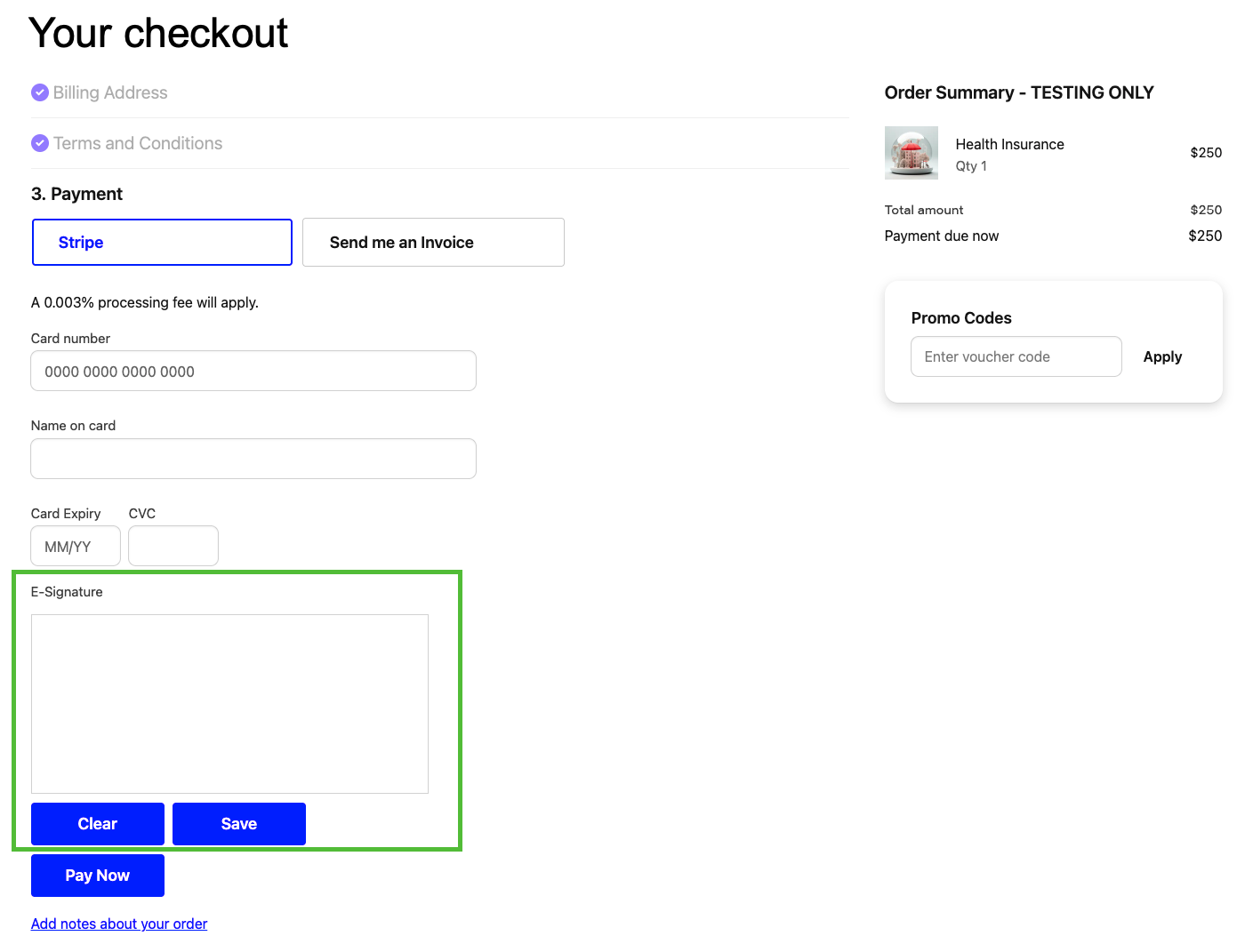
We recommend checking the template element in your own store’s checkout, to verify that it looks correct and works. Here’s an example of what the signature block might look.
Manage e-signatures
The user experience
The user draws their signature in the E-Signature block area.
- To re-draw the signature, the user can click Clear.
- The form cannot be submitted unless a signature is saved.
- To save the signature, the user clicks Save. The signature image is stored as a Base64 PNG in Salesforce.
- If the user tries to submit their order without a signature, an error will show.
- If the user enter their signature and tries to submit the form, a background script automatically attempts to save the signature first.
Image storage and visibility
When saved, the signature is stored in a hidden field in Salesforce and Base64 encoded.
- The underlying form’s hidden answer input is automatically filled.
- The signature UI is moved above the checkout submit button.
If you want to be able to view a customer’s signature as an image in Salesforce, you need to create a Salesforce Flow to:
-
Display the PNG image
-
Store the signature elsewhere.
If you decide to set this up, the signature is saved as standard Custom Form Answer text data.
Troubleshooting
The signature block does not appear at checkout
Work through these in order.
- Check that Hidden is
Falseon the form question. The base theme branches onquestion.hidden?and renders a hidden question throughcustom_forms/questions/hidden, which emits only<input type="hidden">and never outputs Question (Markdown). The snippet therefore never reaches the page. - Check the form’s Display Mode. It must be the in-checkout mode, which Liquid reports as
in_checkout. The base theme’scustom_forms/formssnippet is called withdisplay_mode: "in_checkout"and skips any form whose Display Mode does not match, so the form can be correctly attached to the cart and still be filtered out here. - Check that the form’s Form Type is Checkout Form. Attaching a form to a product uses the Product record type instead, which is a different setup.
- Check that your checkout template renders the accept-terms step. The base theme’s
templates/pages/checkout.liquidrenderscheckout/accept_terms/formfor theaccept_termsstep, and that snippet is what renderscustom_forms/forms. A theme with a hand-written checkout page can build its own step and never call it, leaving the form attached but with nowhere to appear. - Bump the store’s Cache Version and reload. Theme template and form changes are picked up asynchronously, so allow up to a minute.
current_cart.custom_forms is empty in a custom template
current_cart.custom_forms is the mechanism the base theme uses, so start by treating an empty value as a configuration problem and work through the list above.
If you have ruled those out, or your template renders the form somewhere the cart drop does not cover, you can look the form up directly by its Salesforce record ID:
```liquid
{%- assign agreement = all_custom_forms[“a0eao00000CoDXpAAN”] %} {%- if agreement %} {% render “custom_forms/questions”, questions: agreement.questions, form: form %} {%- endif %} ```
Replace the ID with your own form’s record ID, which you can read from the Form record URL in Salesforce.
This bypasses the Display Mode filter, so the form renders wherever you place it. That cuts both ways: rendering the markup does not attach the question to the cart, and a checkout step accepts answers[<question id>][answer] only for questions that are attached. If the form is not attached through the store’s checkout form or through a product form, the signature pad can appear and work while the answer is never saved. Treat this lookup as a way to control where an attached form renders, not as a way to render an unattached one.
The signature draws, but the answer saves as blank
The snippet writes the Base64 PNG into the question’s answer input, so it must find the right one. The base theme names that input answers[<question id>][answer] and, for a Text question, places it inside the same <label> as the rendered Question (Markdown).
If the answer saves blank, open the browser console and confirm that input[name^="answers["][name$="[answer]"] matches exactly one element inside the same <form> as the signature block. A theme that wraps questions differently, a page with more than one signature question, or a form of your own nested inside the checkout step is the usual cause.
Note that the selector matches the [answer] leaf only. A File question is named with the prefix answers[<question id>] and no [answer] leaf, so it will not match. Keep the signature question’s Data Type as Text, as in the steps above.
The signature is blurry or the line lags behind the pointer
The canvas backing store is not scaled to the device pixel ratio. Use the resizeCanvas function in the snippet above, and call it again on resize.
Was this article helpful?
Thanks for your feedback! It helps us improve our docs.