

Create a voucher manually
On this page
To do this, you need at least one voucher product configured, and a recipient contact record with a valid email address.
- In the App Launcher, search for Vouchers.
-
Click New to create a new voucher record.
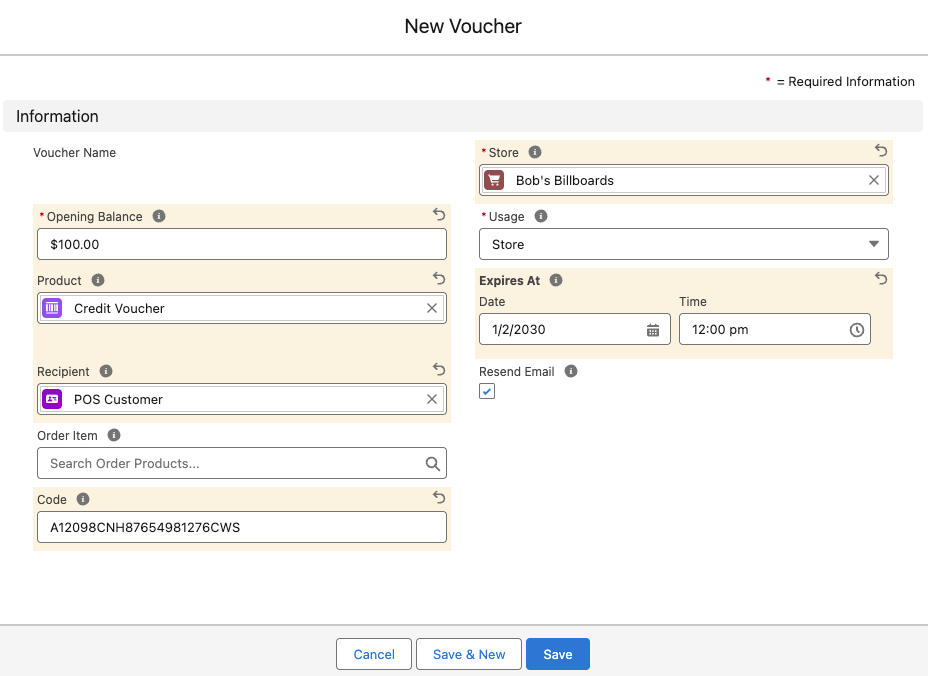
- Select the Store where the voucher will be used.
- Enter the Opening Balance (initial value) in your store’s currency (e.g., 50 for a $50 voucher).
- Select the Product that this voucher relates to (must be a voucher product).
- Select the Recipient (Contact) who will receive the voucher via email. If this is not known, select the person responsible for issuing the voucher.
- Enter a unique code for the voucher, or leave blank to autogenerate a secure 16-character alphanumeric number.
- (Optional) Enter an Expires At date. Leave it blank for no expiry.
- (Optional) Enter an Activate Before Date to set a deadline by which the voucher must be activated. After this date and time, the customer cannot activate the voucher and will see an error if they try.
- (Optional) Change the Usage setting if it should differ from the product default.
- (Optional) Enter a PIN that must be given to redeem the voucher. If the product’s Voucher Requires field includes PIN, leave this blank instead: StoreConnect generates a 6-character PIN when you save the voucher, and replaces any value entered here.
- (Optional) Check Resend Email to send the voucher immediately upon saving.
- Click Save.
Voucher fields
| Field | Description |
|---|---|
| Store | The store where this voucher was created |
| Opening Balance | The initial monetary value of the voucher |
| Product | The voucher product this relates to (determines email template) |
| Recipient | The contact who receives the voucher email |
| Expires At | Expiration date; blank means no expiry |
| Activate Before Date | Activation deadline; customers cannot activate the voucher on or after this date and time |
| Usage | Defines where the voucher can be used (defaults to product setting) |
| Order Item | Link to the order item if purchased (auto-populated) |
| Resend Email | Triggers email send when checked and saved |
| Code | Automatically generated 16-character unique code (or enter manually) |
| PIN | Must be entered to redeem the voucher when set. Generated automatically when the voucher is created if the product’s Voucher Requires includes PIN; otherwise entered by an admin, or left blank |
Was this article helpful?
Thanks for your feedback! It helps us improve our docs.