

Set user pins for POS access
On this page
A PIN is what lets a POS user sign in at a register. Which procedure you need depends on where you are:
- Setting POS up for the first time — add the PIN field to the user page layout first, so Salesforce can manage PINs, then set a PIN for each employee. Do both procedures below, in order.
- Adding or changing a PIN for one user — the PIN field is already in place, so go straight to Set or reset a PIN for a POS user.
Video demo
Add the PIN field to the user page layout
- In Salesforce, go to Setup, then Object Manager.
-
Search for User in the Quick Find box.
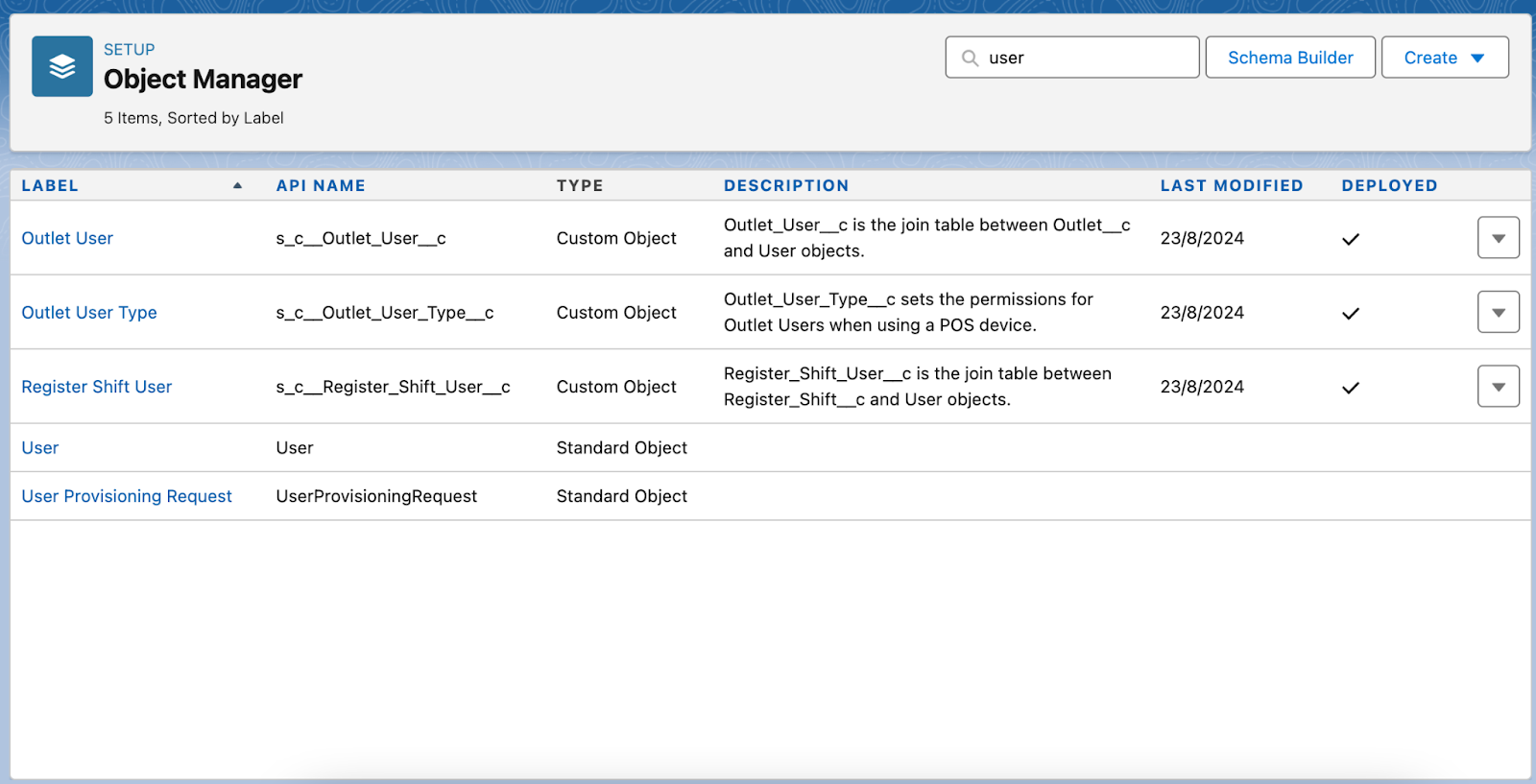
- Open the User object.
-
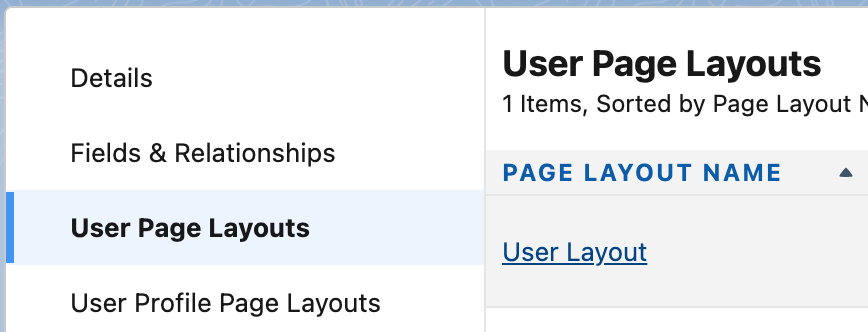
Select User Page Layouts, then select User Layout.
- Scroll down in the bottom half of the page until you reach the Additional Information section, which has a gray heading.
-
In the top half of the screen, drag the PIN field and drop it under the Additional Information heading.
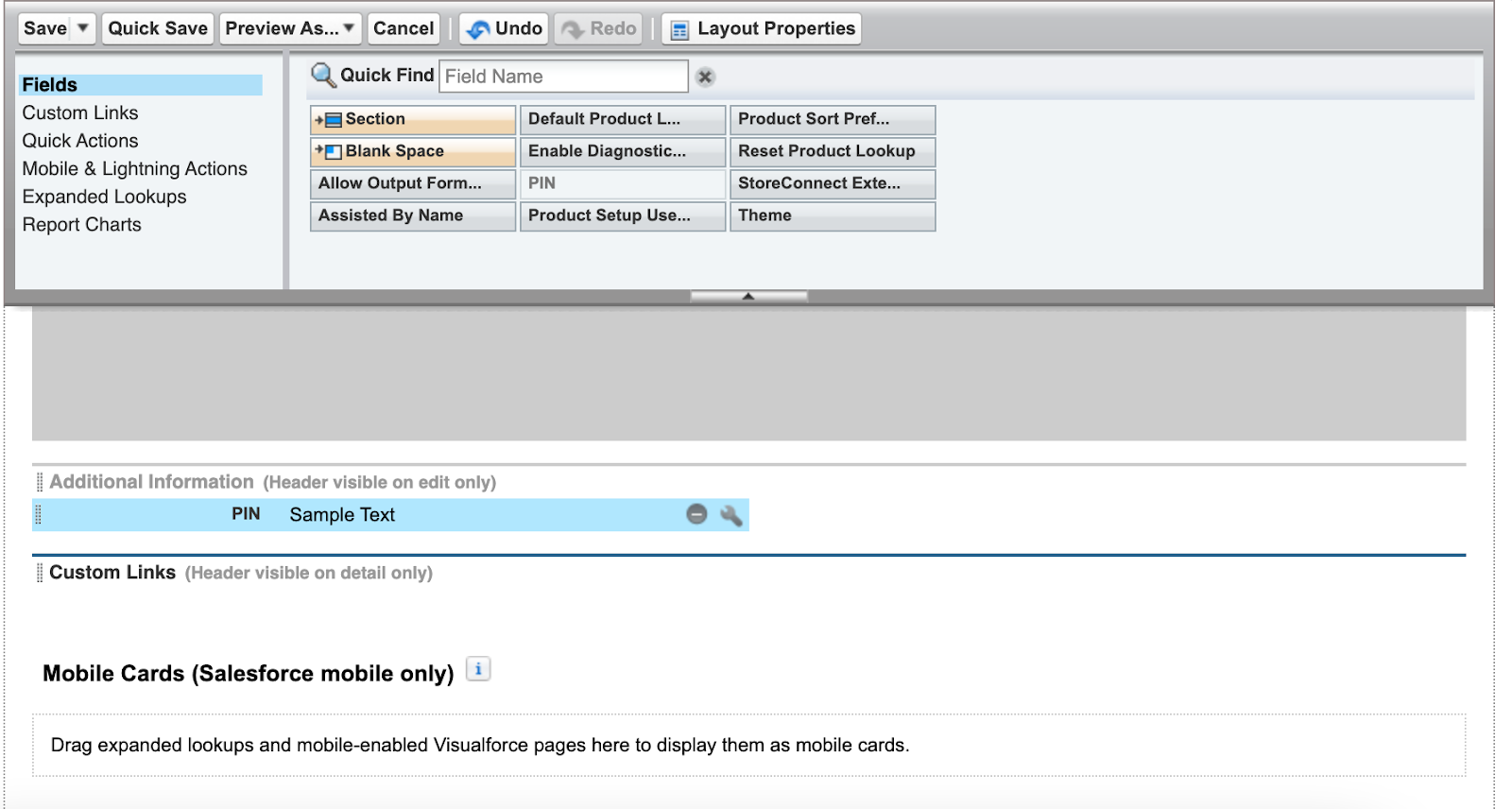
- Select Save.
The PIN field now appears in the Additional Information section of every user record, ready to be set.
Set or reset a PIN for a POS user
A PIN must be digits only, with no letters or special characters, and at least 4 digits long. A longer PIN is more secure, so 123456 is valid, but 123A456 is not.
-
In Salesforce, go to Setup, then Users > Users. A list of your users opens.
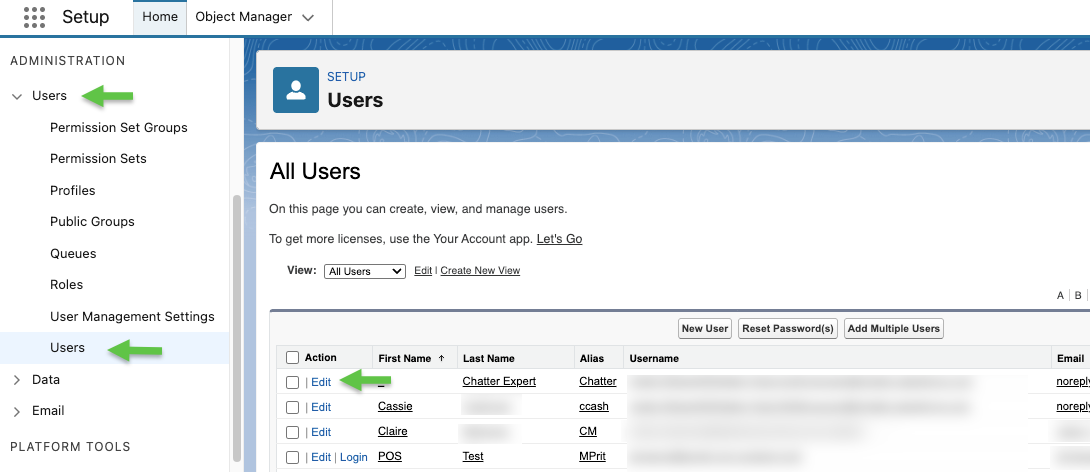
- Select Edit for the user whose PIN you want to set or change.
- Scroll down to the Additional Information section.
- In the PIN field, enter the new PIN.
- Select Save.
The PIN is saved against the user. It can take a few minutes to sync before they can use it to sign in at a register.
Was this article helpful?
Thanks for your feedback! It helps us improve our docs.