

Change default street address layout
On this page
By default your store shows a single Street Address field, alongside separate City, State, Zip Code, and Country fields. Use this process to split Street Address into several fields, so customers can enter a suite, apartment, or building number on its own line.
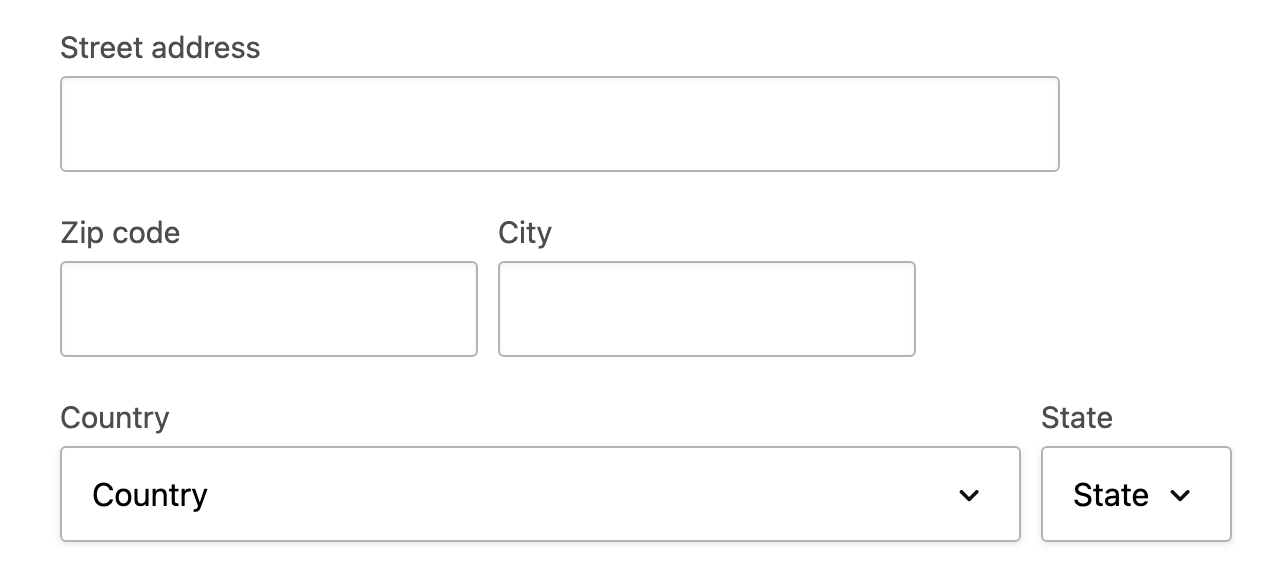
The extra fields appear everywhere an address is rendered, including checkout and the account profile page.
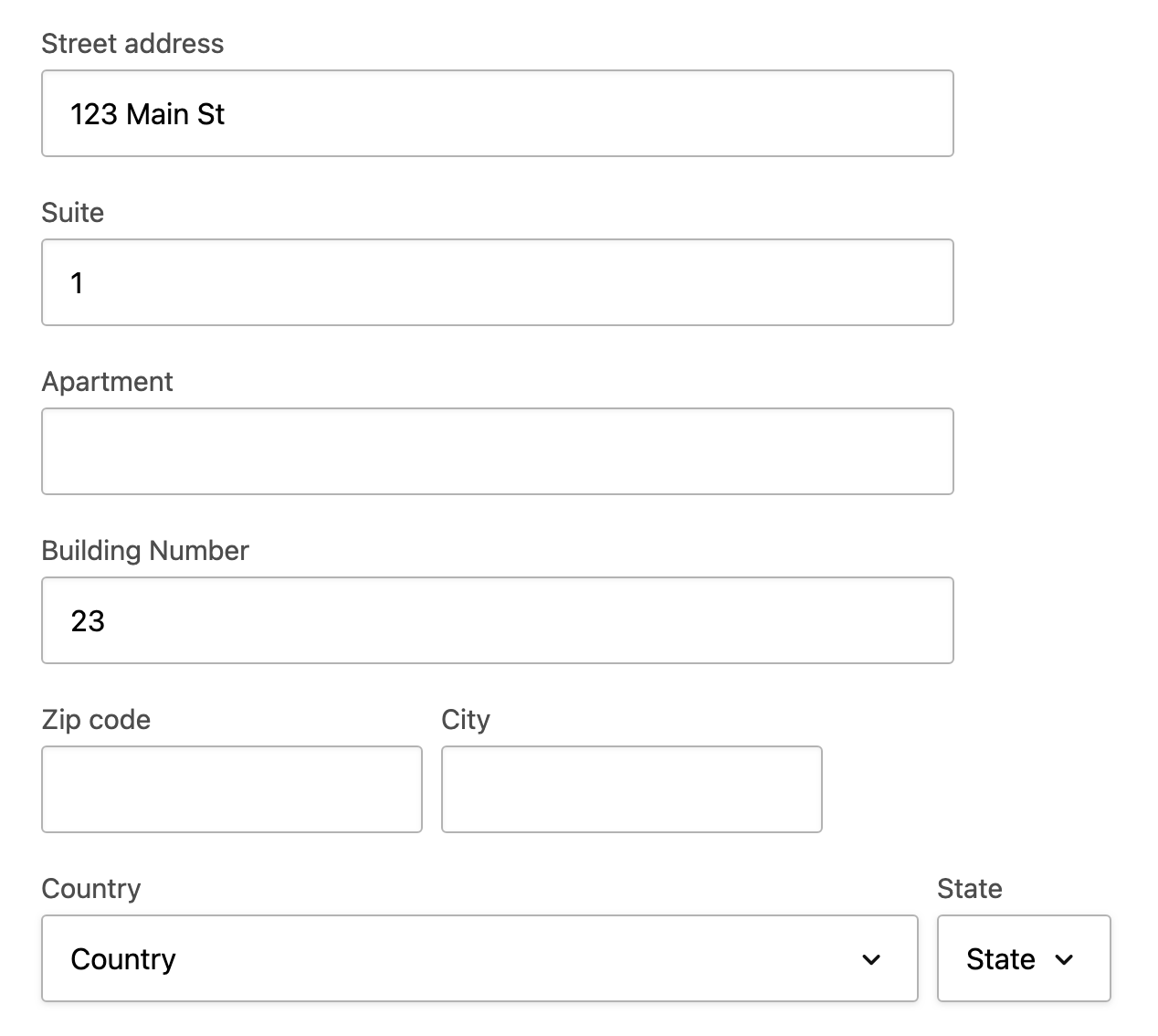
Enable multi-line street address
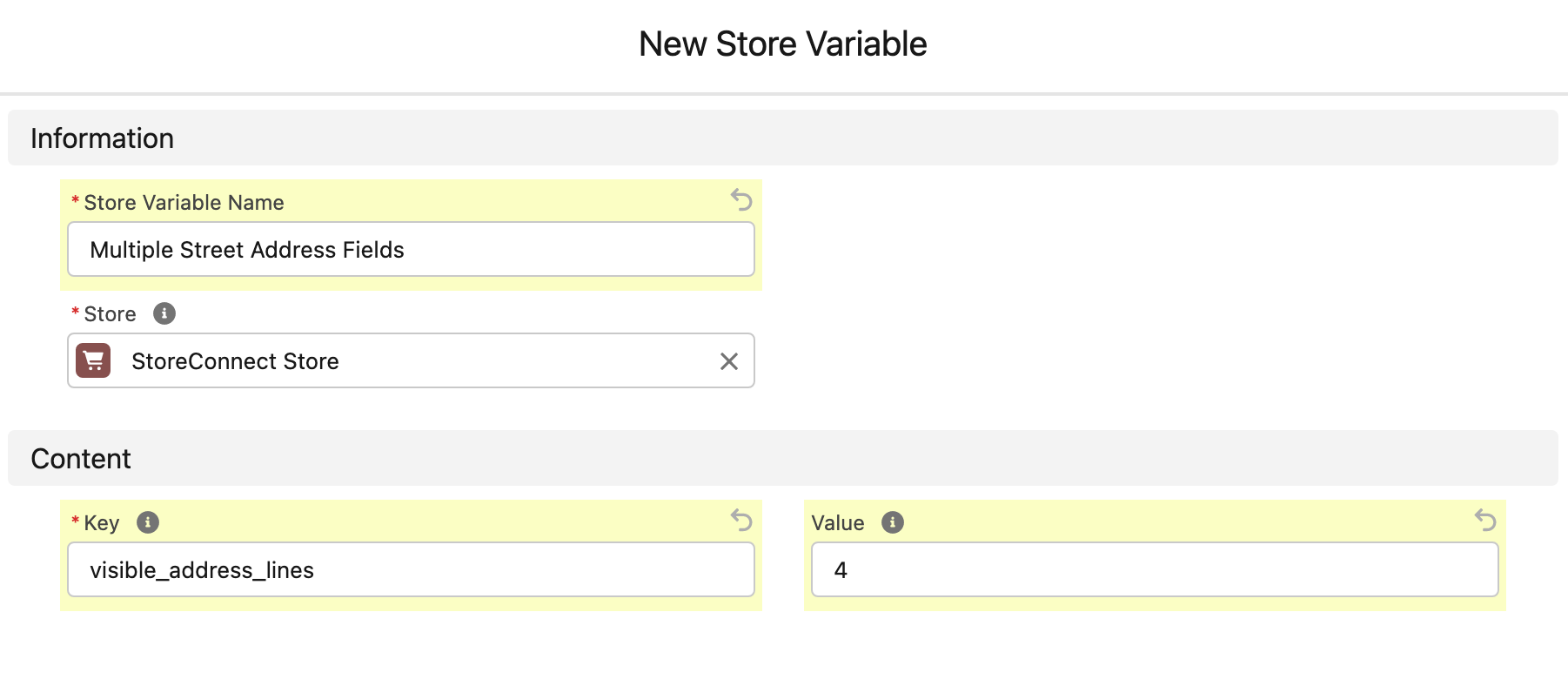
- Open the Store record and go to the Store Variables related list.
- Click New.
- Enter a Name for the variable.
- Set Key to
visible_address_lines. - Set Value to the number of lines to show in place of the single Street Address field, as an integer from
1to9. - Click Save.
Open your store’s checkout page. The single Street Address field is replaced by the number of separate line fields you set.
Change the field labels
The default labels for the extra fields are:
- Street address
- Suite
- Apartment
- Building Number
- line 5
- line 6, and so on
Change them by adding translations to your store’s theme, following theme locales. The translation keys are:
- Line 1:
accounts.shared.address_form.address_lines.count.#1 - Line 2:
accounts.shared.address_form.address_lines.count.#2 - Line 3:
accounts.shared.address_form.address_lines.count.#3, and so on
How the lines are stored
Each field displays separately in your store, but all of them save into the same Salesforce street address field, separated into multiple lines. There is no limit on the number of lines beyond Salesforce’s 255 character limit on the field.
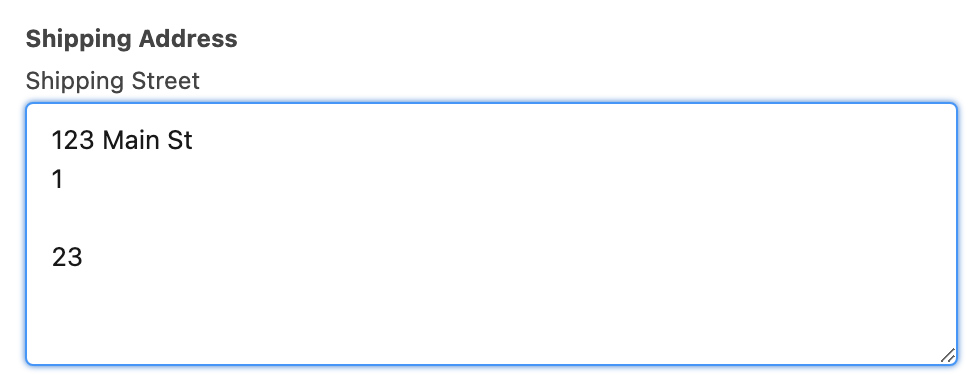
StoreConnect collects a customer’s shipping and billing addresses and saves them on each order. For new customers, they are also saved on the Account record. If you want each line in its own custom Salesforce field, split the stored value with an Apex trigger.
:::note Salesforce strips blank lines from the start of a field, so the first line must always contain a value. Customers are prompted to fill in Street Address Line 1 if they leave it blank. :::
Address validation
To catch typos that send packages to the wrong place, add address autocomplete at checkout. Two integrations are available, and both work with single-line and multi-line street addresses:
- Google address autocomplete uses the Google Places API. It fills the first address line, then moves the cursor to the second line for a unit or apartment number.
- Addressfinder integration uses a third-party service that publishes a StoreConnect installation guide.
Was this article helpful?
Thanks for your feedback! It helps us improve our docs.