

Create a POS cart print template
On this page
Cart print templates let staff print a summary of the current POS cart before an order is completed. This is useful for producing customer quotes, approval documents, or layby estimates.
Cart templates use the same Liquid and print markup syntax as receipt templates, but receive the current cart as their data context instead of a completed order.
Add a cart template
- Open the StoreConnect Console.
- Go to POS Configuration and select POS Printer Templates.
- Select New or open an existing template.
- Give the template a Name.
- In the Printer Type field, select Receipt.
- In the Type field, select Cart.
- Leave the height and width fields blank.
- Enter your Liquid template in the Template field. A sample is provided below.
- Select Save.
The template is available to select as the cart template in the POS under Settings > Hardware, and prints when staff select a print quote action on the cart.
Sample cart template
```liquid
{%- assign qr_code_url = ‘https://example.com’ -%} {%- assign store = current_store -%} {%- assign logo_url = store.data.logo.thumb_url -%} {%- assign outlet = current_outlet -%} {%- assign outlet_tax_number = outlet.tax_number -%} {%- assign outlet_phone = outlet.phone -%} {%- assign outlet_address_1 = outlet.address1 -%} {%- assign outlet_address_2 = ‘’ -%} {%- if outlet.address2 != blank -%} {%- assign outlet_address_1 = outlet_address_1 | append: ‘, ‘ | append: outlet.address2 -%} {%- endif -%} {%- if outlet.city != blank -%} {%- assign outlet_address_2 = outlet.city -%} {%- endif -%} {%- if outlet.state != blank -%} {%- if outlet_address_2 != blank -%} {%- assign outlet_address_2 = outlet_address_2 | append: ‘, ‘ | append: outlet.state -%} {%- else -%} {%- assign outlet_address_2 = outlet.state -%} {%- endif -%} {%- endif -%} {%- if outlet.zip_code != blank -%} {%- if outlet_address_2 != blank -%} {%- assign outlet_address_2 = outlet_address_2 | append: ‘ ‘ | append: outlet.zip_code -%} {%- else -%} {%- assign outlet_address_2 = outlet.zip_code -%} {%- endif -%} {%- endif -%} {%- assign date_format = ‘%m/%d/%Y’ -%} {%- assign cart_notes = current_cart.data.s_c__customer_notes_long__c -%} {document word-wrap=true } {# header } {center} {%- if logo_url != blank %} {image src=”{{ logo_url }}” size=40 dither=atkinson } {%- endif %} {size 1} QUOTE {%- if outlet_tax_number != blank %} TAX#: {{ outlet_tax_number }} {%- endif %} {left} {rule} {%- if outlet_address_1 != blank or outlet_address_2 != blank or outlet_phone != blank %} {table cols=1 margin=1 align=[left] width=[] {%- if outlet_address_1 != blank %} row=[”{{- outlet_address_1 -}}”] {%- endif %} {%- if outlet_address_2 != blank %} row=[”{{- outlet_address_2 -}}”] {%- endif %} {%- if outlet_phone != blank %} row=[“Phone: {{- outlet_phone -}}”] {%- endif %} } {%- endif %} {rule} {table cols=2 margin=1 align=[left,right] width=[10,] row=[“Date”,”{{- ‘now’ | date: date_format -}} {{- ‘now’ | date: “%l:%M:%S%p” -}}”] {%- if current_cart.contact != blank %} row=[“Customer”,”{{- current_cart.contact.name -}}”] {%- if current_cart.contact.phone != blank %} row=[“Phone”,”{{- current_cart.contact.phone -}}”] {%- endif %} {%- endif %} } {line} {# items } {bold} {table cols=3 margin=1 align=[left,right,right] width=[,4,8] row=[“Item”,”Qty”,”Total”] } {endBold} {rule} {%- if current_cart.items.size > 0 %} {table cols=3 margin=1 align=[left,right,right] width=[,4,8] {%- for item in current_cart.items %} {%- assign quantity = item.quantity | default: 1 -%} {%- assign unit_price = item.data.s_c__unit_price__c | default: 0 -%} {%- assign unit_discount = item.data.s_c__unit_discount__c | default: 0 -%} {%- assign line_total = unit_price | times: quantity | round: 2 %} row=[”{{ item.name }}”, “{{ quantity }}”, “{{ line_total | money }}”] {%- assign saving = unit_discount | round: 2 -%} {%- if saving > 0 %} row=[” was {{ unit_price | plus: unit_discount | money }}, saved {{ saving | money }} ea”, “”, “”] {%- else %} row=[” {{ unit_price | money }} ea”, “”, “”] {%- endif %} {%- endfor %} } {%- endif %} {# total } {center} {rule} {left} {size 2} {bold} {table cols=2 margin=1 align=[right,right] width=[*,17] row=[“TOTAL:”,”{{ current_cart.total | money }}”] } {endBold} {size 1} {%- if cart_notes != blank %} {line} Note: {{- cart_notes -}} {%- endif %} {center} {line} Find us online {qrcode data=’{{ qr_code_url }}’ level=’m’ model=’2’ size=6} ```
Explanation of cart template code by section
Variable setup
Identical to the receipt template. It reads store and outlet data into named variables and builds the address lines conditionally. Replace https://example.com with your store’s URL.
cart_notes is assigned from current_cart.data.s_c__customer_notes_long__c so the notes section can check it in one place.
Header
Displays the store logo, “QUOTE” heading, tax number (if set on the outlet), and the outlet address and phone. Layout is the same as a receipt.
To resize the logo, change the size value on the {image} block. The value is a percentage of the printable width, so 40 prints the logo at 40% width, 80 at 80%, and so on.
Cart info
```liquid
row=[“Date”,”{{- ‘now’ | date: date_format -}} {{- ‘now’ | date: “%l:%M:%S%p” -}}”] ```
Shows the current date and time. Customer name and phone are shown if a contact is linked to the cart.
There is no cashier or register field in the cart context.
Items table
```liquid
row=[”{{ item.name }}”, “{{ quantity }}”, “{{ line_total | money }}”] row=[” {{ unit_price | money }} ea”, “”, “”] ```
Loops through current_cart.items and prints each product with quantity and line total. A second row shows the unit price. If a discount is applied to an item, it shows the original price and saving instead.
Line totals are calculated by multiplying the unit price by quantity. The cart does not provide a tax breakdown, so only the overall total is available.
Total
```liquid
row=[“TOTAL:”,”{{ current_cart.total | money }}”] ```
Shows the cart total calculated from all items. Unlike a completed order, there is no tax line or payments section in a cart context.
Notes
```liquid
{%- if cart_notes != blank %} {line} Note: {{- cart_notes -}} {%- endif %} ```
Prints any notes entered on the cart, only if present. Notes are accessed via current_cart.data.s_c__customer_notes_long__c. There is no notes shorthand on the cart context.
QR code
Same as the receipt template. Set qr_code_url at the top of the template to your store’s URL.
Liquid context variables
| Variable | Description |
|---|---|
current_cart.id |
Cart token |
current_cart.items |
Collection of items in the cart |
current_cart.item_count |
Total quantity across all items |
current_cart.total |
Cart total (including tax) |
current_cart.sub_total |
Cart subtotal (excluding tax) |
current_cart.contact |
Contact assigned to the cart (may be blank) |
current_cart.contact.name |
Customer name |
current_cart.contact.phone |
Customer phone |
current_cart.data.s_c__customer_notes_long__c |
Notes entered on the cart |
current_store |
The current store |
current_outlet |
The current outlet |
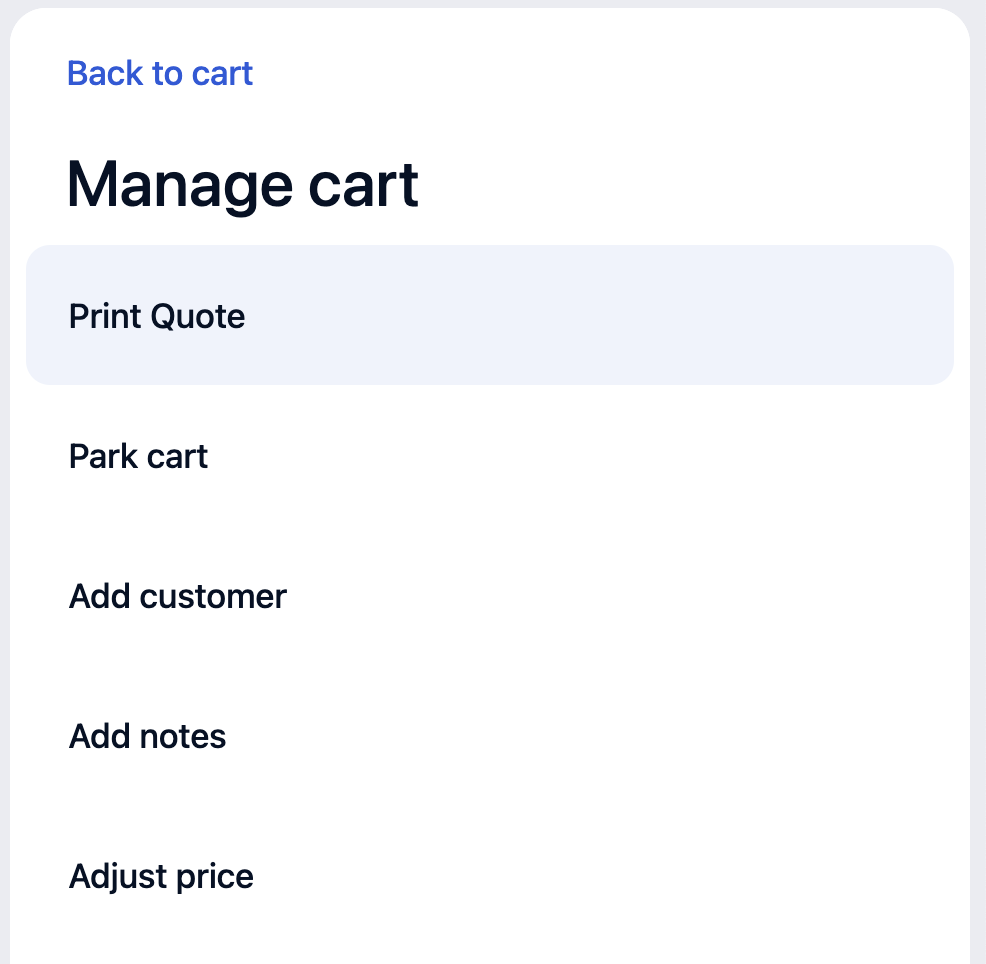
Add a Print Quote button to the manage cart menu
The active cart’s Manage menu loads additional actions from an action group with the identifier manage_cart_additional_actions. To add a Print Quote button there:
1. Create the action group
Create a Pos_Action_Group__c record with these values:
| Field | Value |
|---|---|
| Name | Cart: Manage Additional Actions |
Identifier (s_c__Identifier__c) |
manage_cart_additional_actions |
| Type | list |
| Rows | 1 |
| Columns | 1 |
:::note
If an action group with identifier manage_cart_additional_actions already exists in your org, skip this step and add the action item to the existing group.
:::
2. Create the action item
Create a Pos_Action_Item__c record inside the group:
| Field | Value |
|---|---|
| Name | Print Quote |
| Type | action |
| Display Name | Print Quote |
| Parent Action Group | the group created above |
Action (s_c__Action__c) |
print:cart |
| Params | leave blank to use the default cart template configured in POS Settings |
Using Params to override the default template
The Params field is only needed if you want to use a specific template instead of the default cart template configured in POS Settings. If left blank, the action uses the default.
Supported parameters, separated by a semicolon if using both:
print_template_sfid=<Salesforce record ID>— use a specific template instead of the default. The value must be the 15 or 18 character Salesforce record ID of the cart print template, found in the URL when viewing the template record in Salesforce.cart_sc_id=<Cart SC ID>— print a specific parked cart; if omitted, prints the current active cart
:::note
The cart must be active in POS for printing to work. If no cart is loaded and no cart_sc_id is provided, the action exits silently.
:::
Was this article helpful?
Thanks for your feedback! It helps us improve our docs.