

Disconnect a POS register
On this page
A register can only be connected to one device at a time. If you want to use a different device for a specific register, you will need to disconnect it first.
There are two options for disconnecting a register.
-
(Recommended) Disconnect from the POS - Using this method will clear both the connection on the device side (browser) and the Salesforce side.
-
Disconnect from Salesforce - will work but work, but it will leave data on the POS device and the device will think it’s connected to a Register, meaning if you later want to reconnect it, you will have to clear out cookies and browser storage to avoid issues. Only use this method if you don’t have access to the device.
To disconnect a register
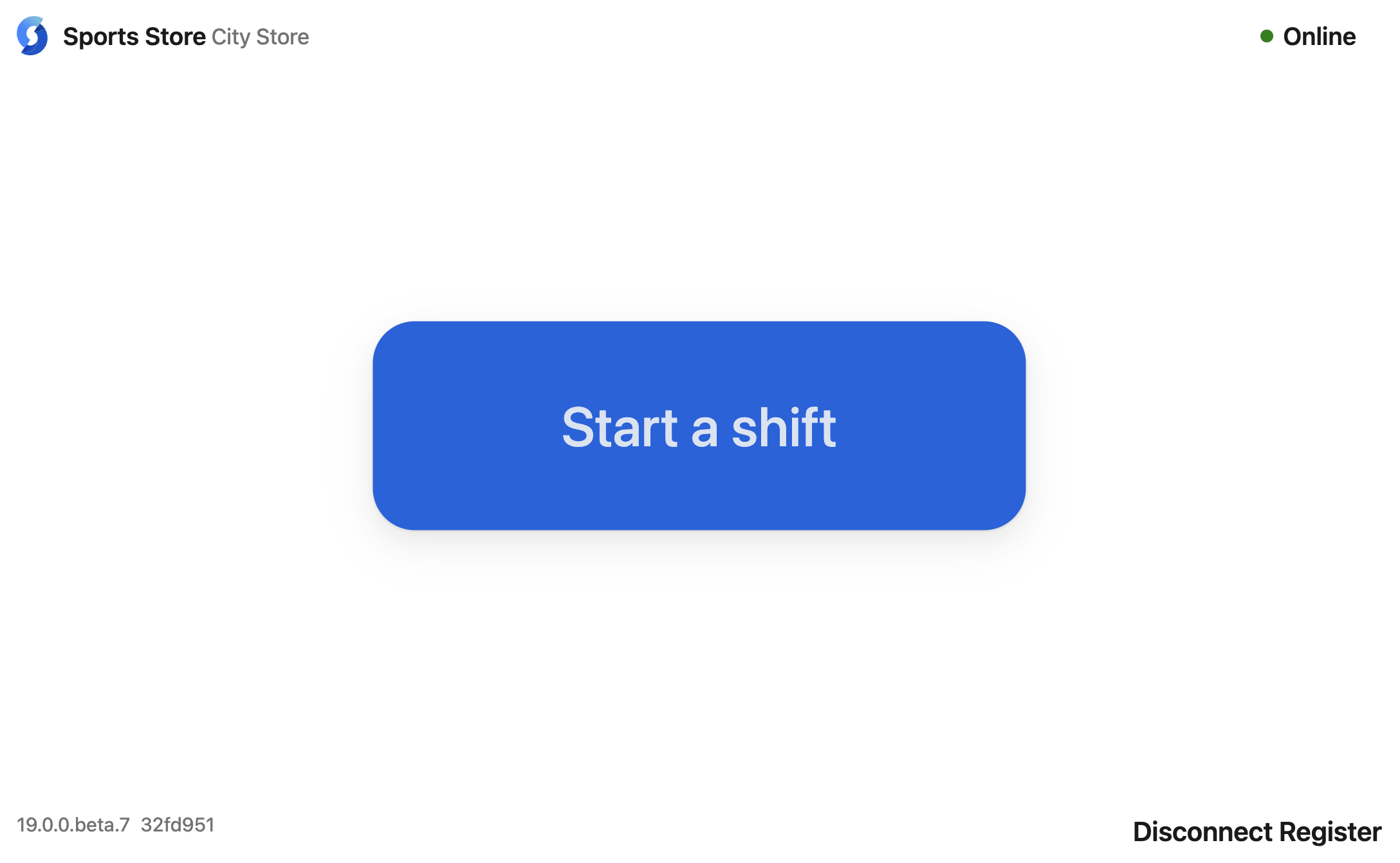
- At the register, go to the Start a shift screen.
-
Select Disconnect Register in the bottom right corner.
-
Sign in and enter your PIN. A warning about losing data is displayed, which you can continue past or cancel. Do not continue if your data is at risk.
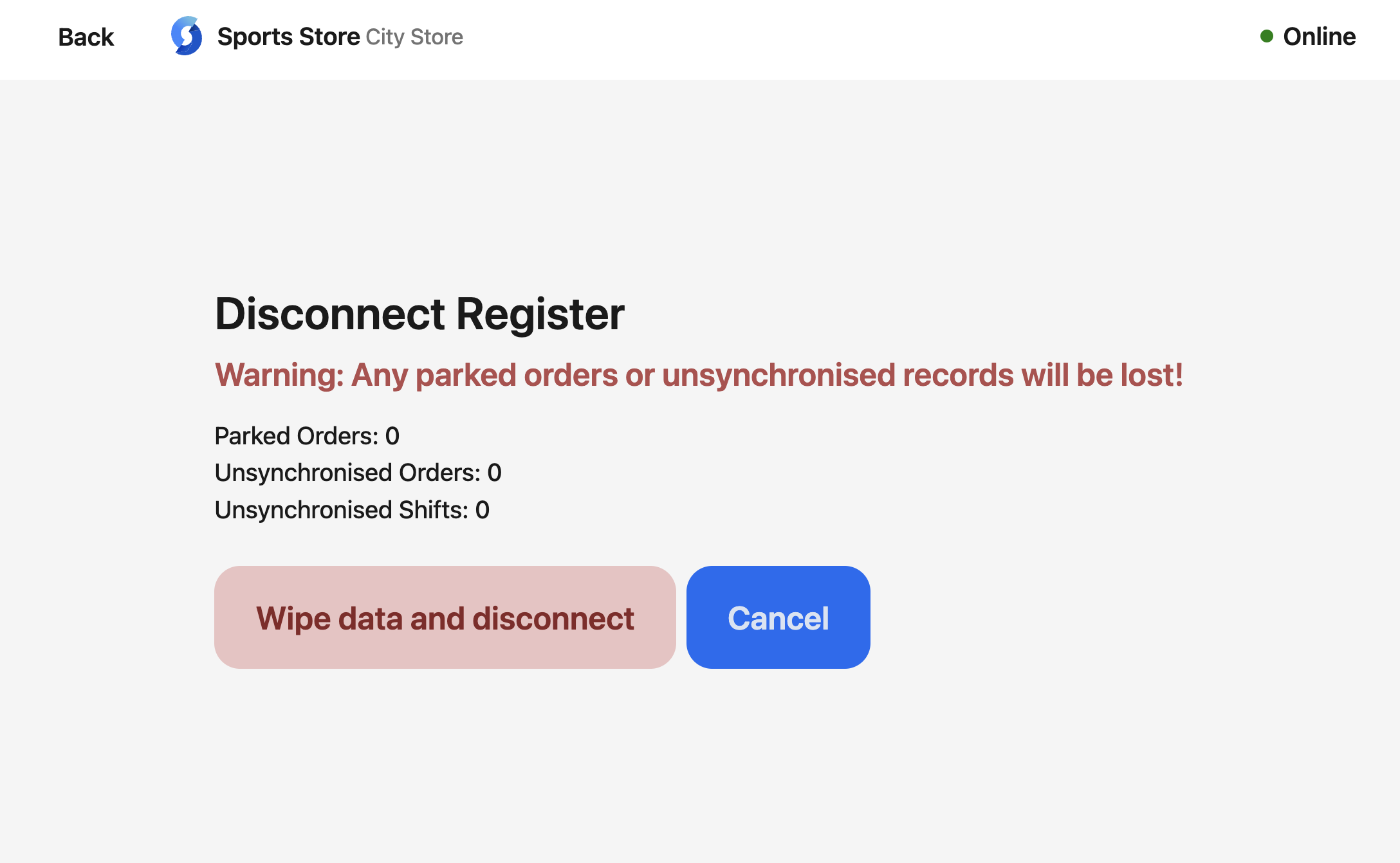
- If the register has not finished syncing, do not disconnect. Wait until synchronization has finished.
- If you are sure, select Wipe data and disconnect.
The device returns to the register connection screen with its local data cleared, and the register is free to pair with another device.
Was this article helpful?
Thanks for your feedback! It helps us improve our docs.