

Place items on hold at POS
On this page
Use this process to hold stock for a customer who will collect and pay later. You can take the full amount up front, take a deposit, or take nothing until collection. The procedures below cover placing the hold, taking the balance, and releasing the goods.
Video demo
Place an order on hold
- At the POS register, look up the item and add it to the cart.
- Select the item in the cart. Additional details are shown.
-
Select the + symbol next to the Hold, Transfer, Special Order field.
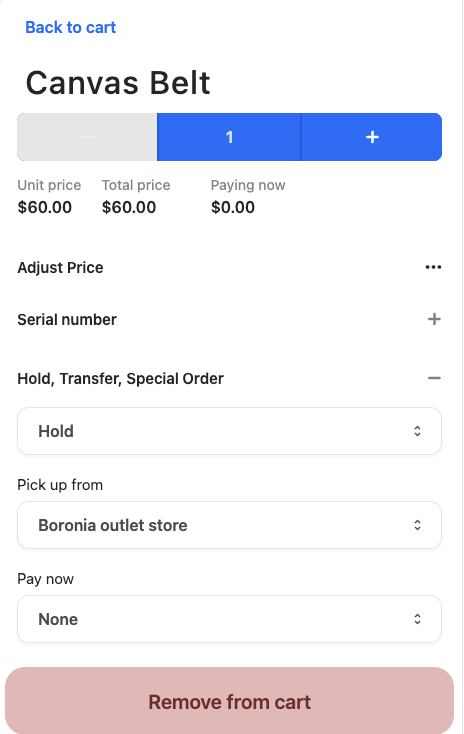
- Select Hold in the dropdown list.
- Select the store for pickup.
- Select a Pay Now option according to whether the customer is paying in full, leaving a deposit, or paying on collection.
- If the customer is paying now or leaving a deposit, enter the amount or percentage.
- Go back to the cart.
- Select Manage cart.
- Select Hold items, then select and confirm the items.
- Select Confirm hold.
- Select Pay [Amount] to finalize the checkout.
The item is placed on hold and a receipt is issued for any payment taken. The order appears in the Pickups list showing the order name, the pickup type (Hold), and the order status.
Take the balance of payment on a hold item
- At the POS register, open the order from the Orders or Pickups list.
-
Check the amount owing and the other transaction details shown.
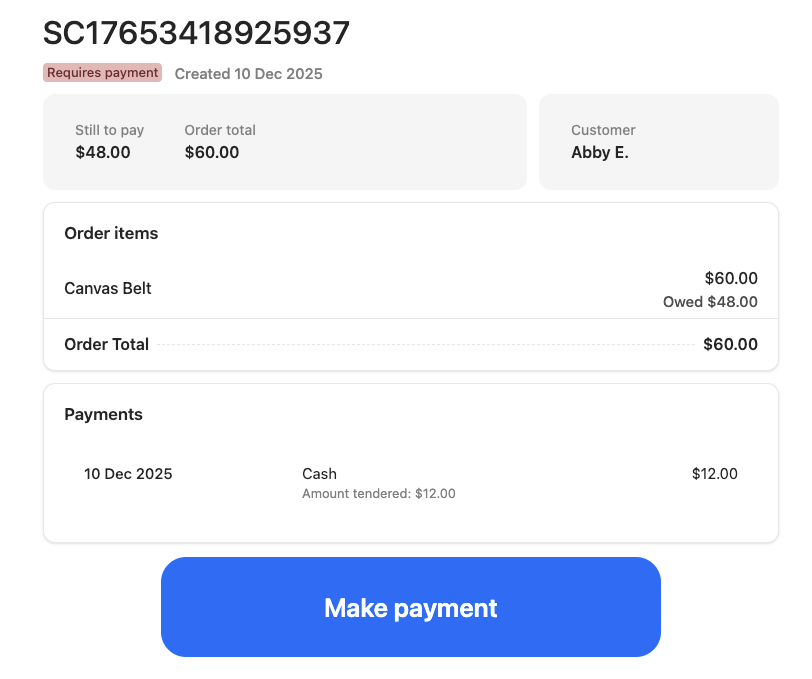
- Select Make payment and finalize the transaction.
The order shows as fully paid, and the goods can be released when the customer collects.
Fulfill an order that is on hold
:::warning Moving an order to Picked cannot be undone. You cannot return it to the previous stage. :::
- At the POS register, open the Pickups list and find the hold order.
- Open the order to view its details. The progress is shown at the top, and the Qty Expected section shows how much of the product the order needs.
- If the product is out of stock, select the minus button beneath Qty Available to record the shortfall, and add a note.
- When the order has been picked, select Next and confirm at the prompt. The status changes to Picked.
- When the order has been packed and is ready for collection, select Next and confirm.
- If the customer has already paid, select Release items.
- If they still have an outstanding balance, take the payment through the checkout as described above, then release the items.
The goods are handed over, the fulfillment reaches a completed status, and the order drops out of the Pickups list.
Was this article helpful?
Thanks for your feedback! It helps us improve our docs.