

Apply product traits using templates
On this page
Product trait templates let you apply a predefined set of traits (categories, types, and values) to a product when you create it. This saves time when you set up similar products, because the template’s traits are applied automatically once you select it on a new product.
A template is optional. Use it when you regularly create products that share the same set of traits.
A product trait template cannot update, overwrite, or sync the traits for existing products, and it cannot be used to update product traits in bulk. To assign traits to products that already exist, use the Trait Builder or import a spreadsheet.
Create a product trait template
This procedure assumes you have already set up your product traits.
Create a product trait template
- Open the Product Trait Templates list.
- Select New.
- Give the template a name.
- Select Save.
- In the template you just created, select Related.
-
In the Product Trait Template Items section, select New.
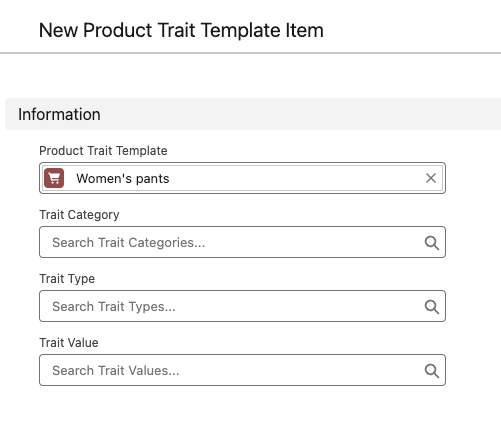
- Select from your existing product traits to add to this template:
- Trait Category
- Trait Type
- Trait Values
- Select Save.
Create and apply a product trait template to a product
- Go to your products list and create a New product.
- Complete the necessary fields, such as Name and Display Name.
- Select a template in the Product Trait Template field.
- If there is no applicable template, create one on the fly:
- Select New Template.
- Follow the prompts to create and save the template.
- Select Save on the product record. This product now has all the predefined traits applied, and appears when customers use the matching trait filters.
Was this article helpful?
Thanks for your feedback! It helps us improve our docs.