

Set your store domain and go live
On this page
Use this process to take your store live on your own domain. Going live means setting the domain in Salesforce, switching every payment, shipping, and tax provider to live credentials, and turning off test mode.
A new StoreConnect site starts on a default domain that looks like 00d9n000002gtaryam-454af23e.storeconnect.app. That address stays accessible afterward and is useful for testing new features or building additional stores.
Before you begin
- If the domain is not yet in use, connect it first. You need a Web Domain record with a Status of Success. See connect a domain to StoreConnect.
- If the domain currently serves a live website, create the Web Domain record (step 1 of connect a domain to StoreConnect), then complete steps 1 to 4 below before you change DNS. The Web Domain record cannot reach Success until DNS moves, and a domain that no Store record claims shows visitors the error
No store could be found at that URLas soon as the new DNS record propagates. - You have the live (production) credentials for every payment, shipping, and tax provider the store uses. Each provider issues these separately from the sandbox or test credentials.
- You can complete all the steps in one session, in order. Once step 1 is saved, customers can reach the store on your domain, but it does not collect real payments until step 2 is done.
Step 1: Set the domain on the Store record
- Open the Store record you want to take live.
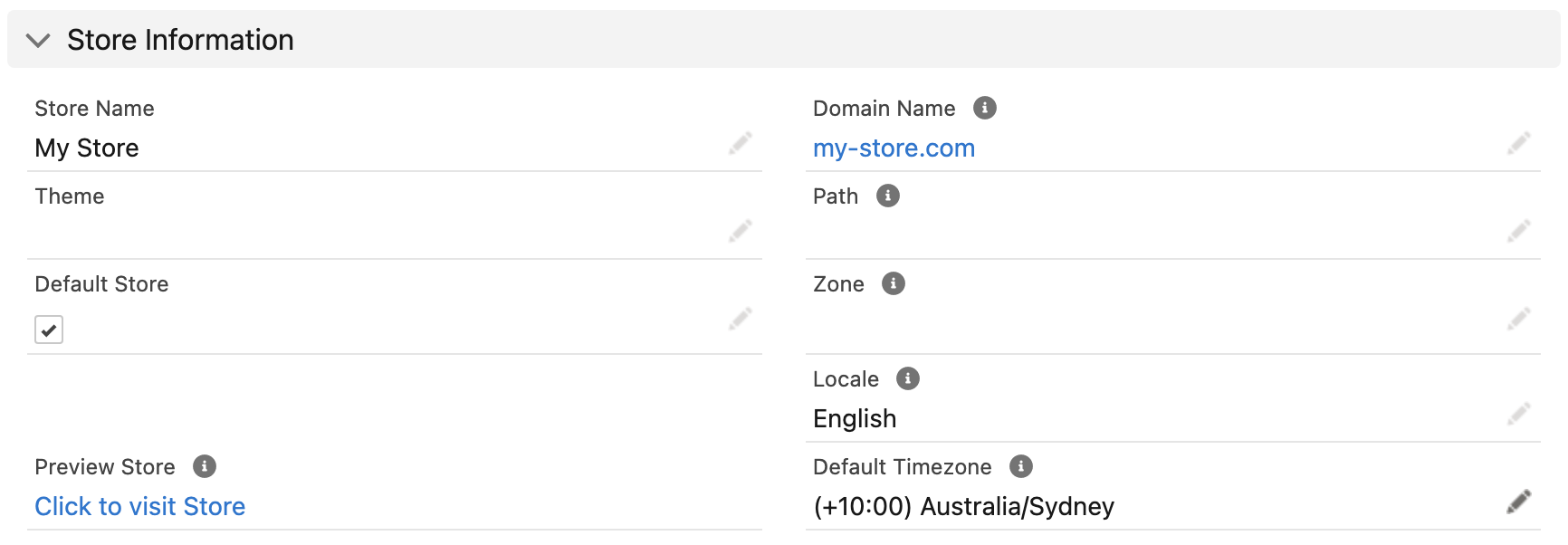
- Enter your domain in the Store Domain Name field. Use the exact domain from your Web Domain record, with no
https://and no trailing/. For example:www.my-store.commy-store.comstore.my-store.com
- Save the record.
This domain becomes your primary domain. It is used for your Google Merchant Feed, Facebook Catalog Feed, sitemap, robots.txt file, and all canonical and social metadata links in your store header.
:::tip
If you have connected both an apex domain (my-store.com) and a subdomain (www.my-store.com), set the one you want customers to use as the primary domain here. Traffic to the other domain redirects to the primary automatically with a 301 redirect. Contact support if you need that redirect turned off.
:::
Step 2: Switch providers to live credentials
Each Payment Provider, Shipping Provider, and Tax Provider record connects to whichever environment the credentials and mode field on that record point at. Turning off test mode on the store does not change them. A provider left on sandbox credentials keeps accepting orders on your live domain without collecting any money, booking real shipments, or recording real tax.
Update every active provider the store uses, for both web and POS.
:::warning After this step, every order charges the customer’s card for real. Only do it when you are ready to trade. :::
Payment providers
- Open the Store record and go to the Payment Providers related list.
- Open an active payment provider.
- Replace the API Key and API Secret with the live credentials from the provider.
- If the provider’s setup article lists account details in API Options, such as a client key or merchant account, replace those with the live values too.
- Set API Mode to
production. - Save the record.
- Repeat steps 2 to 6 for each active payment provider.
Keep the credentials and API Mode matched. A provider that uses API Mode to choose the endpoint sends live keys to the test environment if the mode is left on sandbox.
Shipping providers
- On the Store record, go to the Shipping Providers related list.
- Open an active shipping provider.
- Replace the API Key and API Secret with the live credentials.
- Set API Environment to
production. Any other value, including a blank field, keeps a provider with a separate test environment, such as Australia Post, on that test environment. - Save the record.
- Repeat steps 2 to 5 for each active shipping provider.
See set up shipping providers for the fields each provider needs.
Tax providers
Skip this section if the store does not use automated tax.
- Go to the Tax Providers list and open the tax provider the store uses.
- Replace the API Key and API Secret with the live credentials.
- Set API Mode to
production. Any other value, including a blank field, uses the sandbox. See AvaTax for the full setup. - Save the record.
Step 3: Point Site Base URL and web forms at the domain
The Site Base URL setting builds the Preview on Site link on Product, Page, and Article records. It does not come from the Store Domain Name, so update it separately.
- Go to Setup > Custom Metadata Types > StoreConnect Setting and click Manage Records.
- Open Site Base URL and set Setting to your live domain, including the scheme, for example
https://www.my-store.com. Do not add a trailing slash, because the preview formulas supply the leading slash themselves. - Save the record.
- Update the callback URL on every web-to-case form to the new domain.
- Update the callback URL on every web-to-lead form to the new domain.
The preview links are formula fields, so they use the new value as soon as you reload the record. To read the current value without editing it, see Test store.
Two things to know about Site Base URL after you change it:
- New stores inherit it. A Store record created with Store Domain Name left blank is given the Site Base URL value as its domain. Once the setting points at your live domain, any test store you create afterward is reachable on that public domain. Set Store Domain Name on the test store yourself if you want it kept off the live host. Existing stores keep the domain they already have.
- The setup wizard overwrites it. Running the StoreConnect setup again replaces the value with the install address, so re-apply your live domain afterward.
Step 4: Turn off test mode
- On the Store record, go to the Modes section.
- Clear the Enable Test Mode checkbox.
- Save the record.
Orders placed from now on are no longer flagged as test orders. They stop showing the TESTING ONLY banner at checkout, and Shared Success fees apply to them. Search engines can also crawl the store, because robots.txt stops blocking them once test mode is off, unless stealth mode is on.
On a trial or sandbox license, every order stays a test order whatever this checkbox says. See test mode.
Step 5: Confirm the store is live
Allow a few minutes after step 4 for the changes to sync to your storefront, then check the store.
- Open your domain in a browser and check that the storefront loads over
https://with a valid certificate and no browser warning. - Confirm the address bar shows your primary domain. If you connected a second domain, open that one too and check it redirects to the primary.
- Place a small real order with each payment method. Use an email address that is not listed in the
test_checkout_emailsstore variable, because orders from those addresses are always flagged as test orders. - Check that each payment appears in the provider’s live dashboard, not the sandbox, then refund it.
The storefront loads on your domain, and a real order completes with the payment recorded in each provider’s live account.
Troubleshooting
SSL_UNRECOGNIZED_NAME_ALERT
If your DNS records did not propagate quickly enough after the Web Domain record was activated, SSL certificate provisioning may have timed out. Contact support to restart the process.
Preview links still open the old or staging domain
The Preview on Site link on Product, Page, and Article records uses the Site Base URL setting. If it still opens a sandbox, staging, or storeconnect.app address, complete step 3 above.
The Preview URL on a Content Change works the other way around. It uses the Store Domain Name on the change’s originating Store record, and falls back to Site Base URL only when that store has no domain set. Correct the store’s Store Domain Name to fix that link.
Was this article helpful?
Thanks for your feedback! It helps us improve our docs.