

Using CSS with content blocks
On this page
Every content block, page, and article renders with an ID built from its Identifier field, so you can target it from your own CSS. Use this to override StoreConnect’s default styling on a single block or a single page rather than site-wide.
Add the CSS itself using the methods in Adding custom CSS.
You set the Identifier on the content block record, underneath Content Block Name:
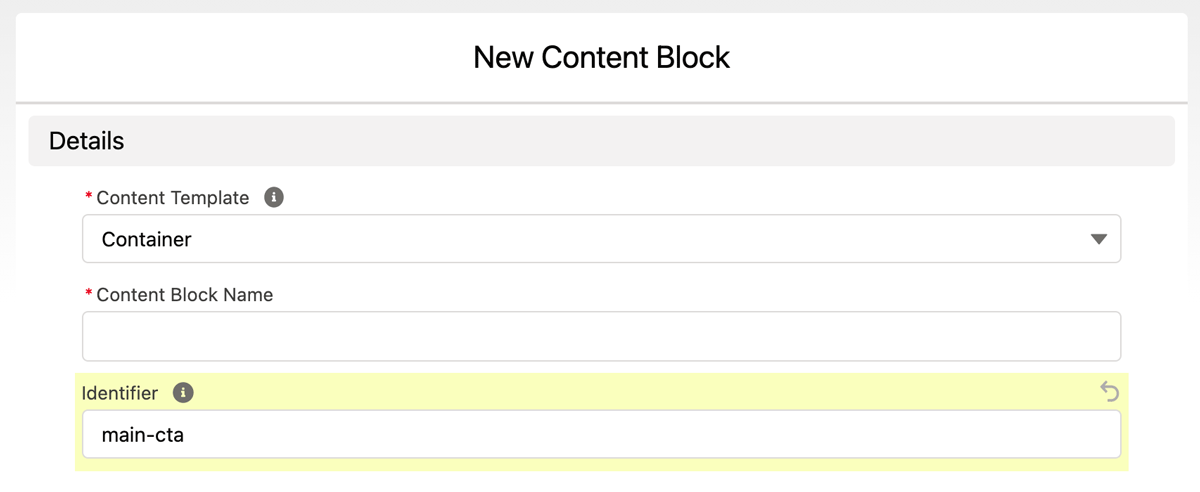
Using the content block ID as a CSS selector
The selector depends on which Content Template the block uses, because each template renders its own wrapper. Getting this wrong fails silently: the rule simply matches nothing.
| Content Template | Selector |
|---|---|
| Container | #SC-ContentBlockContainer-{identifier} |
| Text, Featured Articles, Featured Pages, Featured Products, Featured Category Products, Image Beside Text, Image with Text Overlay | #SC-ContentBlock-{identifier} |
| Featured Categories | #{identifier} — the bare identifier, with no prefix |
| Single Image, Media Reference, Slideshow, Video | No ID. Use [data-cb="{identifier}"] |
| No added styling | Neither. This template renders your markup with no wrapper, so target something inside your own content |
Every template except No added styling also carries data-cb="{identifier}", so [data-cb="main-cta"] works regardless of template and is the safer choice if the template might change.
For example, for a Container block with the identifier main-cta:
```css
SC-ContentBlockContainer-main-cta {
max-width: 1200px; margin: 0 auto; } ```
To apply the same style to several content blocks, group the selectors:
```css
SC-ContentBlockContainer-main-cta, #SC-ContentBlockContainer-main-info,
#SC-ContentBlockContainer-secondary-cta, #SC-ContentBlockContainer-main-new { max-width: 1200px; margin: 0 auto; } ```
Templates also carry a class naming the template, such as SC-Text or SC-FeaturedCategories, alongside a shared SC-ContentBlock class. Use those to style every block of one kind at once.
Using your page as a CSS selector
You can also target a whole page, which helps with CSS specificity and with targeting one element or block within a single page:
- Home page:
#SC-pages-home - Page template:
#SC-pages-show - Articles Index:
#SC-articles-index - Category template:
#SC-categories-show - Product page template:
#SC-products-show
To target one specific page or article, use its Identifier the same way you would a content block’s:
- Pages:
#SC-page-{identifier} - Articles:
#SC-article-{identifier} - Article categories:
#SC-article_category-{identifier}(note the underscore). On the/articlesarchive, where no single category is selected, this is#SC-article_category-index. - Products:
#SC-product-{slug}, taken from the product’s Slug field rather than an identifier
Product category pages carry no per-category ID. Target one category through the page-level #SC-categories-show selector combined with something specific to that page’s content.
:::note If you are using Theme Builder (Beta), targeting a specific ID is not fully supported. Contact the support team for guidance on generating your own IDs. :::
StoreConnect applies its own spacing and margins to each of these templates. Use your browser’s inspector tool to find the selectors and classes it uses, then override them with the IDs above.
Overriding default CSS classes from StoreConnect
Say you want to style the heading of a page you just created, so using your browser’s inspector tool you will find that you can override the following CSS class as follows:
```css
.SC-PageHeader_heading { font-size: 40px; } ```
That makes every heading 40px on every page. To limit it to one page, add the page ID:
```css
SC-page-example .SC-PageHeader_heading {
font-size: 40px; } ```
Best practices
If you write custom classes across your store, follow a CSS methodology such as BEM or SMACSS so the styles stay maintainable.
Be careful with a CSS library such as Bootstrap or Foundation: its classes can accidentally override StoreConnect’s own.
Was this article helpful?
Thanks for your feedback! It helps us improve our docs.