

Managing StoreConnect upgrades
On this page
Use this process to prepare your store for a major StoreConnect upgrade, such as moving from v20 to v21, switch to an updated theme at the right moment, and confirm the store works once the upgrade is complete.
How StoreConnect releases work
StoreConnect ships two types of release, on separate schedules:
- Package releases (for example, v21.11 and v21.12) — update the Salesforce package: objects, fields, Apex logic, validation rules, and the StoreConnect Console.
- Website releases (for example, v21.0.13 and v21.0.15) — update the web application that runs your storefront: storefront behavior, payment gateways, checkout, and Liquid templates.
A major upgrade arrives in that order. StoreConnect upgrades the package first, at its own discretion and possibly without telling you in advance, then notifies you before it upgrades the website to match. The package adds objects, fields, and settings without removing your fields or data, and your storefront doesn’t use them until the website is upgraded, so the gap between the two is your window to prepare. Bug fixes to the package’s own logic, such as Apex and validation rules, take effect as soon as the package is upgraded.
Patch upgrades within your current major version apply automatically, so this process doesn’t cover them.
Each set of package release notes has the same sections: Breaking changes and cautions, Field and object changes, Enhancements, Deprecated fields, and Fixed bugs. Website release notes have the same sections apart from Field and object changes. The steps below tell you what to do with each one.
Before you start
- You have System Administrator access to your production Salesforce org, so you can search for where fields are used and change page layouts and picklist values.
- You know the version your org runs now and the version you are moving to. My StoreConnect lists the StoreConnect version and Package version for each org.
- If you want to test the upgrade before it reaches production, you have a Salesforce sandbox set up as described in get a StoreConnect sandbox.
Prepare for the website upgrade
Do this after StoreConnect tells you the package in your org is on the new version, and before the website is upgraded to match.
- Open My StoreConnect and note the Package version and StoreConnect version for the org you are upgrading.
- Start a written action list for the upgrade. Each step below adds to it.
- Open the upgrade guide for your move and work through each section that applies to your store. For example, a move from v20 to v21 uses the v20 to v21 upgrade guide.
- Open the release notes for every version between your current version and the target version, oldest first. Risks add up across versions, so read them all, not only the latest.
- In each set of release notes, read Breaking changes and cautions first. Add every item that applies to your store to your action list, with the records, reports, Flows, or integrations it affects.
- In Deprecated fields, find where each listed field is used in your org. In Salesforce Setup, open Object Manager, select the object, open Fields & Relationships, select the field, and click Where is this used?. Add every Flow, report, validation rule, and Apex class that uses it to your action list.
- In Enhancements and Fixed bugs, look for changes to behavior your store relies on or works around. Add each one that affects your configuration or staff workflows to your action list.
- If the release notes mention console navigation changes, add an item to update your internal guides, onboarding material, and support scripts before staff use the upgraded console.
- Add any missing picklist values, as described in update picklist values.
- Using the Field and object changes section of each set of release notes, add the new fields your team needs to your record pages, as described in add new fields to your record pages.
- If your action list includes theme template changes, make them in a copy of your theme rather than your active theme. See copy your theme.
- (Optional) Test the upgrade in a sandbox before it reaches production. Refresh a Full Copy or Partial Copy sandbox, then run Get sandbox as described in get a StoreConnect sandbox. This runs the setup wizard, which provisions the sandbox website on the new version. Work through your action list there first.
You now have an action list covering every change that affects your store, and, if the upgrade needs template changes, a copied theme ready to switch to.
Update picklist values
Use this process after a package upgrade to add any new picklist values to your org. The tool only adds missing values. It doesn’t change or remove your existing values or their settings.
StoreConnect normally only adds values. If a value is ever renamed, a Flow, validation rule, or custom code that matches on the old name stops matching, without showing an error.
- Open the StoreConnect Console.
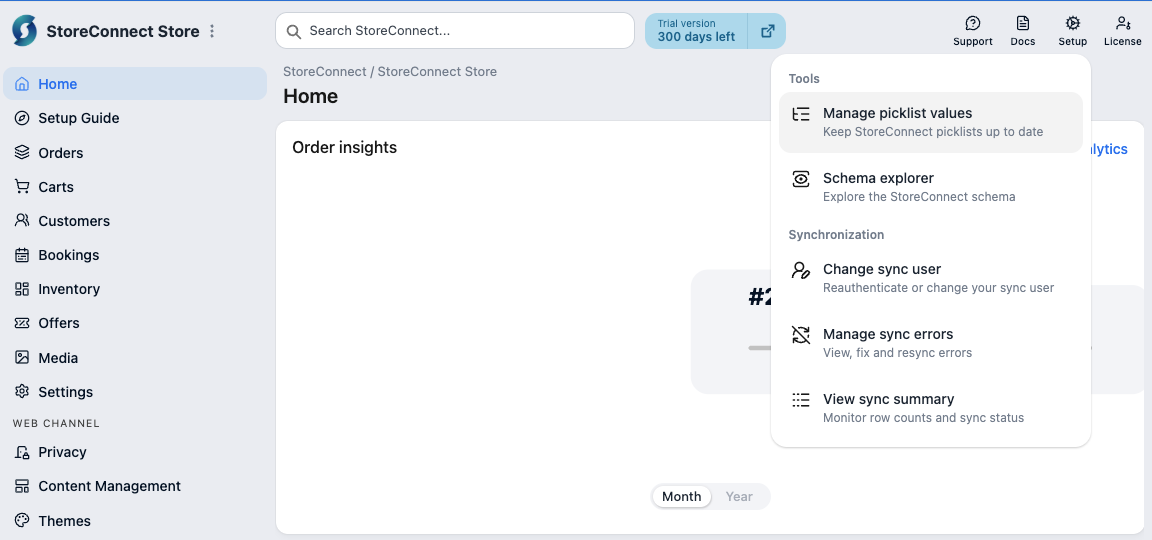
- Select Setup, then Manage picklist values. If every picklist is already up to date, the Console shows “No picklist or multi-select picklist values have changed since the last review or upgrade” and there is nothing to do.
- In Object, select an object, for example Authentication Provider. The number in brackets shows how many objects or fields have changes.
- In Field, select a field, for example Provider. The table lists each value with a status: New, Entry changed, Needs review, Unknown, or Up to date.
- Select Apply new values. Only values marked New are added.
- If a value shows Entry changed or Needs review, select Open field definition and check or update the value in Salesforce Setup. The tool doesn’t change these values.
- Repeat for each object and field listed, until the Console shows “All picklist and multi-select picklist values are now up to date”.
The new values can now be selected in each field. For example, Provider on an Authentication Provider record (s_c__Authentication_Provider__c.s_c__Provider__c) now offers SAML and OpenID Connect.
Add new fields to your record pages
Use this process when a new field is added after an upgrade, for example one listed in the Field and object changes section of the release notes.
The package upgrade adds the field to your org and gives the StoreConnect permission sets access to it. It also places the field on the StoreConnect Lightning record page for that object, where the release notes say so. It never changes a page layout, a copy of a StoreConnect record page, or a record page your org built, so on those you add the field yourself.
- Open a record of the object in the StoreConnect app, for example an Order Product record. If the field already shows, move on to the next field.
- Select the gear icon, then Edit Page. The Lightning App Builder opens with the record page your profile uses.
- Check how the page shows the fields:
- If they sit in a Record Detail component, the page shows your page layout. Follow add a field to a page layout.
- If they sit in field sections you can select one by one, follow add a field to a Lightning record page.
- If a user still cannot see the field once it is on the page, check their access. Users with a StoreConnect permission set get access to new fields with the upgrade. Users who get their access from a profile alone do not, so assign them a StoreConnect permission set or grant field-level access on their profile. See page layouts, profiles and permission sets.
The field can now be seen and edited on the record by every user with access to it. For example, Unit Manual Discount (OrderItem.s_c__Unit_Manual_Discount__c) appears in the Discount section of an Order Product record.
Add a field to a Lightning record page
- In the Lightning App Builder, select the field section where the field belongs, for example Discount.
- If the page is a StoreConnect record page, the builder asks you to clone it before you can change it. Select Clone, then name the copy, for example
Order Product Record Page (custom). - Select the Fields tab in the left-hand panel.
- Search for the field label, for example
Unit Manual Discount. - Drag the field into the section.
- Select Save.
- If you cloned the page, select Activate, then App Default, and assign it to the StoreConnect apps your team uses.
The field now appears in the section you chose on every record that uses this page.
:::warning A copy of a StoreConnect record page does not receive fields from later upgrades. After each upgrade, check the Field and object changes section of the release notes and add the new fields to your copy. :::
Add a field to a page layout
- Go to Setup > Object Manager, then select the object, for example Order Product.
- Select Page Layouts, then the layout your profile uses, for example SC Order Product Layout. Page Layout Assignment shows which layout each profile uses.
- In the palette at the top, select Fields.
- Search for the field label in Quick Find, for example
Unit Manual Discount. - Drag the field into the section where it belongs, for example Discount.
- Select Save.
The field now appears in the section you chose for every profile assigned this layout.
Copy your theme
A Theme record (s_c__Theme__c) owns its Theme Template, Theme Asset, Theme Variable, and Theme Locale records. Salesforce’s Clone button copies only the Theme record itself, not those related records, so copying a theme takes several steps. Plan time for this before the upgrade window opens.
- Open the Store record (
s_c__Store__c) and note which theme the Theme field (s_c__Theme_Id__c) points to. - Open that Theme record and click Clone.
- Name the copy so it is easy to tell apart from the original, for example
Default Theme v21, then save it. Rename the original at the same time, for example toDefault Theme v20. - Copy each Theme Template, Theme Asset, Theme Variable, and Theme Locale record from the original theme to the copy. Open each record, click Clone, change the Theme field (
s_c__Theme_Id__c) to the copy, and save. To do this in bulk, use Data Loader or a third-party tool that can deep-clone a record together with its related records. Each new record gets its own StoreConnect ID when you save it, so leave StoreConnect External ID (s_c__sC_Id__c) blank if your tool exports it. - Make the template changes from your action list in the copy.
The copy now holds every template, asset, variable, and locale from the original, plus your changes, and your live store still uses the original.
Switch to the updated theme
Skip this section if your action list has no theme template changes.
When you switch depends on the kind of template change the upgrade needs:
- Backward-compatible changes — the copied theme works on both the old and the new website version. Switch to it whenever suits you, before or after the website upgrade.
- Changes the upgraded website depends on — the copied theme works only on the new website version. Switching before the upgrade breaks your live store, and so does leaving the original theme active for long after it. Coordinate the timing with StoreConnect, and make sure someone is available to act on the upgrade-complete notification as soon as it arrives.
- Wait for StoreConnect to tell you the website upgrade is complete, if the change is one the upgraded website depends on.
- Open the Store record.
- Set the Theme field (
s_c__Theme_Id__c) to the copied theme, for exampleDefault Theme v21, and save.
The Theme field on the Store record now shows Default Theme v21, and your storefront pages render with the templates in that copy.
Check your store after the website upgrade
Do this as soon as StoreConnect tells you the website upgrade is complete.
- Open My StoreConnect and confirm the StoreConnect version shows the target version.
- Open your storefront and visit the home page, a category page, a product page, the cart, checkout, and the customer account pages. Look for layout or content problems, paying most attention to pages that use templates the release notes mention.
- Place a test order through checkout with each payment provider your store has active, then refund any card payment.
- In Salesforce, open the Order record for the test order and confirm it is linked to your store and shows the payment you made.
- Open the sync error tool and confirm there are no new sync errors since the upgrade.
- If a new field or related list your team needs is still not showing, add it as described in add new fields to your record pages. New fields and related lists are not added to your page layouts automatically.
- For each integration that reads or writes StoreConnect records, confirm it still runs, and check it against the items on your action list.
- In Salesforce Setup, check Apex Jobs and Paused and Failed Flow Interviews for failures since the upgrade.
- Work through the rest of your action list and confirm each item behaves as expected.
The upgrade is complete when the test order appears as an Order record linked to your store, the sync error tool shows no new errors, and every item on your action list is resolved.
Common upgrade risks
These are the most frequent causes of problems after a StoreConnect package upgrade.
Field changes and deprecated fields
A released field never changes API name, because Salesforce does not allow a managed package to rename one, and a label change has no effect on automations, Flows, or reports. When a field needs to change significantly, StoreConnect deprecates it and adds a replacement, and the upgrade copies the data across. The storefront might not use the new field until the website is upgraded.
Deprecated fields and components are usually removed from the package in a later release. Removing a field from the package does not remove it from your org, so any Flow, report, or Apex that uses it keeps working until you delete it yourself, as described in delete deprecated metadata.
Console navigation changes
Functionality sometimes moves within the StoreConnect Console. For example, an action in the left navigation might move to the header toolbar. The feature works the same way, but staff who follow written steps or habit will look in the wrong place. Update your internal guides before staff use the upgraded console.
Post-install migrations with upgrade path dependencies
Some package upgrades run automatic data migrations that set default values on existing records. Occasionally a migration only runs on a specific upgrade path, for example when upgrading from one version but not another. If the migration does not run, the affected records can be left in an unexpected state. After upgrading, check the records the release notes name. If a later patch release mentions a migration fix, check whether your upgrade path was affected.
Picklist values
A package upgrade never adds new values to a picklist field you already have. Add them with the Manage picklist values tool, as described in update picklist values.
If something breaks after upgrading
- Check Breaking changes and cautions in the release notes. The cause and fix are often described there.
- Open the sync error tool and look for errors that point to a field or record.
- If you cannot find the cause, log a case with StoreConnect support. Include the versions you upgraded from and to, and the error text or record that shows the problem.
Either the problem is fixed and no longer appears in the sync error tool, or a support case is open with the details StoreConnect needs to investigate.
Was this article helpful?
Thanks for your feedback! It helps us improve our docs.