

Adding your own custom content block templates
On this page
StoreConnect ships a set of built-in block templates, listed on content block templates. When you write your own block template in a theme, you then have to point a content block at it.
How you do that depends on where your team works. The Website Builder picks up your template on its own; the two Salesforce routes need a one-time setup step first.
Before you start
Author the template in your theme as a Theme Template with a Key of blocks/<your_key>, for example blocks/event_card. The key must contain only lowercase letters, digits, underscores, hyphens, and slashes.
The rest of this article uses event_card as the example key.
Use it in the Website Builder
No further setup is needed. The Website Builder builds its Choose a template list from the built-in templates plus every blocks/ theme template in the active theme.
- Open the Website builder and select Add Content Block.
- Choose your template from the list. StoreConnect derives the display name from the key, so
event_cardappears asEvent Card. - Fill in the block and submit the change for approval.
Your template appears in the list as soon as the theme template exists, including while the theme template is itself an unpublished change.
Set it on the Salesforce record
Use this when you are editing Content Block records directly rather than through the builder.
The Custom Template field is not on the shipped Content Block page layout, so add it once before you start. See Change page layouts for Salesforce objects.
- Open the Content Block record.
- Set Content Template to
Custom (theme-defined template). - Set Custom Template to your key,
event_card. Leave off theblocks/prefix; StoreConnect adds it when rendering, and rejects a value that already carries it. - Select Save.
:::note
Creating content blocks through the API or an agent needs neither field set by hand. Pass your key as the template, and StoreConnect stores the pair for you: Content Template becomes Custom (theme-defined template) and the key moves into Custom Template.
:::
Add your own picklist value
Add a value to the Content Template picklist when you want the template listed in the Salesforce dropdown under its own name, so someone editing a record can pick “Event Card” without knowing the key. This needs Salesforce Setup access.
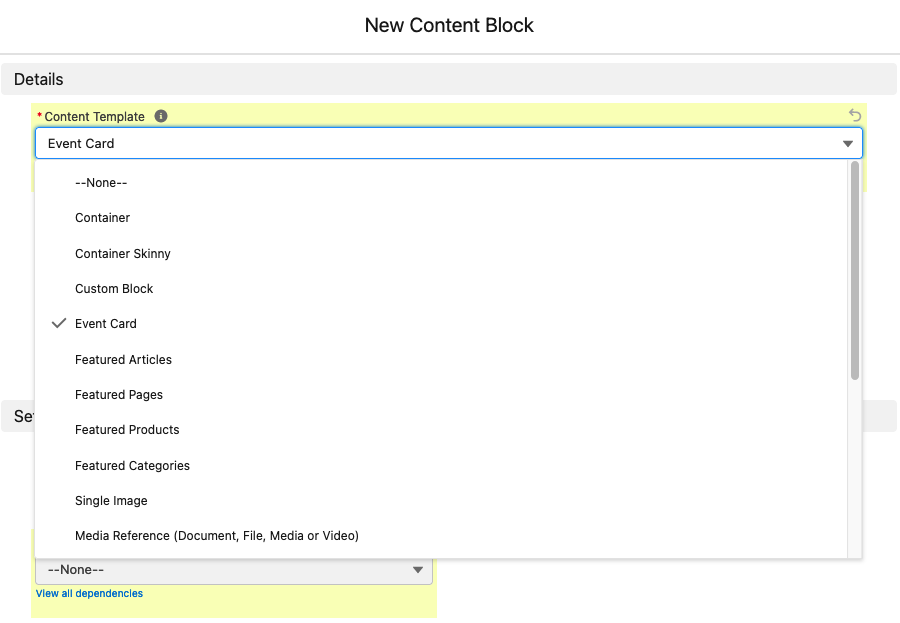
- Go to Salesforce Setup.
-
Open Object Manager.
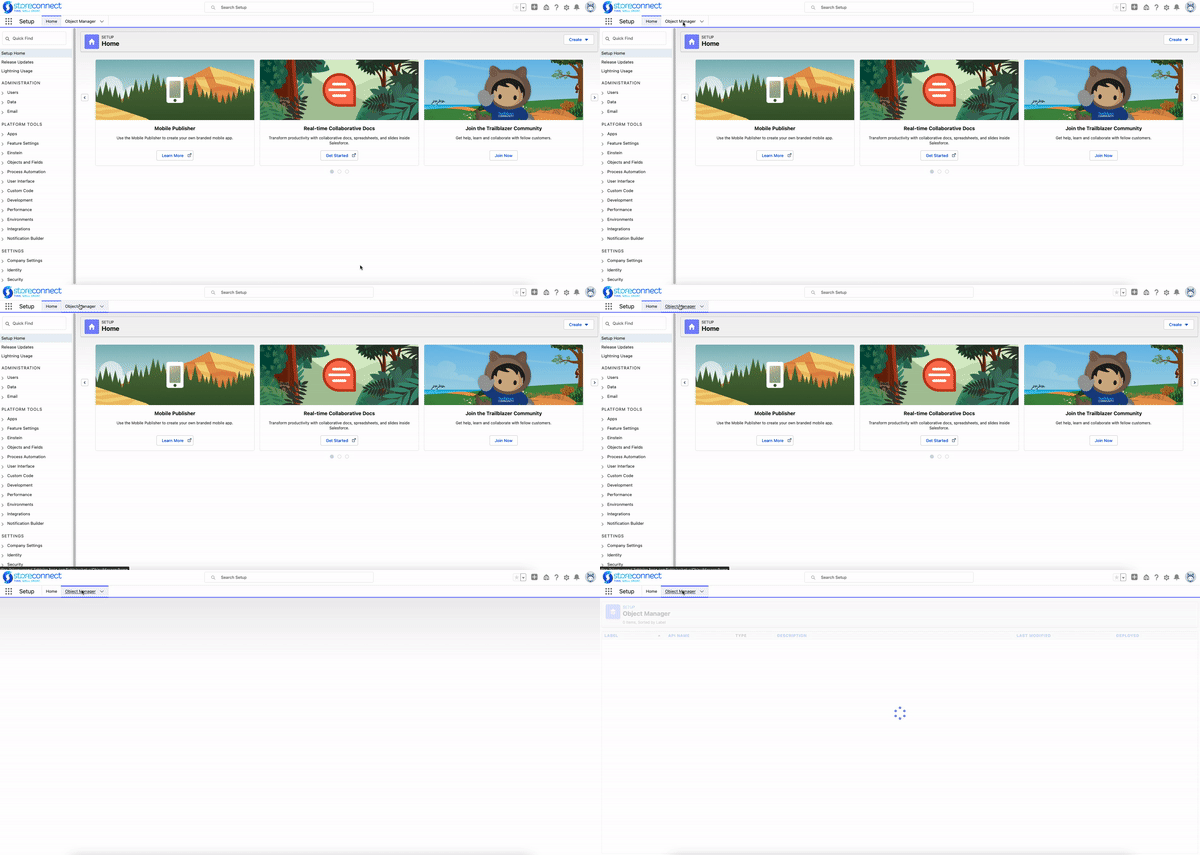
- Find the Content Block object.
- Select Fields & Relationships in the left sidebar.
- Select Content Template.
- Scroll to the Values section and select New.
- Enter the label for the new value. Use
Event Card. - Save, then find your new value in the Values section and select Edit.
- Set the API Name to match your template key exactly:
event_card. Leave off theblocks/prefix. - (Optional) Select Reorder in the Values section to set where the template appears in the dropdown.
Add as many values as you need. Each API name must be unique and must match a blocks/<key> theme template, so a custom_container value needs a blocks/custom_container template.
Block templates are authored the same way as page templates. The only difference is the blocks/ prefix on the key.
Whichever route you take, a content block set to your template now renders your template on the storefront. If no matching template exists in the active theme, the block renders nothing.
Was this article helpful?
Thanks for your feedback! It helps us improve our docs.