

Connect the POS register
On this page
Use this process to pair a device with a register so staff can trade on it. You do not have to be at the store with the register to connect it.
Before you start
Ask your Salesforce admin for:
- The POS URL, which looks like
shop.example.com/pos - A PIN to sign in with
Connect a register at POS
- In a browser, go to your store’s POS URL.
- Select Connect Register.
-
Select the register.
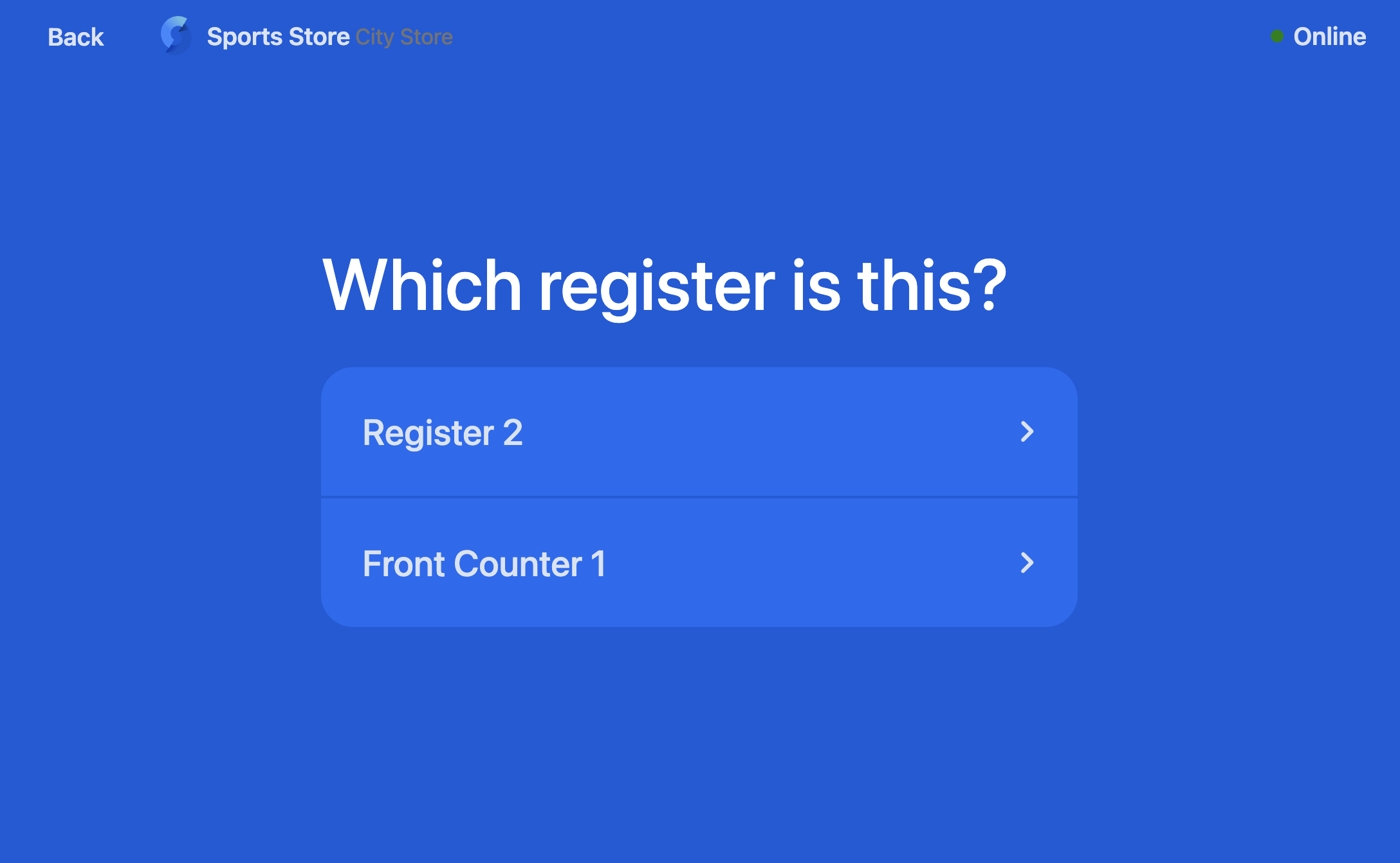
- Confirm that you want to connect the register.
The device is now paired with the register. The next person to use it is prompted to start a shift.
Disconnect a register at POS
Only a person with the right permissions can disconnect a register.
:::warning Disconnecting mid-shift erases any data that has not yet synced. End the shift before you disconnect. :::
- At the POS register, lock the register.
- Select Disconnect from the menu. A warning about erasing unsynced data is displayed.
- Confirm that you want to disconnect.
The register returns to the connection screen and is available to pair with another device. If this process does not work, you can also disconnect the register directly in Salesforce. If the POS is frozen or unresponsive, see Reset an unresponsive POS.
Was this article helpful?
Thanks for your feedback! It helps us improve our docs.