

Connect POS printers
On this page
:::note This article covers connecting printers on the browser-based POS (desktop/web), which uses USB via the WebUSB API. If you are running POS on our Android native app, printers are discovered via the native printer screen and also support Bluetooth, Wi-Fi, and LAN connections. :::
Before you can set up the receipt or label printer:
- Set up the register
- (If applicable) Set up a label template
- (If applicable) Set up a receipt template
Connect printer hardware
- Sign in to the register.
- Select Settings in the sidebar menu.
-
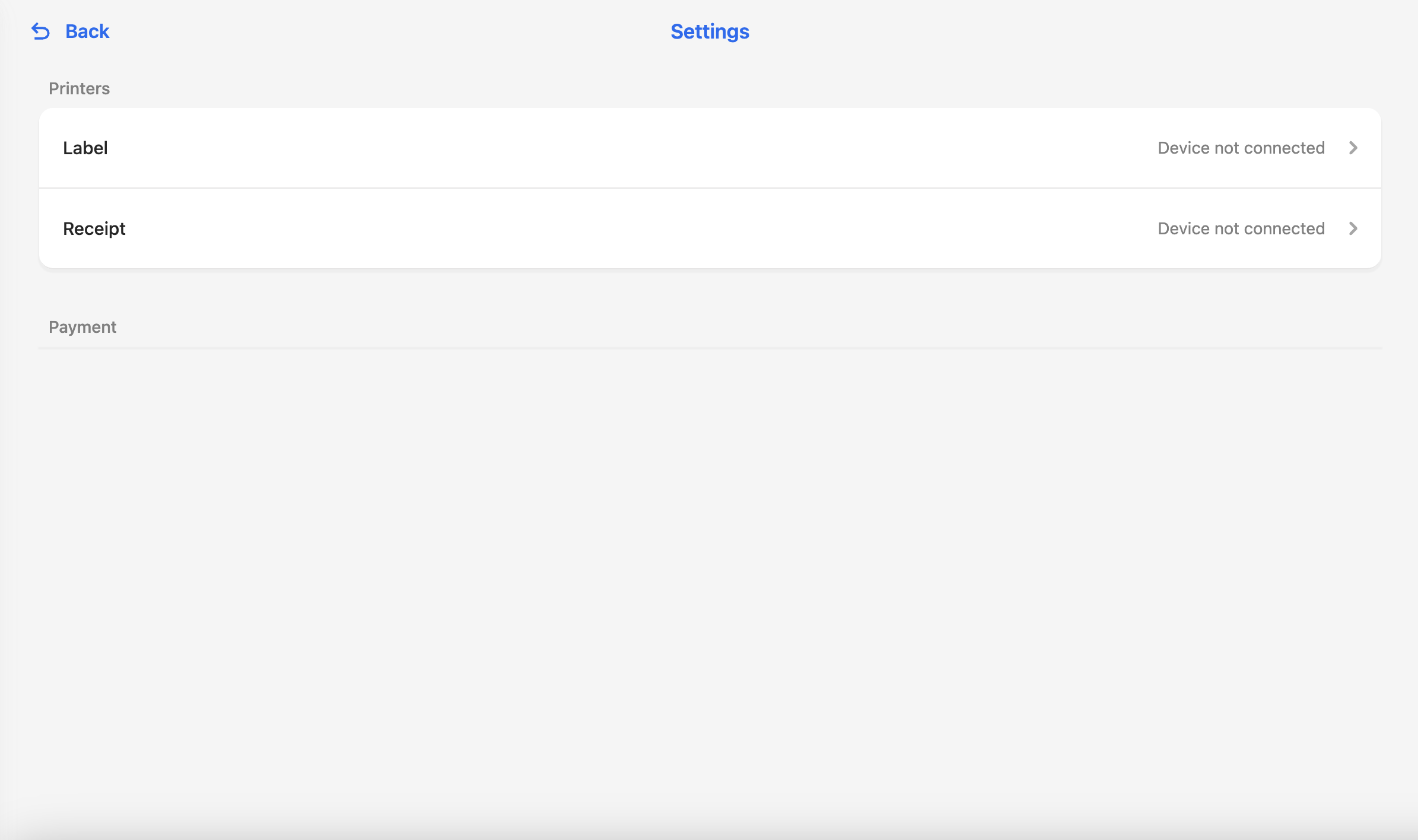
Select the type of printer you are connecting: Label or Receipt.
-
Select the template you want to use.
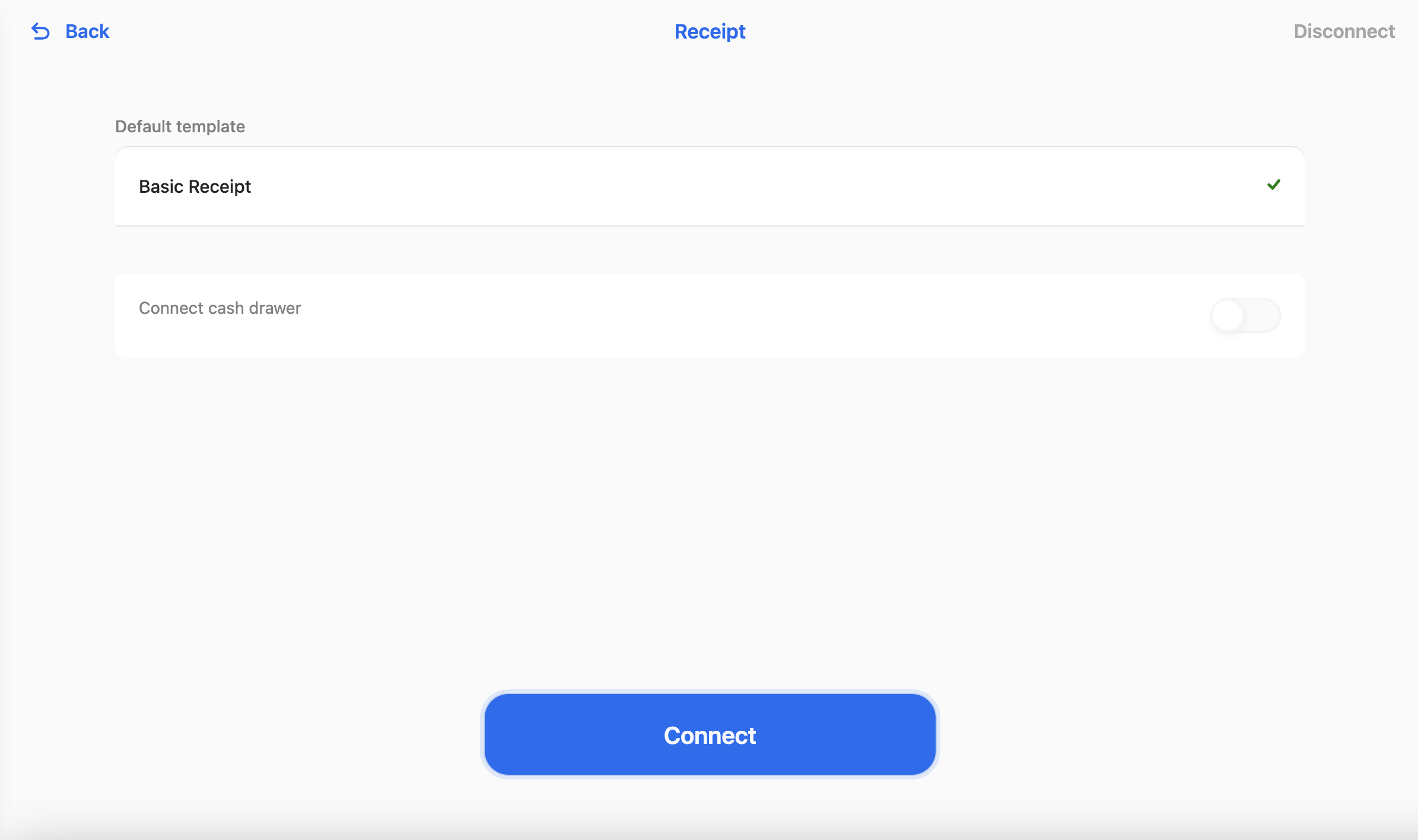
- Check that a green tick appears next to the template.
-
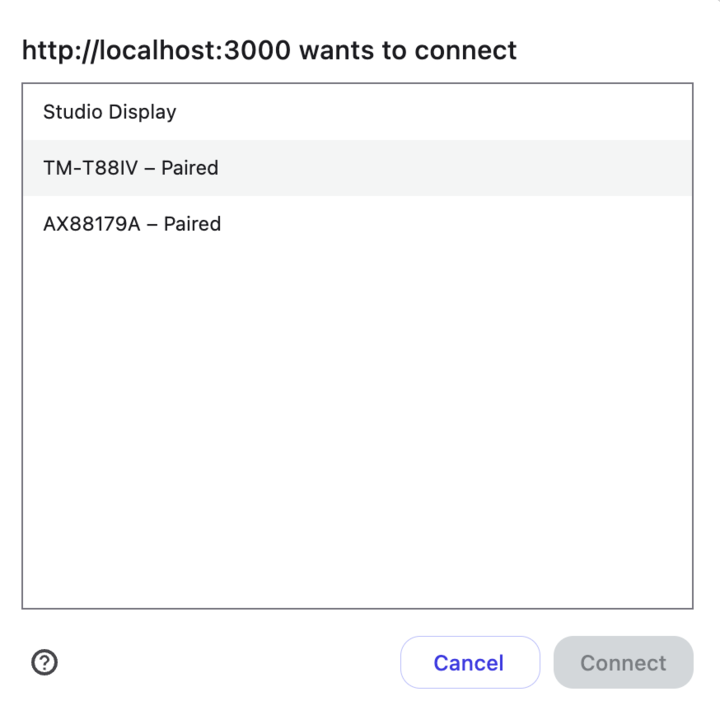
Select Connect. A device picker opens. Select the device you want to connect.
- Select Connect.
- Repeat from step 3 for each printer type.
Once they are connected, you should be able to see the ‘Connect Cash Drawer’ button. This controls whether the cash drawer opens after a payment transaction. You can pick which payment methods trigger the cash drawer to open. E.g. So it doesn’t unnecessarily open after a card payment, but does after a cash payment. You can also turn the cash drawer feature off completely.
For full cash drawer setup, including adding an Open Cash Drawer button to a POS menu and troubleshooting a drawer that does not open, see Cash drawers.
Install printer driver on windows devices
If you are using a Windows device as a POS register, your receipt and label printers need to be configured to use the WinUSB driver.
The easiest way to do this is to use a tool called Zadig https://zadig.akeo.ie
- Download Zadig.
- Click Options > List All Devices
- Select your receipt printer in the dropdown list
- Make sure WinUSB driver is selected as the replacement drive and then select Install Driver.
- Repeat for your label printer.
The printers now connect normally to the register, and a green tick appears next to each connected device in Settings.
Was this article helpful?
Thanks for your feedback! It helps us improve our docs.