

Adjust prices at the POS checkout
On this page
Use these procedures to reduce a price at the register. You can adjust a single item or the whole order, and staff are limited to the maximum discount set on their POS user record.
Video demo
Allow staff to apply discounts
When you set up staff as POS users, you can define the limits of the discounts they can apply. See add a POS user.
What limits a discount
Three settings decide how far a price can be reduced at the register, and the register applies whichever is most restrictive.
| Limit | Where it is set | What it does |
|---|---|---|
| Maximum Discount Percentage | Outlet User Type | Caps the share of the price a staff member can give away. |
| Minimum Sell Price | Price book entry, falling back to the product | Sets a floor the price cannot go below. |
| Exclude From Price Reductions | Price book entry, falling back to the product | With Manual selected, removes Adjust Price from the item entirely. |
The first two count discounts differently, which matters on an item that is already reduced:
- Maximum Discount Percentage counts only what staff have discounted themselves, so an automatic discount or a promotion on the item does not use up a cashier’s allowance.
- Minimum Sell Price is a floor on the price the customer actually reaches. A whole-cart adjustment counts every reduction on the line toward it, promotions included. An item adjustment counts only what staff have taken off, so a promotion and an item adjustment together can take the item below the floor.
A promotion itself is not held to Minimum Sell Price. See How Promotions v2 run at the register.
When Adjust Price is missing
Adjust Price appears only when the staff member’s Maximum Discount Percentage is above zero and the item is not excluded from manual reductions. A staff member whose Outlet User Type has a maximum of 0, or who has no Outlet User record for the outlet they are signed in to, sees no Adjust Price option and is given no explanation for its absence. Check both before looking at the product.
The cap belongs to the Outlet User Type rather than the individual, so everyone sharing a type shares the cap.
Discounts that stop being valid
A discount that was within the limits can fall outside them when the cart changes, for example when an item is removed and an order-level discount is redistributed across fewer lines. The POS warns that the discount is invalid and keeps checkout disabled until it is brought back within the limit.
There is no supervisor override. Exceeding a limit blocks the action, and no PIN or approval step raises it.
Adjust the price of an item
- Select the item in the checkout cart. A list of options opens.
-
Select Adjust Price. A popup appears.
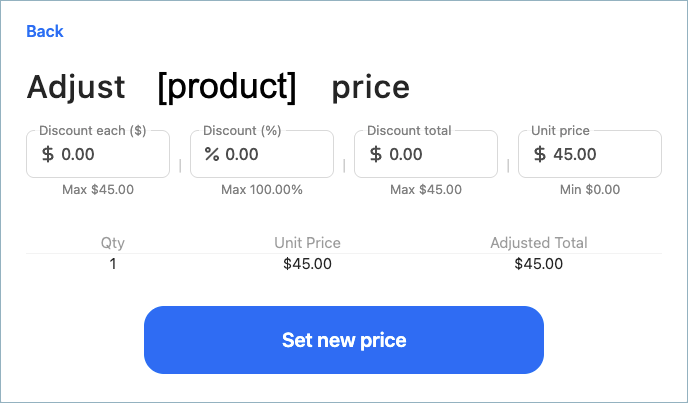
- Enter the discount as a currency amount or a percentage.
- Select Set new price.
- Repeat for any other item whose price you want to adjust.
The item shows the reduced price in the cart, and the checkout total updates.
Apply a discount to a total order
- In the cart, select Manage Cart.
-
Select Adjust Price. A popup appears.
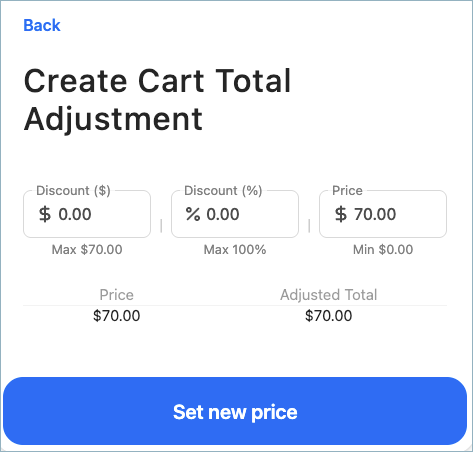
- Enter the discount as a currency amount or a percentage.
-
Select Set new price.
:::note If the cart contains items excluded from manual price reductions, the POS displays the message “Some items in this cart are not eligible for discounts.” The percentage discount is calculated against the eligible subtotal only, and excluded items are not discounted. :::
The amount due at checkout updates, with the discount distributed across the eligible items.
How an adjustment is recorded on the order
Each line of the order (an Order Product, OrderItem) keeps the adjustment apart from the other discounts, in the Discount section of the record:
| Field | What it holds |
|---|---|
| Unit Manual Discount | The per-unit amount staff took off the item with Adjust Price |
| Transaction Discount | The item’s share of an adjustment to the whole order |
| Unit Discount | The per-unit total of the item adjustment, any promotion, and the amount the item is marked down from the list price |
| Total of Discounts | Every discount on the line |
For example, a $50 item on sale at $40 that a cashier reduces by a further $5 records 5.00 in Unit Manual Discount and 15.00 in Unit Discount. Report on Unit Manual Discount and Transaction Discount together to see what staff gave away, separate from sales and promotions.
Exclude products from discounts or price adjustments
Products and price book entries can be configured to prevent discounts or manual price adjustments from being applied to them at POS. This is set per product or per price book entry in Salesforce.
To configure exclusions, open the product or price book entry record in Salesforce and set the Exclude From Price Reductions field. This is a multi-select picklist with three options:
| Value | Effect at POS |
|---|---|
| Discounts | Automatic discounts (Discount records) do not apply to the item. Staff can still adjust the price manually, and a discount applied to the total order still includes the item. |
| Manual | The Adjust Price option is hidden for this item, and a discount applied to the total order skips it. Staff cannot manually reduce the price of this item. |
| Promotions | The item takes no Promotion v2 discount at the register and counts toward no promotion’s condition, though a Free Product reward that names it still adds it free. The same applies on the web storefront, where standard promo codes skip it too. |
You can select any combination of values. If no values are selected, the item can be discounted and price-adjusted normally.
Price book entry overrides product: If a price book entry has any exclusions set, those values apply instead of the product-level exclusions. This lets you configure different exclusion rules for the same product in different pricebooks.
Was this article helpful?
Thanks for your feedback! It helps us improve our docs.