

How to allow customers to spend loyalty reward points
On this page
Use this process to let customers pay with the points they have earned, either for the whole order or alongside currency.
Before you begin
- Set up earning first and confirm points are reaching accounts. See How to allow customers to earn loyalty reward points.
- Have a customer account that holds activated points and a password you can sign in with. Customers must be signed in to spend points.
Step 1: Show points prices and set where points can be spent
- Open the Store record.
- On the Products tab, set Display Price In to both Currency and Points, so products show the two prices side by side.
- On the Rewards tab, set Default Points Usage to where points earned in this store may be spent: this store, the store group, or any store.
-
Select Save.
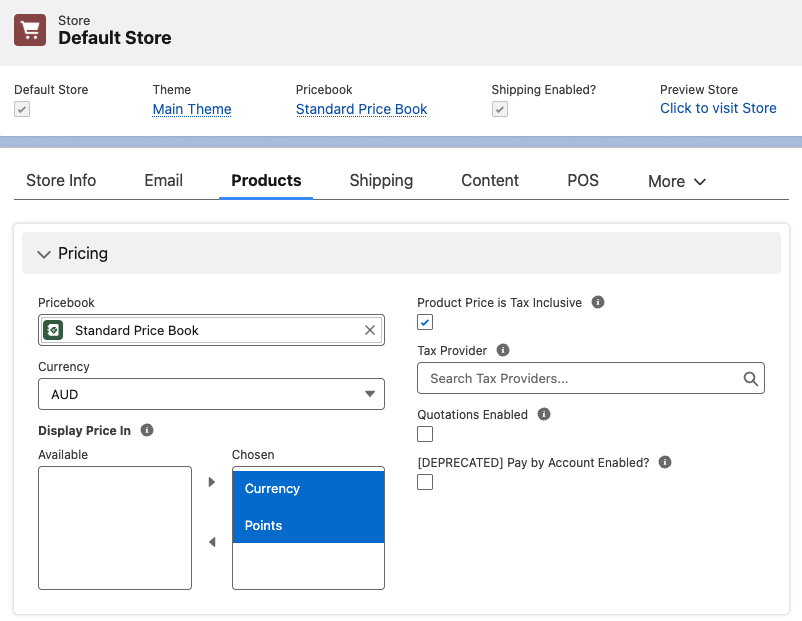
Default Points Usage is copied onto each ledger entry as points are earned, so changing it later affects new points only.
Step 2: Set a default purchase rate on the price book
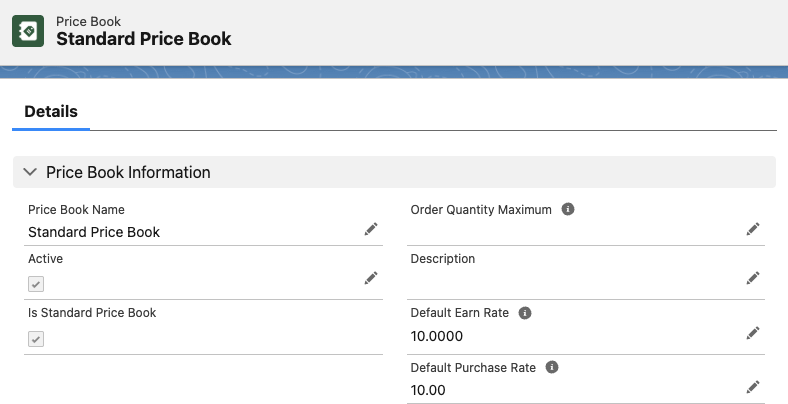
- Open the Price Book your store uses.
- Set Default Purchase Rate. A rate of
100means a $10 product costs 1000 points. -
Select Save.
Step 3: Enable points purchasing on each product
Repeat this for every product that can be bought with points, and for each of its price book entries.
- Open the Price Book Entry for the product.
- Select Can Purchase With Points.
- Set Purchase Points to a fixed points price, or leave it blank to use the price book’s default purchase rate.
- (Optional) Set Purchase Points Sale to run a sale in points. The storefront shows it the way it shows a currency sale price, with the regular points price struck through.
-
Select Save.

Once the entry syncs, the product page shows a points price alongside the currency price.
Step 4: Allow shipping to be paid with points
Skip this step if shipping is always paid in currency.
- Open the StoreConnect Shipping product.
- Open the Price Book Entry for the price book your store uses.
- Select Can Purchase With Points.
- Set Purchase Points for a fixed points cost, or leave it blank to convert the shipping rate using the price book’s default purchase rate.
- Select Save.
Step 5: Let the customer spend their account’s points
Points belong to the account, and each contact needs permission to spend them.
- Open the Contact record.
- Select Can Use Account Points.
-
Select Save.
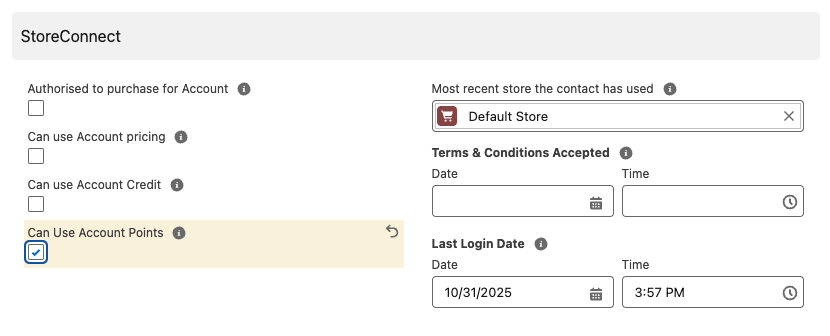
:::tip To grant this to everyone automatically, build a Salesforce flow that selects Can Use Account Points when a contact is created. :::
Step 6: Confirm a customer can pay with points
- Sign in to your store as the customer whose account holds points.
- Open a product you configured and confirm both a currency price and a points price are shown.
- Add it to the cart, then select Use Points next to that line in the cart.
- Go to checkout, choose a shipping method, and select Use Points for shipping if you enabled it.
- Complete the order.
The payment due now shows as a points total rather than a currency amount, the account’s spendable balance drops by that number of points, and a debit entry appears in the Account Points Ledger on the account. On the order, the Payments related list records Account Points as the payment method.
Was this article helpful?
Thanks for your feedback! It helps us improve our docs.