

Arrange content with nested content blocks
On this page
Use nested content blocks to control how content is arranged on a page, so the layout meets your product and brand needs.
Two-column layout
Here is a page layout where two content blocks are nested inside another one to form columns:
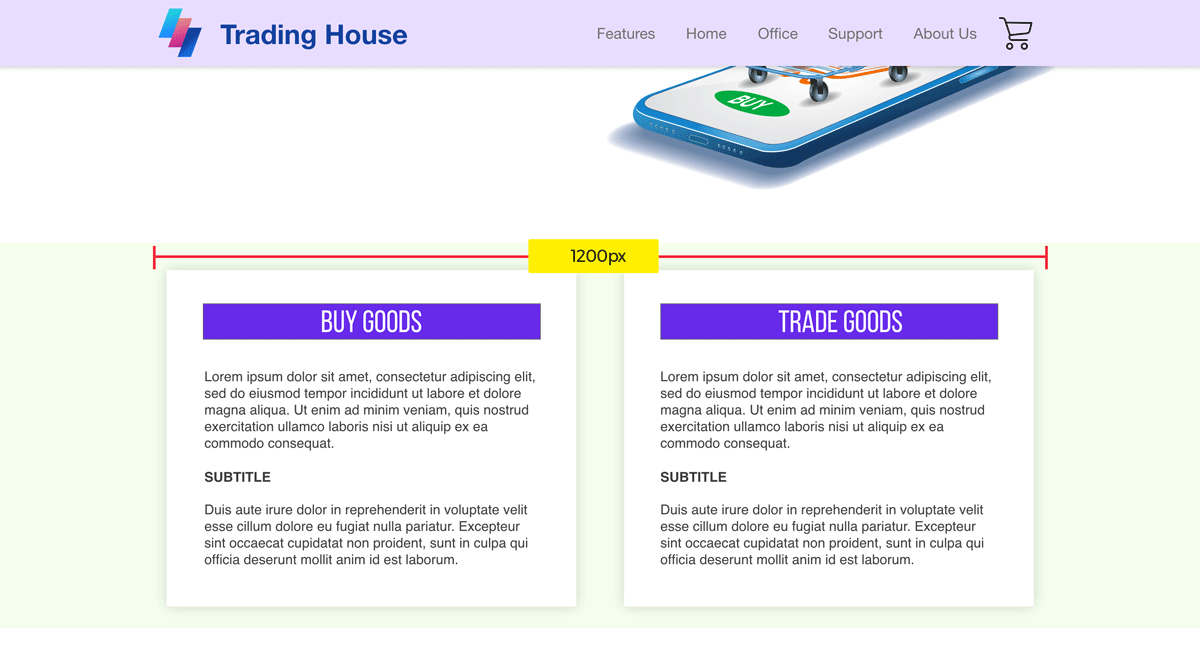
To create this layout:
-
Add the text blocks. Create two content blocks with Content Template set to
Text. Put the text for column one in the first block and the text for column two in the second. Each block takes a Title, Subtitle, and Content; a blank field is simply not rendered. -
Add a container for the text columns. Create a content block with Content Template set to
Containerand Layout Style set toFull width on smaller screens and two columns on larger. On the Related tab, add the two blocks from step 1 as children of this container. Give the first block Position10and the second Position20. You can then use custom CSS to target this container and restrict its width to 1200px, as described in using CSS with content blocks. -
Style the background. Create a third content block with Content Template set to
Container, and add the container from step 2 as its child. Assign custom CSS to this outer container to create a full-width background color or image.
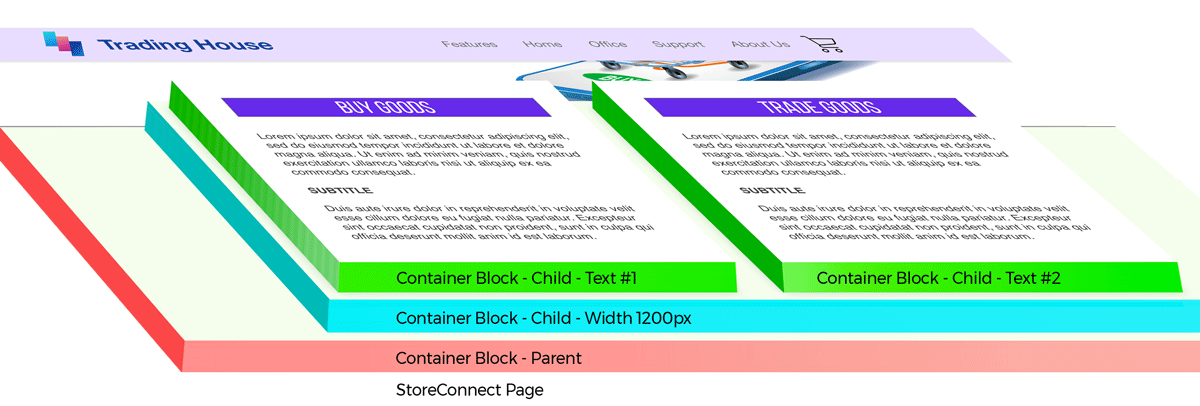
Load the page on your storefront. The two text blocks now sit side by side on a desktop screen, stack into one column on a phone, and the background color or image runs the full width behind them.
How the pieces relate
The Content Template on each content block determines which fields are used when StoreConnect renders that block. Once the blocks exist, use a block’s Identifier as your CSS selector to apply styles.
Was this article helpful?
Thanks for your feedback! It helps us improve our docs.