

Create a store outlet
On this page
An outlet represents a location where you have a physical store or branch. Each StoreConnect store can have multiple outlets, and each outlet can have multiple registers so staff can serve customers from more than one position.
Add a store outlet
- In Salesforce, go to POS > POS Outlets.
-
Select New.
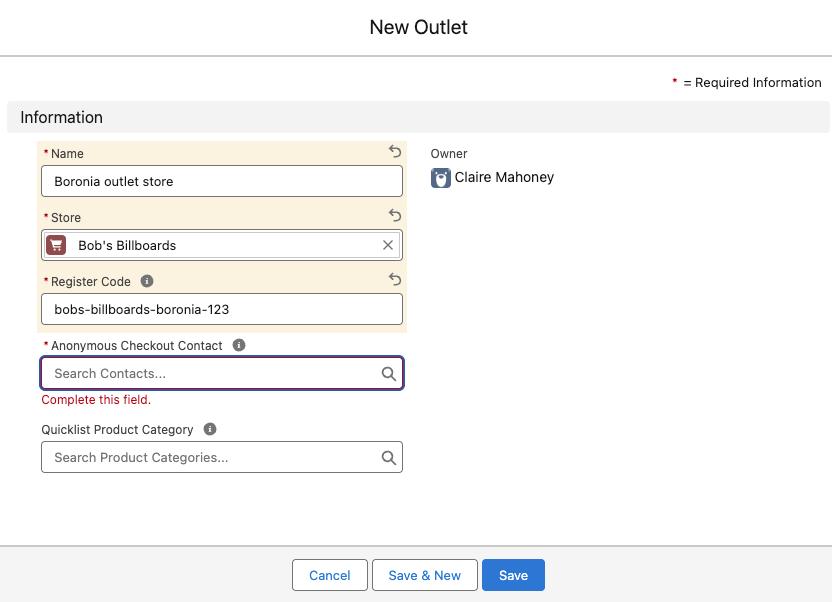
- Enter a Name for the outlet.
- Select the relevant Store.
-
Enter a Register Code. Staff use this code when connecting a new register, so it needs to be both memorable and hard to guess.
:::tip Combine a recognizable pattern with a random number, for example
mybusiness-location-672. The only enforced rule is a minimum of 20 characters. ::: - (Optional) In the Pricebook field, select a Salesforce pricebook for this outlet. POS transactions at this outlet then use prices from that pricebook instead of the store’s default. Use this when physical locations have different pricing.
-
In the Anonymous Checkout Contact field, select + New Contact. The New Contact window opens. This contact acts as the guest user for POS transactions where no customer is attached. Staff can still look up real contacts at POS.
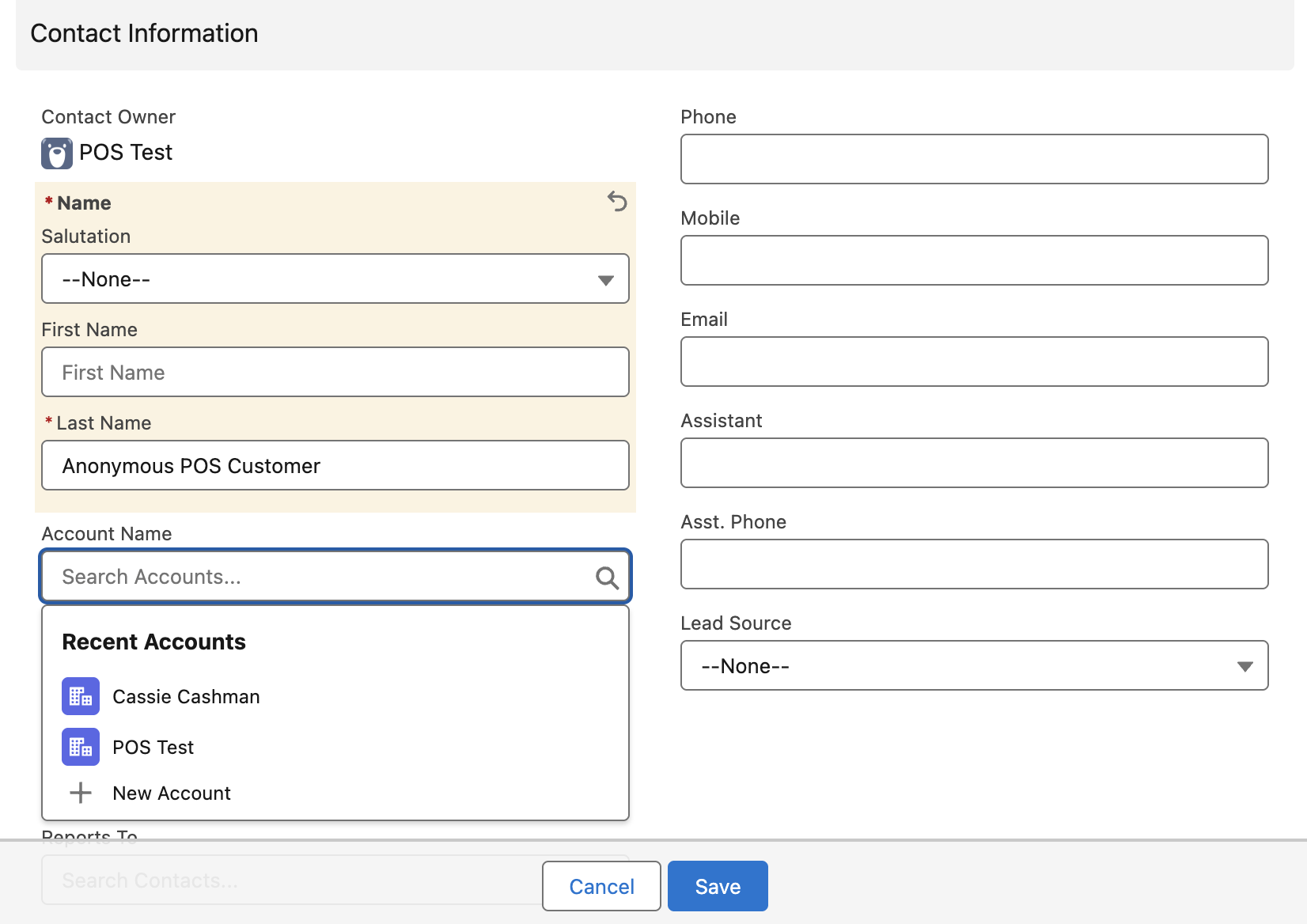
- Enter a Last Name for the anonymous contact, such as
Anonymous POS Customer. - In the Account Name field, select + New Account. The New Account window opens.
- Enter
Anonymous POS Customerin the Account Name field. - Select Save to save the new account.
- Enter a Last Name for the anonymous contact, such as
- Select Save to save the new contact.
- Select Save to save the new outlet.
The outlet appears in the POS Outlets list. Transactions taken without a named customer are recorded against the anonymous account you created.
Optional outlet fields
In addition to the fields above, the Outlet record includes several optional fields you can populate in Salesforce:
| Field | Description |
|---|---|
| Address Line 1 | Physical street address of the outlet |
| Address Line 2 | Additional address detail |
| City | Outlet city |
| State/Province | Outlet state or province |
| Zip/Postal Code | Outlet postcode |
| Country | Links to a Country record |
| Phone | Phone number for this outlet |
| Tax Number | Tax identifier for the outlet, such as a VAT, GST, or ABN number |
| Quicklist Product Category | The product category displayed on the POS main screen for registers at this outlet |
For a complete field reference including API names, see Outlet Object Reference.
:::note Products and price book entries can be configured to exclude specific items from discounts or manual price adjustments at POS. See Adjust prices at the POS checkout for details. :::
Was this article helpful?
Thanks for your feedback! It helps us improve our docs.