

Review unsaved changes at POS
On this page
The POS saves every change on the device first and sends it to the server in the background, so the register keeps working when the connection drops. A change is unsaved until the server confirms it. Use the Unsaved changes screen to see what is still waiting, why it is waiting, and to retry or discard a change that is stuck, rather than leaving it to sit silently on the device.
Most unsaved changes clear on their own within a minute or two of the connection returning. The ones worth looking at are those tagged Stalled, Blocked, or Failed.
Open the unsaved changes screen
- At the register, go to Settings > Advanced > Manage data.
- Select Unsaved changes. The row shows a running count of everything still waiting to save.
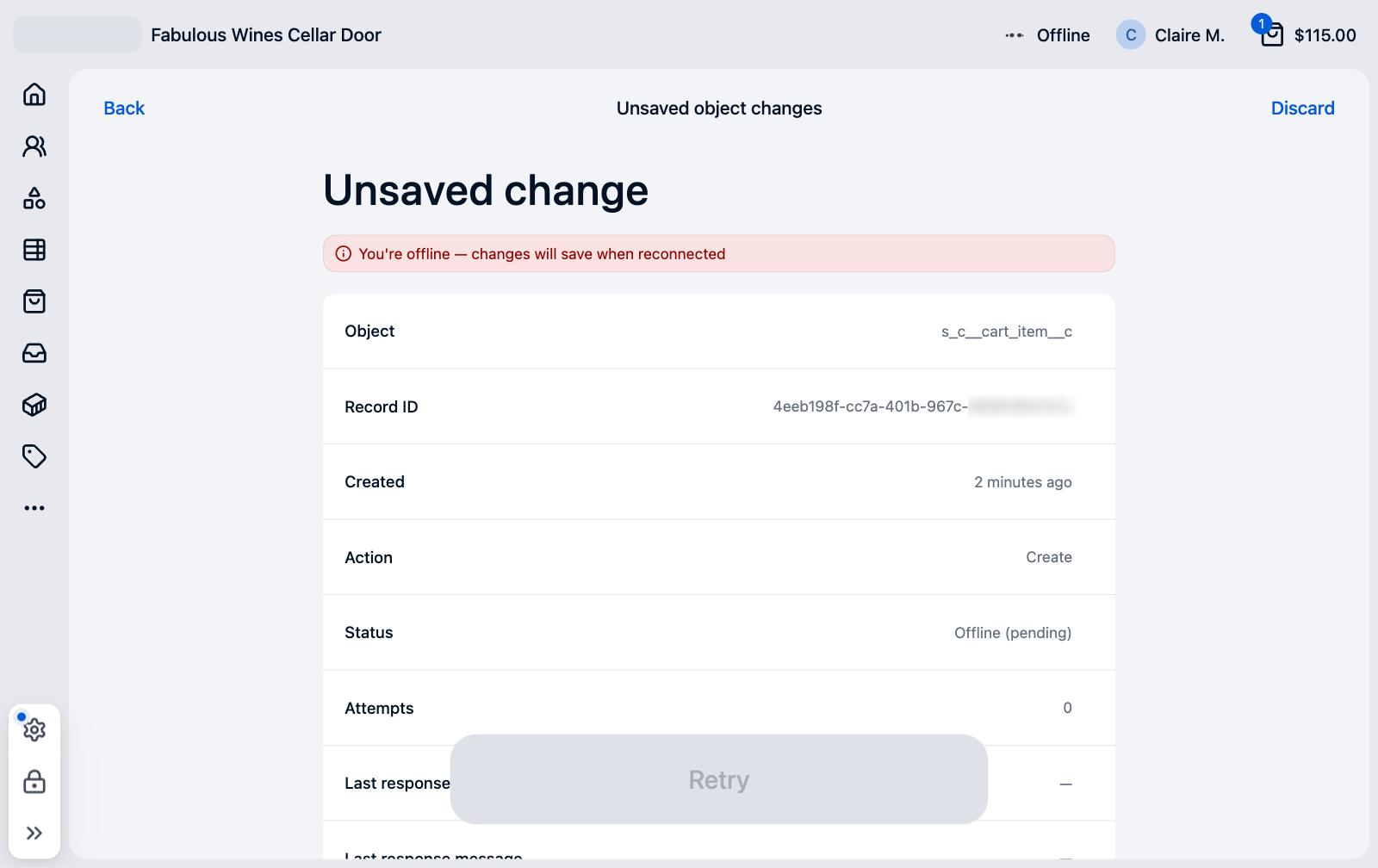
The screen lists the changes grouped by the record type they belong to, in alphabetical order, with a count for each. When nothing is outstanding it reads No unsaved changes. While the device is offline, a banner reads You're offline — changes will save when reconnected.
- Select a record type to open Unsaved object changes. Each row shows the action, such as
Create, how long ago it was made, and a status tag. - Select a change to open Unsaved change, which shows everything the device has recorded about it.
What each status means
| Status | Meaning | What to do |
|---|---|---|
| Waiting | On its way: queued, in flight, or waiting for a change it depends on. Expected to save shortly. | Nothing. |
| Offline | The device is offline, so changes that would be Waiting or Stalled cannot progress. | Reconnect. They resume on their own. |
| Stalled | Hit a temporary problem and is waiting to retry. | Usually nothing. If it is still Stalled after several attempts, or at the end of a shift, open it and read Last response status and the Server response body. Retry once the cause is fixed, or contact support. |
| Blocked | Cannot be sent because a change it depends on has failed, or is itself blocked. | Fix the change it depends on. See below. |
| Failed | Will not be retried automatically. Either the device retried the maximum number of times and gave up, or the server rejected the change outright because the data is not valid, so retrying the same data cannot help. | Read the server response. Retry, or for rejected data, discard or retry once the underlying record has been corrected. |
In the detail view the Status row shows the friendly label with the raw status in brackets, for example Offline (pending). The raw status tells the two kinds of Failed apart: Failed (exhausted) ran out of retries, and Failed (invalid) was rejected by the server.
Read a change
The Unsaved change screen shows these rows.
| Row | What it tells you |
|---|---|
| Object | The record type, such as s_c__cart_item__c or orders. |
| Record ID | The identifier of the record being changed. |
| Created | How long ago the change was made on the device. |
| Action | What the change does, such as Create, Upsert, or Delete. |
| Status | The status label and the raw status. |
| Attempts | How many times the device has tried to send it. |
| Last response status | The HTTP status code from the most recent attempt, or a dash if it has not been tried. |
| Last response message | The summary message from the most recent attempt, or a dash. |
| Last attempt | How long ago the most recent attempt was made, or a dash. |
| Changed fields | The data the change is trying to save. Empty for a delete. |
| Server response body | The raw response from the most recent attempt. This is where the reason for a rejection is. |
If the change saves while you are looking at it, the screen stays open and reads This change no longer exists. It was likely saved successfully and has been removed.
Follow a dependency chain
A change that creates a record pointing at a parent, such as a cart item that belongs to a cart, cannot be sent until the parent exists on the server. While the parent’s own change is unsaved, the child waits, and if the parent fails the child becomes Blocked.
When a change is waiting on others, a Depends on section lists the changes it waits on directly, each with a record type and status. Use it to find the change at the root of a holdup, since clearing that one frees everything stacked behind it.
- Open the Blocked change.
- Under Depends on, look at the status of each parent. A parent tagged Waiting is just in flight. A parent tagged Stalled or Failed is the problem.
- Select the stuck parent to open the parent’s detail view. That view’s Depends on section shows the next level up.
- Repeat until you reach a change with nothing stuck above it. That is the one to retry or discard.
How automatic retry works
You rarely need to do anything. The device sweeps the unsaved changes about once a minute and sends anything that is ready.
- The server reports a temporary problem. The change is marked Stalled and waits before trying again, about two minutes after the first failure and doubling after each further failure, so a change that keeps failing does not hammer the server. After twelve attempts, roughly three days after the first failure, it is marked Failed and the device stops retrying it. At the end of a shift, a change that is never going to save usually still shows as Stalled, not Failed.
- The server rejects the data. The change is marked Failed straight away, because retrying the same data cannot help.
- The server cannot be reached. Nothing was rejected, so the change stays Stalled and keeps retrying, and these attempts do not count toward the twelve. A change waiting on an unreachable server is never marked Failed on its own. While the server is unreachable the device probes with one change at a time rather than resending the whole backlog, and catches up as soon as one attempt gets through.
- The device is offline. Retries pause and resume when the connection returns.
Retry a change by hand
Retry when a change is Stalled or Failed and you do not want to wait for the next sweep, or the underlying problem has been fixed. Retrying resets the change so the device sends it again right away. The attempt count is kept, so you can still see how long it has been struggling.
- One change: open the change’s detail view and select Retry. The button is disabled for Blocked changes, which free up on their own once the change they depend on saves or is discarded, and for changes already Waiting, which are on their way.
- Everything at once: on the Unsaved changes list, select Retry all. This re-sends every Stalled and Failed change. Blocked changes are left as they are.
Both buttons are disabled while the device is offline. Retry all is also disabled when there is nothing to retry.
Discard a change
Discard a change you no longer want, such as a Failed change you have decided to abandon.
:::warning Discarding cannot be undone. The change is removed from the queue and is never sent. It does not roll back what you see on the device: the edit stays in the local view until the next sync from the server replaces that record with the server’s version. :::
- Open the change’s detail view.
- Select Discard.
- Confirm.
Discarding a Failed change also frees anything that was Blocked behind it. Those changes are tried again on the next sweep. Discarding works while offline.
What is tracked here
This screen tracks carts, cart items, cart fulfillments, cart item taxes, open orders, fulfillment processing at a station, stock adjustments, shifts, receipt emails, and a completed order whose submit failed or happened offline. Each change is a separate row, so adding one item to a fresh cart while offline queues four: the cart, the cart item, the cart fulfillment, and the cart fulfillment item.
While an order has unsaved changes, starting a return or exchange on it is blocked with the message This order has unsaved changes. Please try again later, or check Settings > Manage data > Unsaved changes. See returns, refunds, and exchanges at POS.
Example
A register lost its connection mid-afternoon and traded offline for an hour. Back online, the Unsaved changes count is still 3 after several minutes. The list shows s_c__cart__c 1, s_c__cart_item__c 1, and s_c__cart_fulfillment_item__c 1. Opening the cart item shows it is Blocked, and its Depends on row shows the cart create as Failed with a Last response status of 422. The Server response body on the cart says the contact it references does not exist. The operator discards the cart change, the two changes behind it are freed and tried again on the next sweep, and they fail for the same reason and are discarded too. The count returns to 0, and the sale is re-keyed against the right customer.
After a reconnect, open Settings > Advanced > Manage data and confirm the Unsaved changes row reads 0 before ending the shift.
Was this article helpful?
Thanks for your feedback! It helps us improve our docs.